Void or Delete an Invoice
Cancel an invoice the customer already has, or remove a draft that never left your account.
Voiding cancels an invoice that is already out with the customer. Deleting removes a draft, or an invoice you already voided, from your list. Both sit in the Invoice actions menu on the Invoices page.
Void an invoice you already sent
Void when the work is off, the customer was billed twice, or the amounts are wrong and the invoice is past the point of editing.
- Open the Invoices page.
- Find the invoice. Its status reads Issued, Partially paid, or Overdue.
- Partially paid: refund its payments first. The void is refused while any payment stands.
- Open the invoice's Invoice actions menu.
- Choose Void invoice.
- Confirm the void.
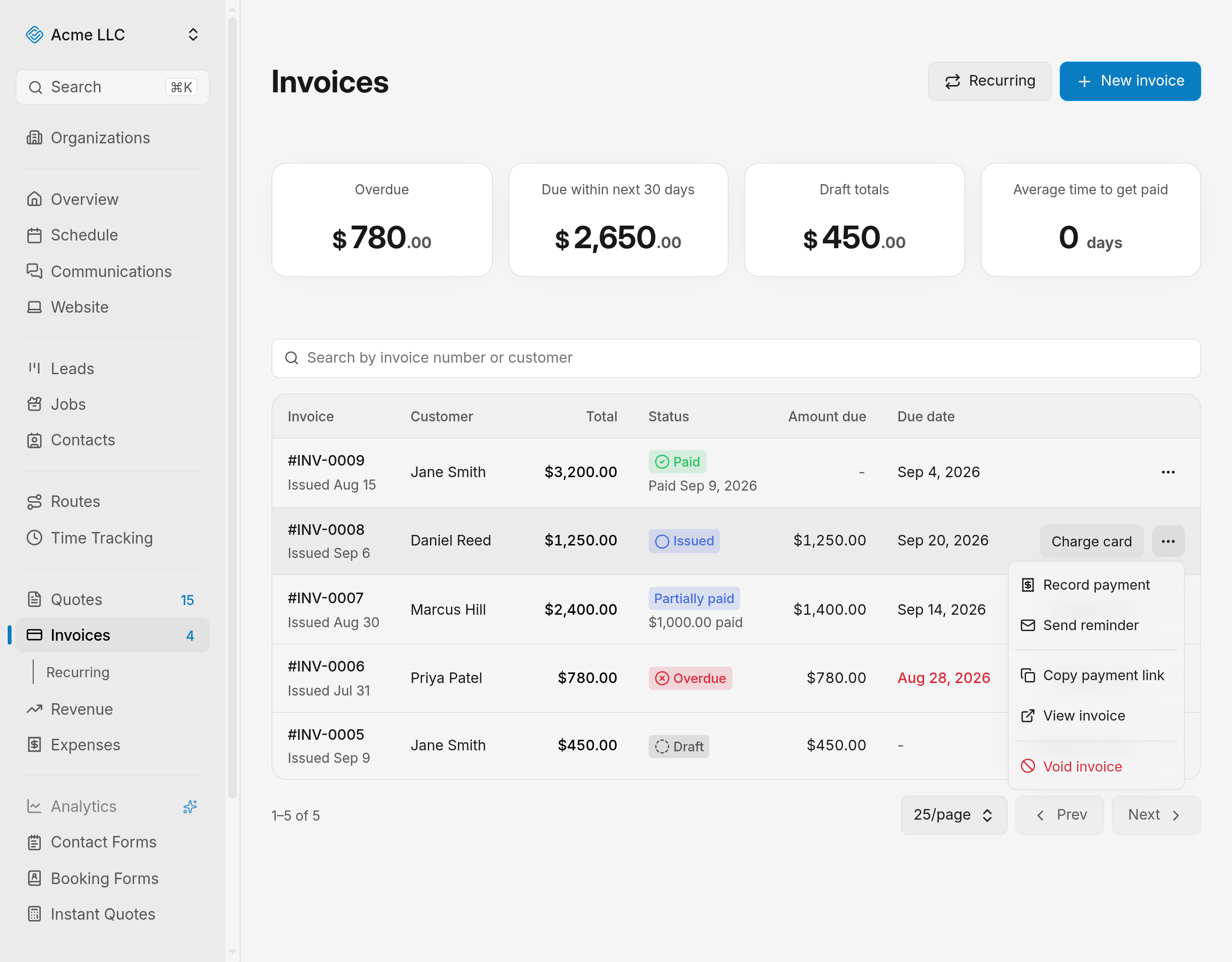
The status changes to Voided and the invoice stays in your list.
Warning
Voiding cancels any card charge in progress on that invoice.
Delete a draft or a voided invoice
Delete when the invoice was never meant to exist. Deleting is permanent.
- Open the Invoices page.
- Find the invoice. Its status reads Draft or Voided.
- Open the invoice's Invoice actions menu.
- Choose Delete.
- Confirm the deletion.
The invoice leaves the list.
Void or delete from the invoice's own page
Open an invoice from the list, covered in manage invoices, to act on it while you are looking at its contents. The menu is the same Invoice actions menu, at the top of the editor.
- Open the invoice.
- Open the Invoice actions menu.
- Choose Void or Delete.
- Confirm the action.
- Void here also works on a Draft invoice, which the list menu does not offer.
- Delete on an invoice that is neither Draft nor Voided is refused. Void it first, then delete.
After a delete you land back on the Invoices page.
What you can void and what you can delete
- Void: an invoice with the Issued or Overdue status, a Partially paid one whose payments are all refunded, and a Draft from the invoice's own page.
- Delete: an invoice with the Draft or Voided status.
- Paid: cannot be voided. Use refund a payment instead.
- Payments already recorded: refund card payments before voiding. A manually recorded payment cannot be refunded, so that invoice cannot be voided.
- Permissions: both actions need full access to invoices. With edit access, Void shows on the invoice's own page but is refused.
What a voided invoice can no longer do
A void is final for that invoice. Nothing brings it back to a billable state.
- It cannot be sent to the customer again.
- It cannot take a payment, manual or card.
- Its public payment link stops accepting payment.
- Its invoice number stays used. A replacement invoice gets the next number.
Note
To bill the same work again, create a new invoice.
Related Guides
- Create an Invoice Add a customer, dates and line items, then save the invoice as a draft to send later.
- Send an Invoice to a Customer Email an invoice with its payment link, and re-send an updated copy after an edit.
- Collect a Card Payment Charge a customer's card yourself, or share the payment link and let the customer pay it.
Still Need Help?
If an article did not cover it, send us a message and a real person will get back to you.