Manage Recurring Invoices
Pause, resume, edit, or cancel a billing schedule, and clear a failed charge.
A recurring invoice schedule bills one customer on a repeat you set once, and Recurring Invoices lists every schedule with its customer, frequency, next invoice date, status, and automation setting. Click a row to open that schedule. Building a new one is covered in set up recurring invoices.
Pause a schedule
Pausing stops new invoices until you resume. Invoices already generated stay as they are.
- Open Recurring Invoices.
- Find the row for the schedule.
- Click the Pause icon button in the row.
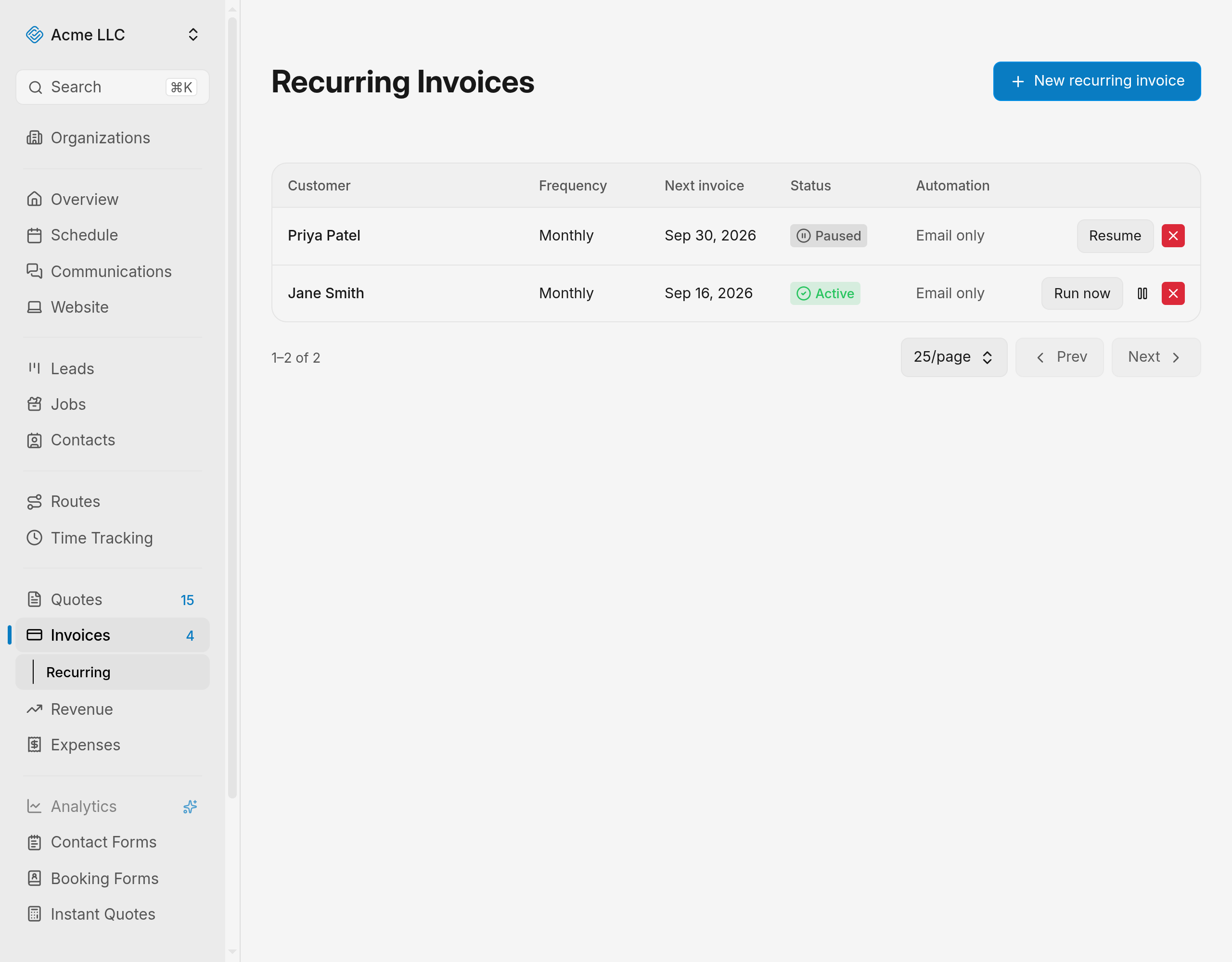
The status changes to Paused, and the schedule generates nothing while it stays there, even once the next invoice date passes.
Tip
Pause from the schedule itself with Schedule actions > Pause.
Resume a schedule
Resuming puts a Paused or Completed schedule back on its repeat.
- Find the schedule's row on Recurring Invoices.
- Click Resume.
The status changes to Active and any charge error recorded on the schedule clears.
Note
Resuming leaves the next invoice date where it was. A date already in the past generates on the next run.
Generate an invoice ahead of schedule
Use this when the customer needs an invoice today instead of on the next scheduled date.
- Find the Active schedule's row.
- Click Run now.
- Confirm with Generate now.
A draft invoice dated today appears on Invoices, due after the schedule's Due in (days) value. Send it from the invoices list, as described in manage invoices.
- The next invoice date does not move, so the regular repeat continues unchanged.
- The extra invoice counts toward an Ends setting of After a number of invoices.
- A schedule with no line items cannot generate one. Add items first.
Edit a schedule
Edits apply to invoices generated from now on, and leave invoices already generated alone.
- Open the schedule from Recurring Invoices.
- Change the fields under When, the Automation toggles, the line items, or the notes.
- Click Save changes.
- Save changes stays disabled until the schedule has a customer, a Start date, and one line item.
- Turning on Auto-charge a saved payment method needs a card on file. Add one with Save payment method for the customer, which opens Stripe checkout.
- Changing Start date moves the next invoice date only before the first invoice generates.
The summary line under When shows the new repeat, start date, and end condition.
Note
Leaving the schedule with unsaved changes asks you to confirm before discarding them.
Cancel a schedule
Canceling stops new invoices for good. Invoices already generated are unaffected.
- Find the schedule's row.
- Click the Cancel icon button in the row's actions.
- Confirm with Cancel recurring.
The status changes to Canceled, the row's other actions disappear, and the schedule opens read-only.
- Canceling needs full access to invoices. Edit access shows the run, pause, and resume actions only.
Warning
A canceled schedule cannot be resumed. Build a new schedule to bill that customer again.
Fix a failed charge
The Automation column reads Auto-charge, Email only, or Manual, and shows an alert icon when the last run hit an error. The schedule page prints the message next to its status.
- Open the schedule to read the error.
- Update the customer's saved payment method, or turn off Auto-charge a saved payment method.
- Pause the schedule.
- Click Resume to clear the error and the attempt count.
A failed charge retries on later runs, up to three attempts for that invoice. After the third failure the invoice is emailed to the customer instead of charged. To take the money another way, see collect a payment.
What each status means
- Active: the schedule generates an invoice each time the next invoice date arrives.
- Paused: nothing generates until you resume.
- Completed: the schedule reached its end date or its invoice count.
- Canceled: the schedule is finished and read-only.
Related Guides
- Refund a Payment on an Invoice Return a card payment to your customer in full or in part, and watch the invoice status follow.
- Set Up a Recurring Invoice Bill a customer on a repeating schedule, emailed or charged to a saved card.
- Void or Delete an Invoice Cancel an invoice the customer already has, or remove a draft that never left your account.
Still Need Help?
If an article did not cover it, send us a message and a real person will get back to you.