Set Up a Recurring Invoice
Bill a customer on a repeating schedule, emailed or charged to a saved card.
A recurring invoice bills the same line items on a cadence you set, so a monthly retainer or a service contract goes out without you rebuilding the invoice each cycle. Schedules live under Recurring, which opens from the invoices page. Each invoice the schedule creates behaves like one you create by hand.
Start a schedule
Every schedule bills one contact and carries its own line items.
- Open Recurring.
- Click New recurring invoice.
- The editor needs edit permission for invoices.
- Under Bill to, pick the contact to bill.
- Fill in each line: Description, Qty, and Unit price.
The header shows Subtotal per invoice, the amount of every invoice this schedule creates.
Note
Every line needs a description and a quantity above zero, and a schedule holds up to 200 lines.
Set how often it repeats
The cadence sets the date of each invoice, and the start date sets the first one.
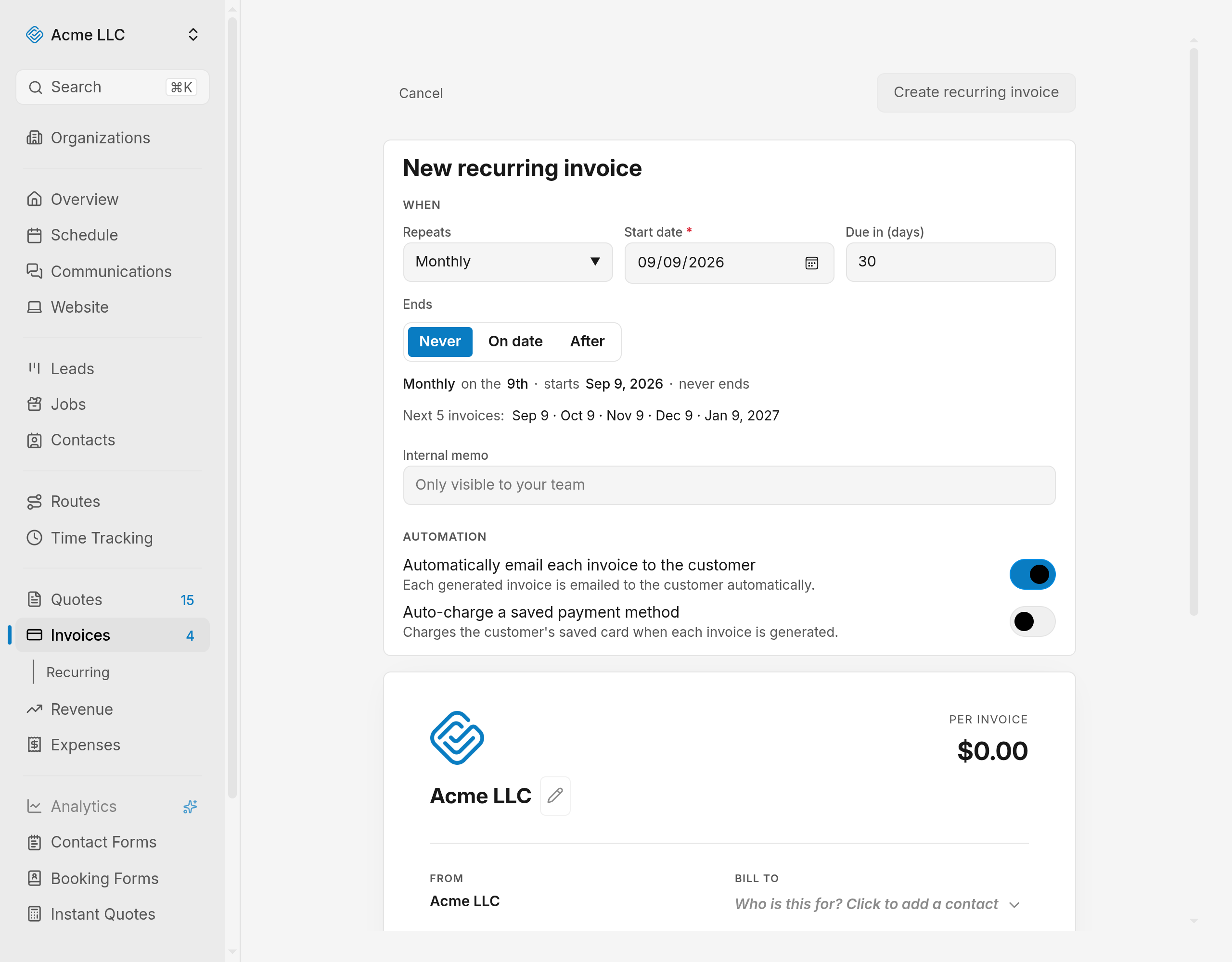
- Choose Repeats: Daily, Weekly, Every 2 weeks, Monthly, Yearly, or
Custom….
- With Custom…, set Every to a number and a unit, for example every 3 months.
- Pick a Start date, which defaults to today. The first invoice is issued on that date.
- Set Due in (days), the number of days after issue that each invoice is due. It starts at 30.
- Choose Ends: Never, On date, or After a number of invoices.
A summary line spells the schedule out in words, and Next 5 invoices lists the first five dates.
Note
Monthly and yearly schedules land on the same day of the month as the start date. A month without that day uses its last day.
Choose the automation
The two toggles decide whether each invoice reaches the customer and whether it is charged automatically.
- Leave Automatically email each invoice to the customer on to email every invoice the
schedule creates. It is on by default.
- Emails go out only to contacts with an email address, and only once your organization has a billing email saved.
- Turn on Auto-charge a saved payment method to charge the card as each invoice is generated. It is off by default.
- Click Save payment method for Jane, which carries the contact's first name.
- The button appears only after you pick a customer.
- Save the card on the Stripe page that opens. It returns to the editor when you finish.
Saving a schedule with auto-charge on fails until that contact has a card on file.
Warning
Auto-charge collects the full invoice amount from the saved card every cycle without asking the customer again.
Fill in the invoice content
Notes and Terms at the bottom of the editor apply to every invoice the schedule creates.
- Write the Notes the customer reads on each invoice.
- Write the Terms below them.
- Leave either empty to use the default from your invoice settings.
- Add an Internal memo for anything only your team needs.
Save the schedule
The save button stays dim until the schedule has a contact, one complete line, and a start date.
- Click Create recurring invoice.
The schedule page opens with the status Active.
Tip
Leaving the editor with unsaved changes asks you to discard them first.
What happens on the first run
Active schedules are picked up every hour. On the scheduled date:
- The invoice is issued. It is dated that day and due after your Due in (days) count.
- The customer gets it. With auto-email on, the invoice goes out with a link to pay it online, and by text to contacts with a mobile number who have not opted out.
- Auto-charge runs first. A successful charge pays the invoice and no email is sent.
- A failed charge is retried. The schedule tries up to three times and holds the email until the last attempt, then emails the invoice anyway and shows the error on the schedule page.
- The schedule moves on. It advances to the next date, and turns Completed once it hits the After count or its end date.
Pause it, resume it, generate an extra invoice, or stop it from the Schedule actions menu on the schedule page. See manage recurring invoices.
Related Guides
- Void or Delete an Invoice Cancel an invoice the customer already has, or remove a draft that never left your account.
- Create an Invoice Add a customer, dates and line items, then save the invoice as a draft to send later.
- Send an Invoice to a Customer Email an invoice with its payment link, and re-send an updated copy after an edit.
Still Need Help?
If an article did not cover it, send us a message and a real person will get back to you.