Find and Manage Invoices
Search the invoices list, read what each invoice shows, and act on an invoice.
The Invoices page lists every invoice for your organization, highest number first. Each invoice in the list carries its status and the button for whatever that invoice needs next. The header also holds New invoice to create one and Recurring for recurring invoices.
Find an invoice
The search box above the list matches an invoice number or the customer an invoice belongs to.
- Type a number to match that invoice number.
- Type a name, email, phone, or company name to match every invoice for the customers it finds.
- Clear the box to see every invoice again.
Next to the search box, the status filter narrows the list to All, Unpaid, Overdue, Drafts, or Paid. The filter is also what the stat cards link to.
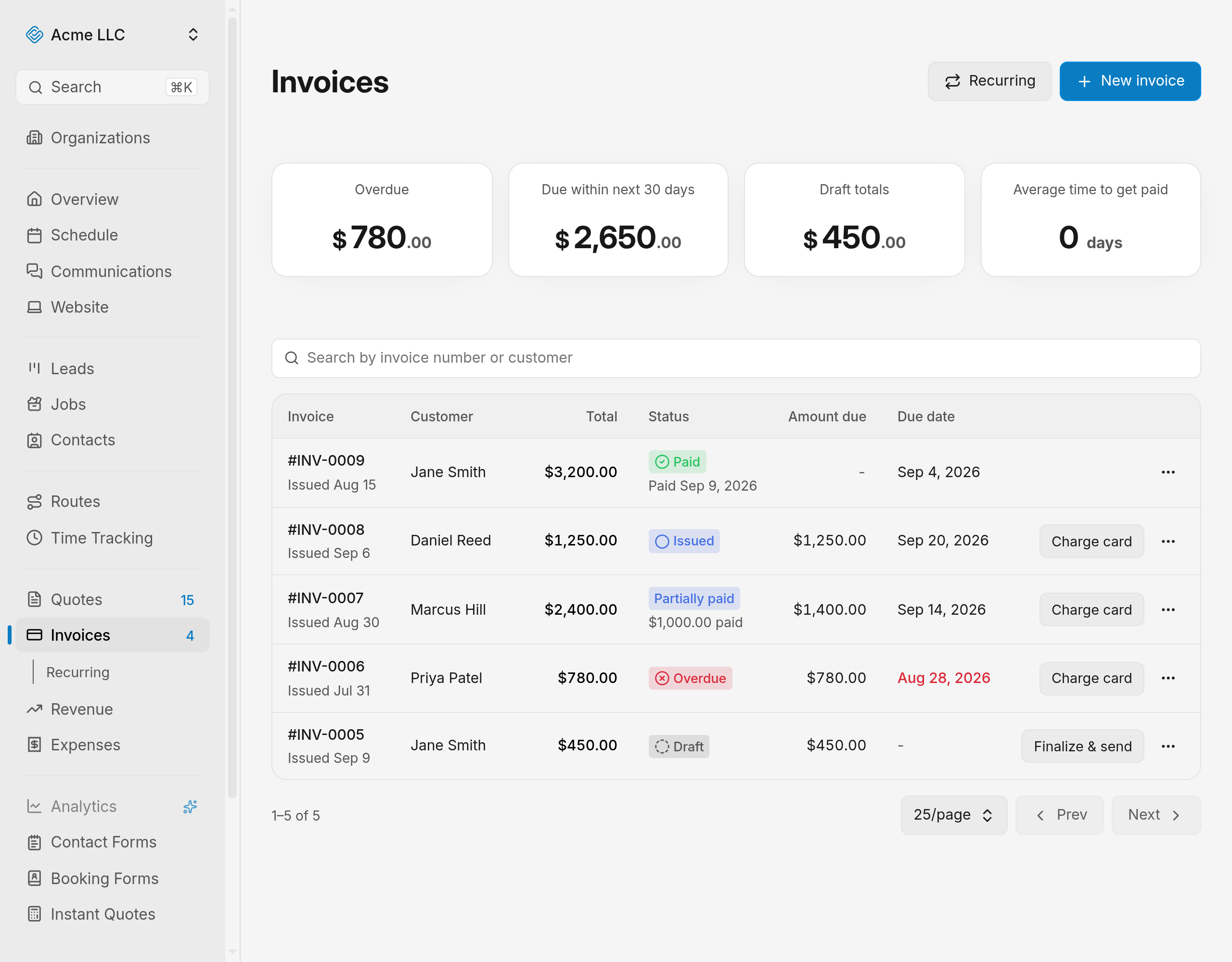
The list shows 25 invoices per page, and the per-page control below the list also offers 50 and 100.
A contact's page links here filtered to that contact. The search box, the status filter, and the totals are hidden on a filtered list, and Clear filter returns the full list.
Tip
Select an invoice in the list to open it.
Act on an invoice from the list
Each invoice in the list ends with one button for its next step, plus the Invoice actions menu.
- Select Send invoice on a draft to finalize it and email it to the customer. Sending is held for about 8 seconds so you can stop it: the row shows Sending and an Undo send button until the hold ends. Closing the notice sends it right away, and leaving the page during the hold sends it immediately, after the browser asks you to confirm. See send an invoice.
- Select Charge card on an issued, partially paid, or overdue invoice, then take payment in the window that opens. See collect a payment.
- Open the Invoice actions menu for anything else.
The invoice's status and amount due update in place once the action finishes.
Note
No button on an invoice means your access does not include editing invoices.
Act on several invoices
Each row has a checkbox, and the checkbox in the header selects every invoice on the page. A bar at the bottom of the screen shows how many are selected, with Select page (when not every row is selected) and Clear. Selection clears when the page, filter, or search changes, so you only act on invoices you can see.
The bar offers the actions that apply to the selection:
- Send invoices: finalizes and emails the drafts, with the same 8-second Undo send hold.
- Charge cards: charges each selected invoice in full to the card its customer saved, after a confirmation. Invoices whose customer has no saved card are skipped and listed afterwards. See collect a payment.
- Send reminders: emails the selected invoices again, with the same undo hold.
- A menu holding Mark paid, Refund, Void, and Delete. Mark paid is covered in record a manual payment.
When only some selected invoices qualify for an action, the button shows how many do, such as Charge cards (2). Invoices that fail stay selected, and the bar reports them.
What the actions menu holds
Which entries appear depends on the invoice's status and your access.
- Record payment: opens a dialog to record money received outside Stripe on an issued, partially paid, or overdue invoice. The amount starts at the amount due and cannot exceed it. See record a manual payment.
- Send reminder: emails the invoice to the customer again, with the same undo hold as sending. See send a payment reminder.
- Copy payment link: copies the link to the customer's payment page. It stays unavailable until the invoice has a link.
- View invoice: opens the customer's copy in a new tab.
- Refund: appears on a paid invoice that still has refundable money. It opens a dialog that shows what was paid, what was already refunded, and what can still be refunded. See refund a payment.
- Void invoice and Delete: void an issued or overdue invoice, or a partially paid one whose payments are all refunded. Delete a draft or voided one. See void or delete an invoice.
What the page shows
Five stat cards sit above the list, each covering the whole organization rather than the page of results in front of you.
- Outstanding: the amount still owed. Selecting it shows the unpaid invoices.
- Overdue: the amount owed on overdue invoices. Selecting it shows the overdue invoices.
- Due in 30 days: the amount owed on invoices due in the next 30 days.
- Drafts: the amount sitting in drafts. Selecting it shows the drafts.
- Time to get paid: the average number of days to get paid over the last 90 days, with a trend against the 90 days before.
Each invoice in the list shows:
- Invoice: the invoice number and the date it was issued. Drafts show Created instead of Issued.
- Customer: the contact's name, linked to their page. Hidden on a filtered list.
- Amount due: what is still owed, or a dash when nothing is.
- Total: the invoice total.
- Status: the status badge. A paid invoice also shows the date it was paid, and a partially paid one shows how much has been paid.
- Due: the due date. On an unpaid invoice it also shows how many days remain until it is due, or how many days late it is.
What each status means
Labels come from the status badge on each invoice.
- Draft: not finalized yet, so the customer has no copy.
- Issued: finalized and awaiting payment.
- Partially paid: some payment is recorded and a balance remains.
- Paid: paid in full.
- Overdue: still owed and past its due date.
- Voided: canceled, along with any pending payment link. A paid invoice cannot be voided.
- Refunded: money returned to the customer through Stripe.
- Sending: shown while an email waits in its undo hold.
What each action needs
- Edit access to Invoices: Send invoice, Send invoices, Charge card, Charge cards, and Send reminder.
- Full access to Invoices: Record payment, Mark paid, Refund, Void invoice, and Delete.
- A verified email on your account: Send invoice and Send reminder.
- A reply-to email on the business: anything that emails the customer. Until one is set, a warning above the list offers Set reply-to email, which opens business settings.
- A connected Stripe account: the page sends you to Stripe setup until one is connected.
- Room in your plan's monthly invoice count: at the cap, a banner offers Upgrade to billing settings.
Related Guides
- Invoice Settings Set tax, invoice numbering, defaults for new documents, and the reply-to address.
- Manage Recurring Invoices Pause, resume, edit, or cancel a billing schedule, and clear a failed charge.
- Refund a Payment on an Invoice Return a card payment to your customer in full or in part, and watch the invoice status follow.
Still Need Help?
If an article did not cover it, send us a message and a real person will get back to you.