Invoice Settings
Set tax, invoice numbering, defaults for new documents, and the reply-to address.
Invoice settings decide how every new invoice is numbered, when it falls due, what copy it starts with, and whether it carries tax. Tax, numbering, and document defaults sit on Tax & Invoicing. The address customers reply to sits on Business Profile. The Stripe account that takes payments sits on Online Payments.
Turn on tax calculation
With tax off, invoices carry no tax at all.
- Open Tax & Invoicing.
- Turn on Calculate tax on invoices via Stripe Tax.
- Fill in Street, Unit / suite, City, State / region, Postal code, and Country, which appear once tax is on. Country takes a two-letter code, for example US.
- Pick a Default tax behavior. Exclusive adds tax to the line total, inclusive keeps tax inside it.
- Type a Default tax code, or leave it blank for Stripe's general services code.
- Register for tax in each jurisdiction from your Stripe dashboard.
- Click Save changes.
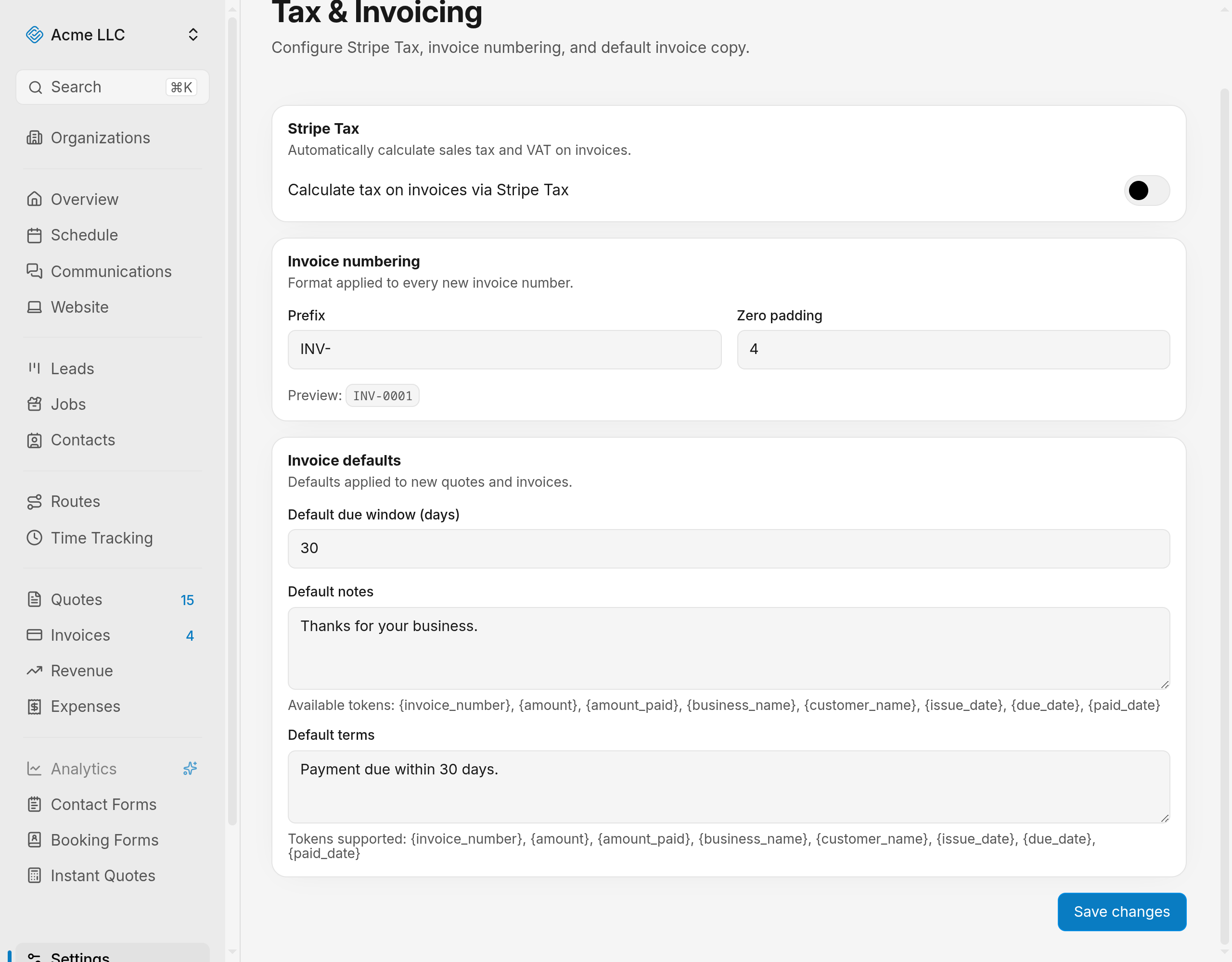
Each new invoice now gets its own tax calculation, and its tax lines print on the invoice.
Note
The address you enter is used as the ship-from location for tax.
Set the invoice number format
The prefix and padding apply to every new invoice number.
- Type a Prefix, for example INV-.
- Set Zero padding to a number from 0 to 10.
- Read the preview under the two fields.
- Click Save changes.
The preview shows the format your next invoice number takes: a prefix of INV- with a padding of 3 gives INV-001.
Set defaults for new invoices and quotes
These values fill in each new invoice and quote before you edit it.
- Set Default due window (days) to a number from 0 to 365. The field starts at 30.
- Type the Default notes new documents start with.
- Type the Default terms new documents start with, for example Net 30.
- Click Save changes.
Open create an invoice and the due date, notes, and terms are already filled in.
Note
Leaving Default notes blank gives new invoices a built-in note naming the invoice number, amount, business name, and payment date.
Set the reply-to email
Customer replies to invoice and quote emails go to this address.
- Open Business Profile.
- Type your address in Business email, in the Contact card.
- Click Save changes.
The warning about disabled customer emails leaves Invoices.
Warning
Until this address is set, sending an invoice fails.
Connect a payment account
A connected Stripe account is what lets you create invoices and take money for them.
- Open Online Payments.
- Click Connect Stripe.
- Setup already started: click Resume setup instead.
- Email not confirmed yet: verify your email first.
- No button: only members with full settings access can connect, so ask an admin.
- Finish the onboarding steps on Stripe.
The Payment Account card shows Connected and an Open Stripe dashboard button, and you can collect a payment.
Tokens for notes and terms
Default notes and Default terms accept tokens that the finished document fills in.
- Invoice_number: the invoice number, with your prefix and padding applied
- Amount: the invoice amount
- Amount_paid: the amount paid so far
- Business_name: your organization name
- Customer_name: the contact's name
- Issue_date: the date the invoice was issued
- Due_date: the date payment is due
- Paid_date: the date the invoice was paid
Who can change these settings
- Edit permission for settings: required to save either page.
- Without it: the Save changes button does not appear.
Related Guides
- Manage Recurring Invoices Pause, resume, edit, or cancel a billing schedule, and clear a failed charge.
- Refund a Payment on an Invoice Return a card payment to your customer in full or in part, and watch the invoice status follow.
- Set Up a Recurring Invoice Bill a customer on a repeating schedule, emailed or charged to a saved card.
Still Need Help?
If an article did not cover it, send us a message and a real person will get back to you.