Collect a Card Payment
Charge a customer's card yourself, or share the payment link and let the customer pay it.
A finalized invoice can be paid two ways: you charge a card from the dashboard, or your customer pays on the invoice's own payment page. Both run through Stripe, and both land on the same invoice, so the balance drops either way.
Charge the card on file
Charge card sits on any invoice with a status of Issued, Partially paid, or Overdue.
- Open Invoices.
- Click Charge card on the invoice in the list to open the Take payment dialog.
- Leave Amount at the balance due, or type a smaller amount for a part payment.
- Click Charge saved card. Its label carries the amount you set, such as Charge saved card $450.00.
- A card that needs verification cannot be charged in the background. The dialog switches to the card form so the customer can confirm it.
- No card on file: only Enter card details appears.
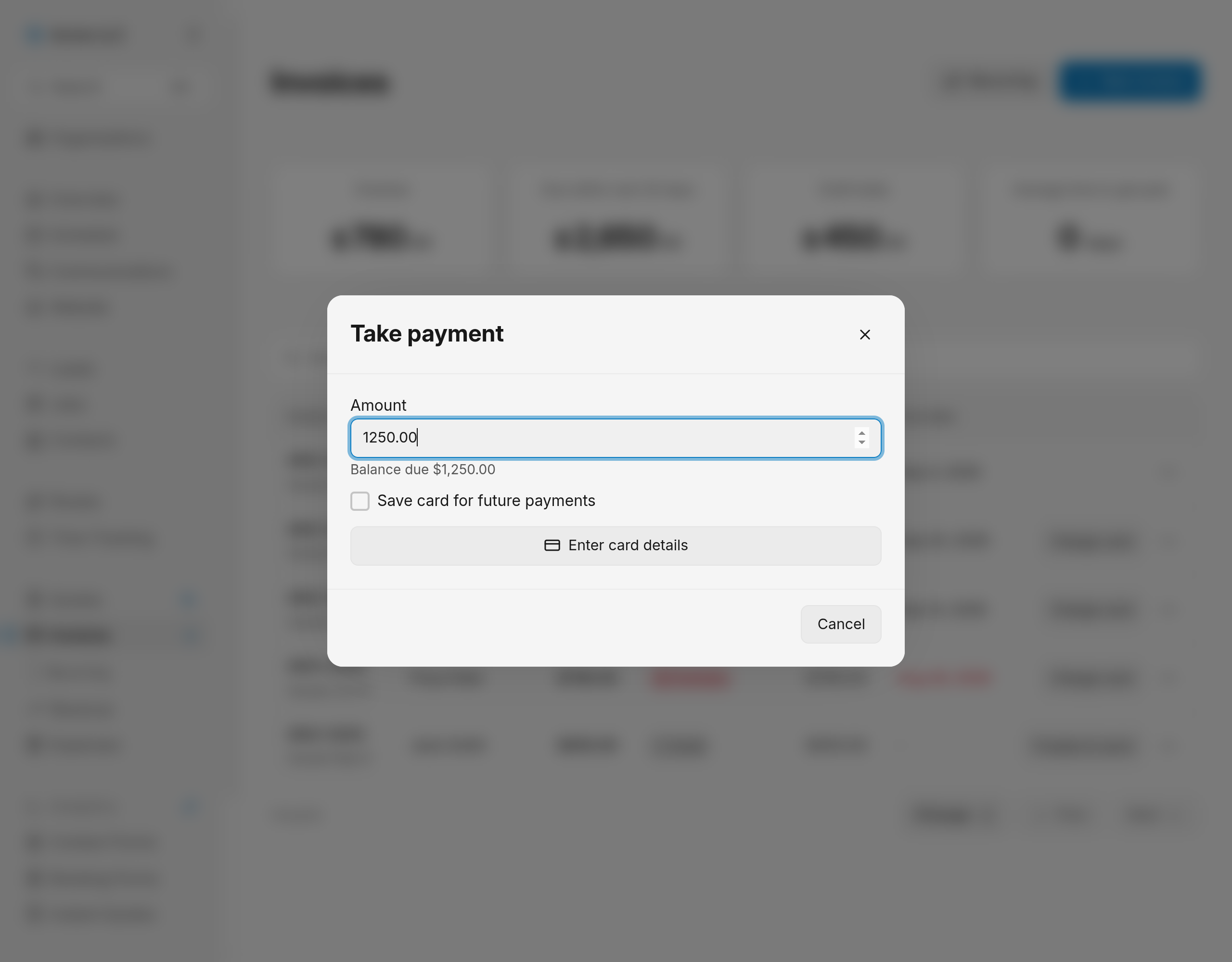
The dialog closes and the invoice shows the new balance once the payment settles.
Warning
The charge takes the money at once. Undo it with a refund.
Charge several cards at once
Select invoices on the Invoices page with their checkboxes, then click Charge cards in the bar at the bottom. After a confirmation, each selected invoice is charged in full to the card its customer saved. An invoice whose customer has no saved card is skipped, and the bar lists the skipped invoices afterwards. The button shows how many selected invoices qualify when only some do, such as Charge cards (2). See manage invoices for the rest of the bar.
Enter card details
Use this for a card the customer reads out to you, and for any card that is not on file.
- Tick Save card for future payments in the Take payment dialog to keep the card for later charges.
- Click Enter card details.
- Fill in the secure card form.
- Click Pay, which carries the amount you set.
The dialog closes and the invoice balance updates.
Tip
Click Change amount to return to the amount field without losing the dialog.
The invoice page carries the same Charge card button and the same dialog.
Share the payment link
Send the link when the customer pays on their own time, or when they want to pay by a card you never see.
- Open the invoice's Invoice actions menu.
- Click Copy payment link.
- Paste the link into an email or a message.
The link is on your clipboard. It is unavailable until the invoice has a payment link, and the page opens only for someone holding that link. Emailing the invoice from JobWise Pro is covered in send an invoice; the rest of the menu is in manage invoices.
What your customer sees
The page opens with your business name and logo, the line items, and the amount due.
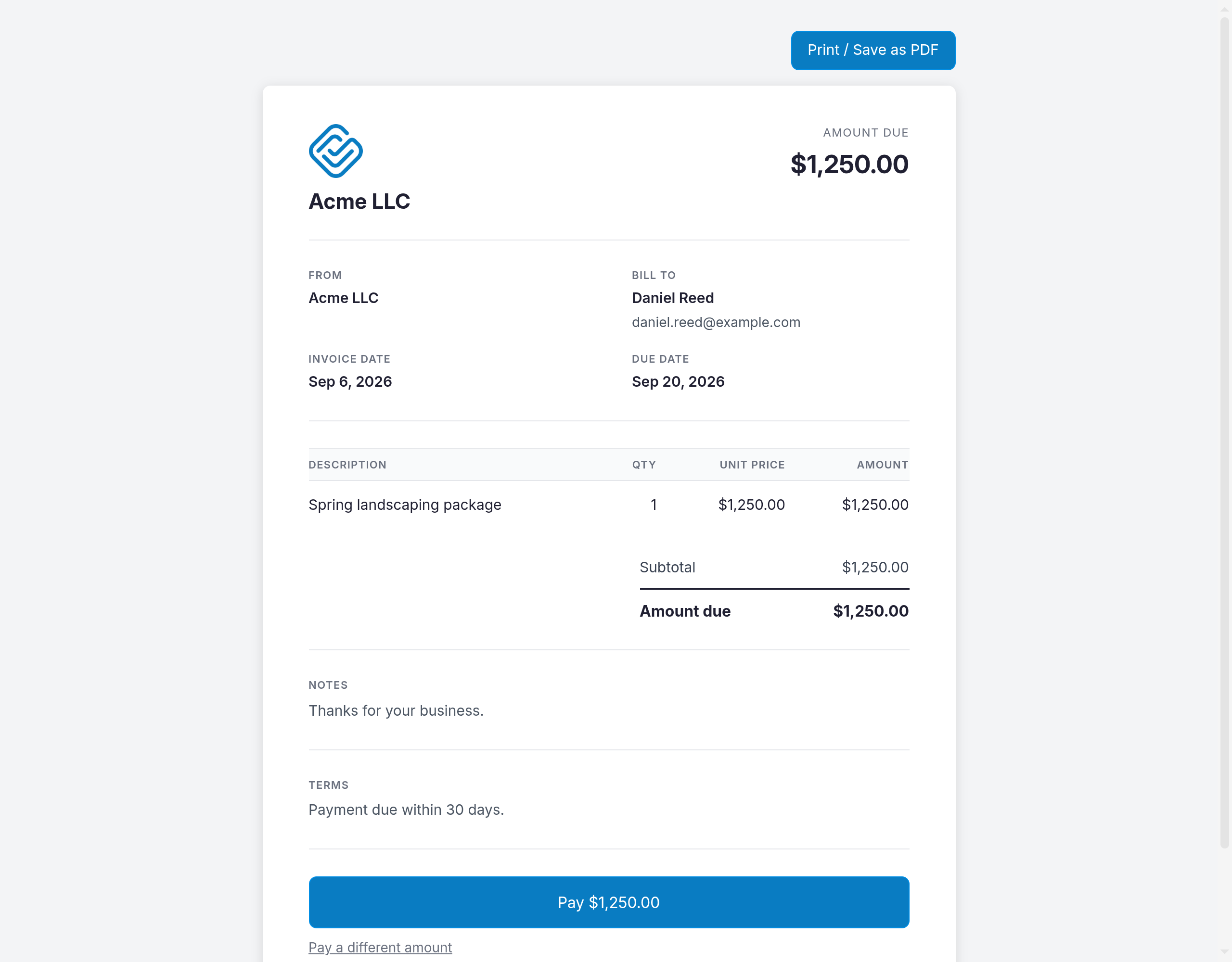
- The pay button carries the amount due, as in Pay $1,250.00 with saved card, and charges the card on file for the whole balance.
- Use a different card opens Stripe's secure payment page.
- Pay a different amount opens an amount field. Part payments go to Stripe's secure page rather than the card on file.
- Save card for future payments replaces the card on file.
- An expired card on file is shown with its expiry, and the page offers a new card instead.
- A declined card keeps the customer on the page to pay with a different one.
- Paying again while an earlier payment is still processing opens the payment confirmation instead of charging a second time.
- Earlier payments are listed with their date, amount, and card.
After paying, the page confirms the payment. A paid invoice shows Paid with the date on later visits.
Note
Editing the invoice while the customer is on the page reloads it, so they pay the current total.
When a card cannot be charged
- Draft invoice: finalize it first, as described in send an invoice.
- Voided invoice: no payment is accepted.
- Paid invoice: the balance is zero, so the charge is refused.
- Amount above the balance due: the charge is refused.
- Stripe not connected: connect Stripe before charging a card.
- Money taken outside Stripe: use record a manual payment instead.
Related Guides
- Record a Manual Payment Log cash, a check, or a bank transfer so the invoice balance and status stay right.
- Send a Payment Reminder Re-send an unpaid invoice with a live payment link, from the list or the invoice.
- Find and Manage Invoices Search the invoices list, read what each invoice shows, and act on an invoice.
Still Need Help?
If an article did not cover it, send us a message and a real person will get back to you.