Create an Invoice
Add a customer, dates and line items, then save the invoice as a draft to send later.
An invoice starts in the invoice editor, one page holding the customer, the dates, the work and your terms. It stays a draft until you send it, and nothing reaches the customer before then: the payment link is minted at that point.
Pick the customer
Every invoice bills one contact, and the editor saves nothing until one is chosen.
- Open New invoice.
- Click Bill to.
- Type a name, email, company or phone to narrow the list.
- Select the contact.
- No match: click Create new customer and fill the form. The new contact is selected.
- Opened from a contact: Bill to is filled and locked.
- Opened from a job: saving attaches the invoice to that job.
The contact's email shows under Bill to.
Set the issue and due dates
The dates decide how the invoice is dated and when payment is expected.
- Click Issue date to change it from today.
- Click Due date to change the date already filled in.
Due date counts forward from today by the default due days in invoice settings.
Add the work
Each line carries a description, a quantity and a unit price.
- Click Add an item.
- Type the description. Saved items that match appear under the field.
- Select a saved item to fill the description and its price. An item listed as Price varies fills the description and leaves the price for you.
- Enter the Qty, which starts at 1.
- Enter the Unit price.
- Repeat for each line. Drop a line with the Remove item trash icon.
- Home Depot catalog connected: Add from Home Depot catalog adds a product as a line.
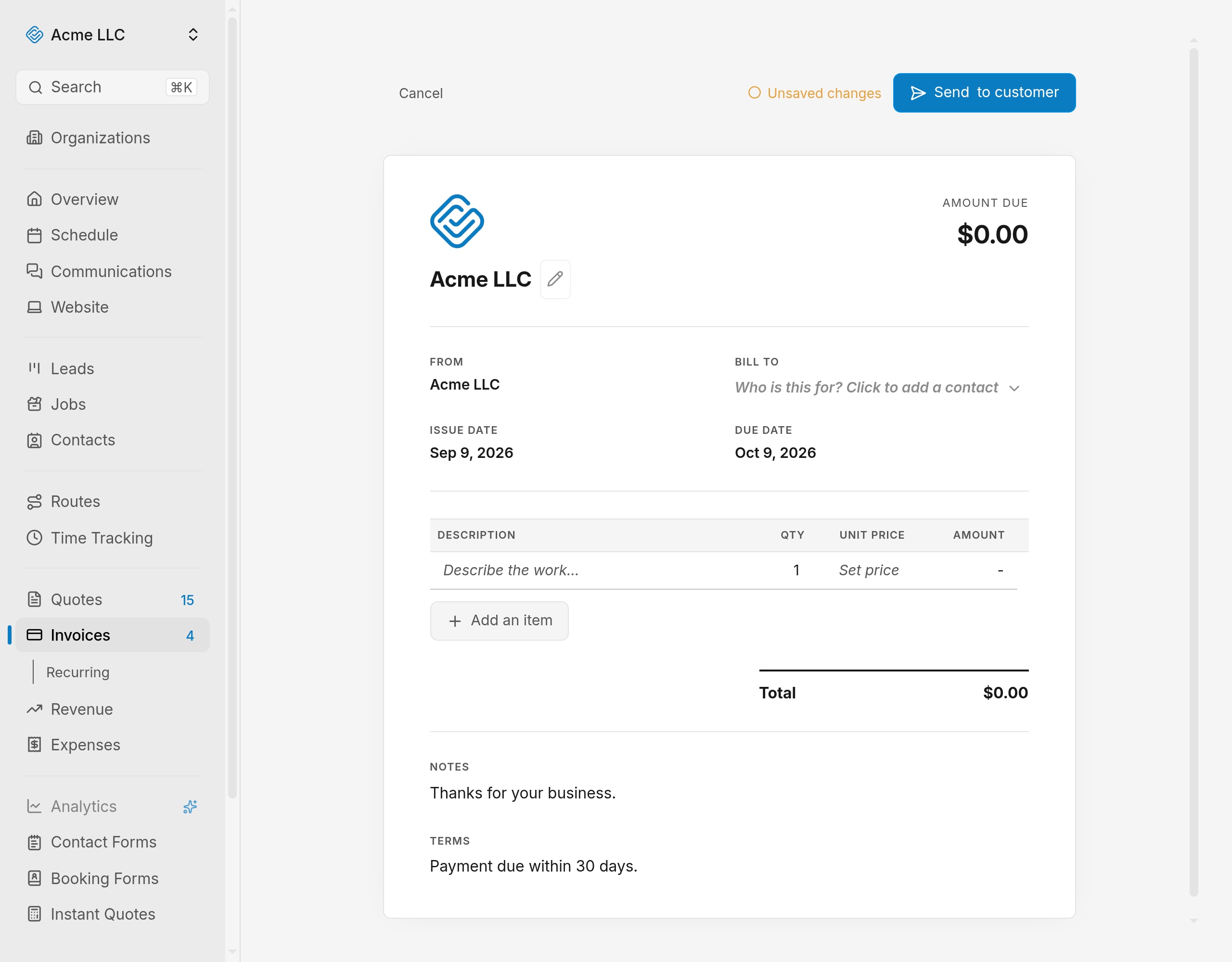
Amount shows quantity times unit price per line, and Total sits below the table.
Tip
Press Enter in a cell to drop to the next row, and a new row appears at the end.
Add notes and terms
Both blocks print on the copy the customer reads.
- Type customer-facing wording under Notes.
- Type payment terms or fine print under Terms.
Note
On a new invoice both start from your invoice defaults, and text you type is never replaced.
Check your business details
The header carries the business name and logo the customer sees.
- Click the Edit business info pencil icon beside the name.
- Open Business info or Logo & branding. Each opens in a new tab.
- Click Refresh details back in the editor.
The header shows the updated name and logo.
Save the draft
The editor saves on its own once the invoice has a customer and one described line.
- Fill Bill to and one line description.
- Stop typing. The draft saves about a second later.
- Read the status beside the buttons: Saving…, Unsaved changes or Saved.
The invoice takes the next number after your last one and appears in Invoices, covered in manage invoices.
Note
Cancel returns to the invoice list, and leaving with unsaved changes asks you to confirm discarding them.
Send it to the customer
Sending finalizes the draft and emails the customer, described in full in send an invoice.
- Price every line. Send to customer stays disabled while any line is unpriced.
- Bring the total above zero.
- Click Send to customer.
- No reply-to email set for your business: sending stops until you set one in invoice settings.
The status changes to Issued and the invoice opens on its own page.
Related Guides
- Send an Invoice to a Customer Email an invoice with its payment link, and re-send an updated copy after an edit.
- Collect a Card Payment Charge a customer's card yourself, or share the payment link and let the customer pay it.
- Record a Manual Payment Log cash, a check, or a bank transfer so the invoice balance and status stay right.
Still Need Help?
If an article did not cover it, send us a message and a real person will get back to you.