Record a Manual Payment
Log cash, a check, or a bank transfer so the invoice balance and status stay right.
Cash at the door, a check in the mail, a bank transfer: money that arrives outside the product still belongs on the invoice. Recording it drops the amount due and moves the status, with no card charged. To take a card instead, see collect a payment.
Record a payment from the invoices list
Use this when you are working through several invoices and do not need to open each one.
- Open Invoices. Search finds the invoice (manage invoices).
- Open the invoice's Invoice actions menu.
- Select Record payment.
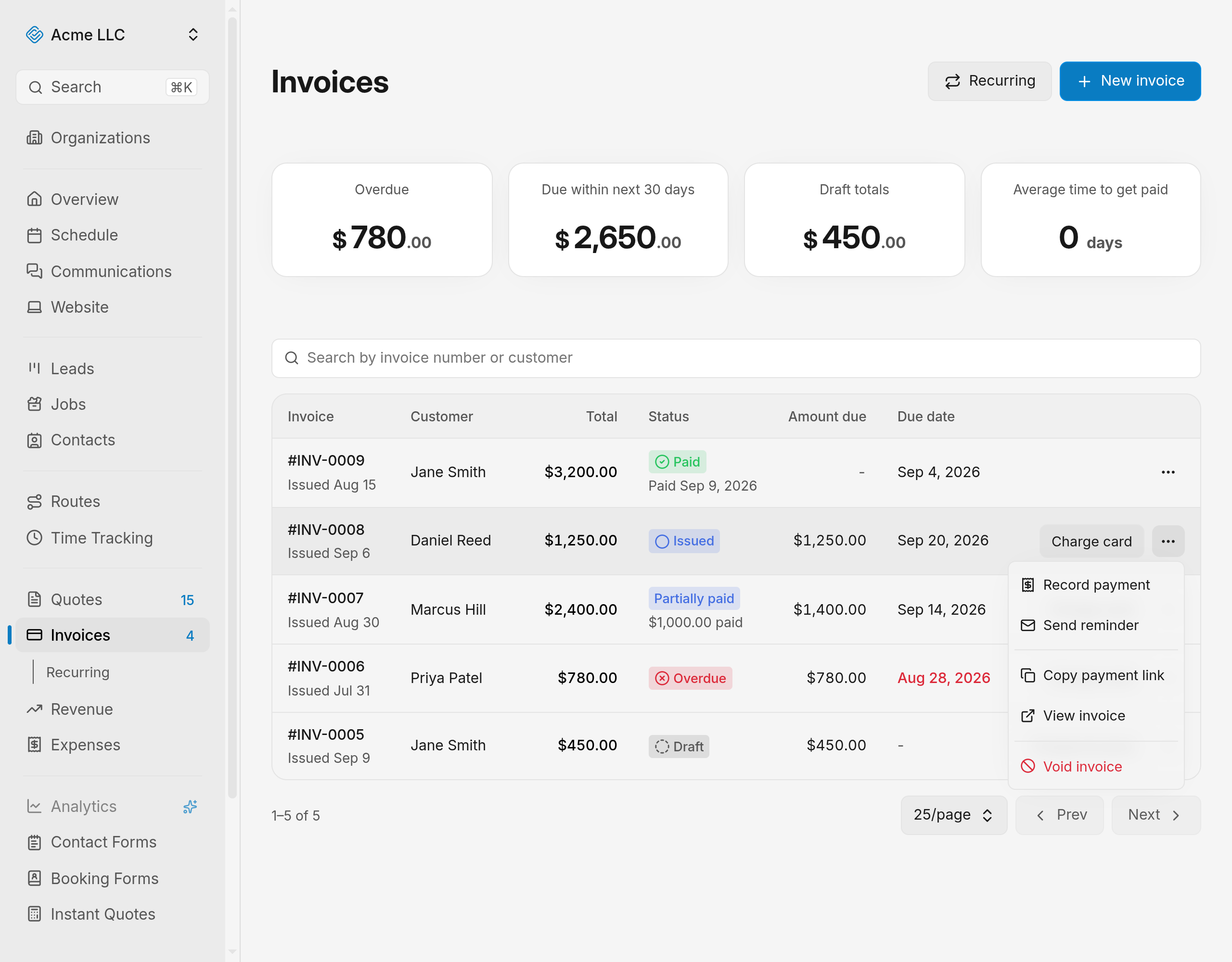
- Fill in the Record payment dialog (see the fields).
- Click the Record button at the bottom of the dialog. Its label carries the amount, such as Record $450.00.
The invoice's status becomes Partially paid, or Paid once the payment covers the balance.
Tip
The amount field starts at the full amount due, and the method starts at Cash, so a cash payment in full needs no typing beyond the date.
Record a payment from the invoice page
Use this when you are already looking at the invoice and want to check the totals first.
- Open the invoice from the invoices list.
- Open the Invoice actions menu at the top of the invoice.
- Select Record payment.
- Fill in the dialog, then click Record at the bottom.
The invoice now shows how much is paid and how much is still due.
The fields in the dialog
- Amount: starts at the balance due, which the field shows beneath it. It has to be more than zero and cannot be more than the balance due.
- Payment date: starts at today. It cannot be a date after today, so enter a past date if the money arrived earlier.
- Method: Cash (the default), Check, Bank transfer, Card (outside JobWise), or Other. Pick Card (outside JobWise) for a card payment taken outside JobWise Pro.
- Note (optional): up to 500 characters, such as a check number.
The dialog accepts one payment at a time. A customer paying in parts gets one recorded payment per part, and each one lowers the amount due.
The dialog reminds you that the customer gets a receipt by email only if the payment settles the invoice.
Mark several invoices paid at once
Use this for invoices that were paid in full outside JobWise Pro, such as a batch of checks received the same day.
- Open Invoices and tick the checkbox on each invoice. Use the header checkbox to select every invoice on the page.
- In the bar at the bottom, open the menu and select Mark paid. It shows how many selected invoices qualify, such as Mark paid (3), when only some do.
- Confirm the prompt.
Each selected invoice's full balance is recorded as paid today, outside JobWise Pro. The prompt states how many invoices it covers and the total. Each customer gets a receipt. Invoices that cannot take payment, such as drafts or voided invoices, are not included, and the bar reports any that fail.
Mark paid needs full access to invoices. The bulk bar and its menu are covered in manage invoices.
What amount to enter
- The amount has to be more than zero.
- The amount cannot be more than the balance due shown under the field.
- A customer paying in parts gets one recorded payment per part. Each one lowers the amount due.
When Record payment is available
The action appears only on an invoice that can still take money.
- Issued, Partially paid and Overdue: available.
- Draft: finalize the invoice first.
- Voided: a voided invoice cannot take a payment.
- Paid: nothing is due, so the action drops off the menu.
You need full access to invoices, the same level as refunding or voiding, because a recorded payment cannot be undone from JobWise Pro. Owners always have it. Members with view or edit access do not see Record payment.
What happens after you record
- The amount due drops by what you recorded, and the status is recalculated from the payments on the invoice.
- A payment that clears the balance stamps the invoice with a paid date.
- Clearing the balance emails the customer a payment confirmation and notifies your team. The person who recorded the payment is left out of that notification.
- A part payment sends no customer email. The confirmation goes out with the payment that finishes the invoice.
Warning
A recorded payment cannot be refunded from JobWise Pro, because refunds go back to the original card through Stripe and this money never went through Stripe. The invoice can no longer be voided once it has a payment. Return the money the way it reached you.
Related Guides
- Send a Payment Reminder Re-send an unpaid invoice with a live payment link, from the list or the invoice.
- Find and Manage Invoices Search the invoices list, read what each invoice shows, and act on an invoice.
- Invoice Settings Set tax, invoice numbering, defaults for new documents, and the reply-to address.
Still Need Help?
If an article did not cover it, send us a message and a real person will get back to you.