Send a Payment Reminder
Re-send an unpaid invoice with a live payment link, from the list or the invoice.
A reminder emails the customer their invoice again, with the same amount, due date, and payment link. The invoice itself does not change. Send one from Invoices or from the open invoice.
Send a reminder from the invoices list
Use this while working down a list of unpaid invoices.
- Open Invoices.
- Open the Invoice actions menu in the invoice's row.
- Click Send reminder.
- A draft has no reminder. Click Send invoice in the row to issue it first, covered in Send an invoice.
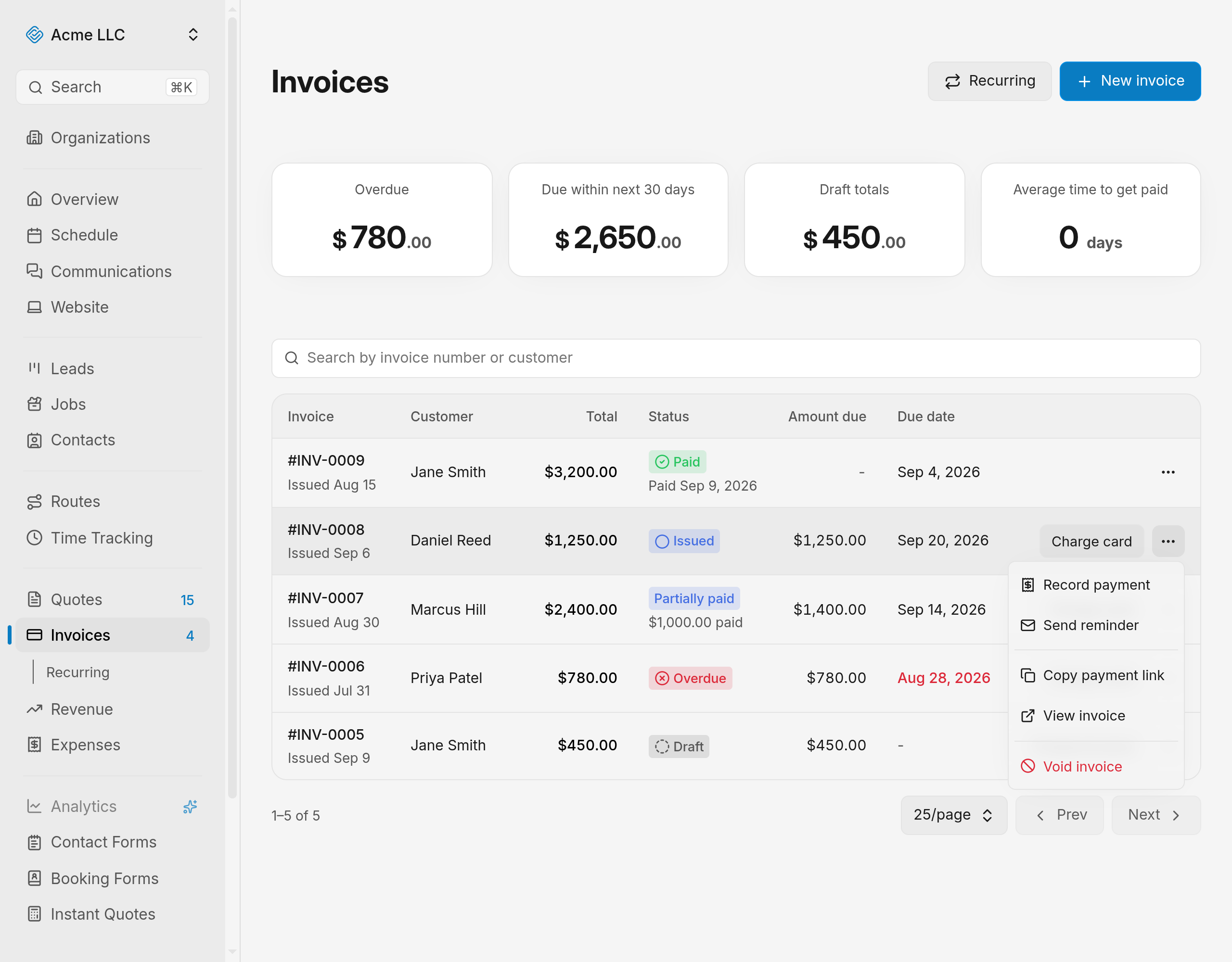
The reminder is held for about 8 seconds before it goes out. While it is held, the row shows Sending and an Undo send button. Click Undo send to cancel the reminder. A notice confirms the cancel. Closing the notice sends the reminder right away. If you leave the page during the hold, the reminder sends immediately, and your browser asks you to confirm leaving.
The invoice keeps its status, amounts, and due date.
Send reminders to several invoices at once
Use this to chase a batch of unpaid invoices in one go.
- Open Invoices.
- Tick the checkbox on each invoice row, or tick the header checkbox to select every row on the page.
- In the bar at the bottom, click Send reminders.
The bar shows how many invoices you selected. Select page selects every row on the page, and Clear empties the selection. The count in Send reminders is in brackets when only some of your selected invoices qualify, such as Send reminders (2). Only unpaid, finalized invoices qualify, so drafts and paid invoices are left out. The batch uses the same 8-second hold and Undo send as a single reminder. If a reminder fails, that invoice stays selected and the bar reports the failure.
Send a reminder from the open invoice
Use this after editing an invoice or checking which payments have landed.
- Click the invoice to open it.
- Open the Invoice actions menu at the top of the invoice.
- Click Send reminder.
From the open invoice the email goes out at once, with no undo window. The invoice stays open and the customer receives the email.
Tip
Copy payment link in the same menu gives you the same link to paste into a text or chat.
What the customer receives
The email carries your organization name in the subject, the invoice number, the amount due, the due date when the invoice has one, and a View & pay invoice button. The button opens the invoice's payment page, where the customer pays by card; see Collect a payment.
Replies go to the Business email set in business settings.
A short text message with the same payment link goes out as well when Text message notifications is on in Phone & Texting. Customers with no mobile number on file, and customers who replied STOP, get the email only. A text that fails never stops the email.
What a reminder needs
- An unpaid, finalized invoice: the status is Issued, Partially paid, or Overdue. Voided invoices cannot be sent.
- A customer email address: sending stops when the contact has none.
- A business email: sending stops until one is set.
- Your own verified email address.
- Edit access to invoices: without it the menu item is hidden.
When an invoice turns overdue
An unpaid invoice whose due date has passed moves from Issued or Partially paid to Overdue once a day. Overdue invoices stay payable and keep the Send reminder action. The Overdue total at the top of the invoices page adds up what those invoices still owe, and Manage invoices covers working through the list.
Related Guides
- Find and Manage Invoices Search the invoices list, read what each invoice shows, and act on an invoice.
- Invoice Settings Set tax, invoice numbering, defaults for new documents, and the reply-to address.
- Manage Recurring Invoices Pause, resume, edit, or cancel a billing schedule, and clear a failed charge.
Still Need Help?
If an article did not cover it, send us a message and a real person will get back to you.