Introduction to Team Chat
Know which conversation to use, who can see it, and where each chat action lives.
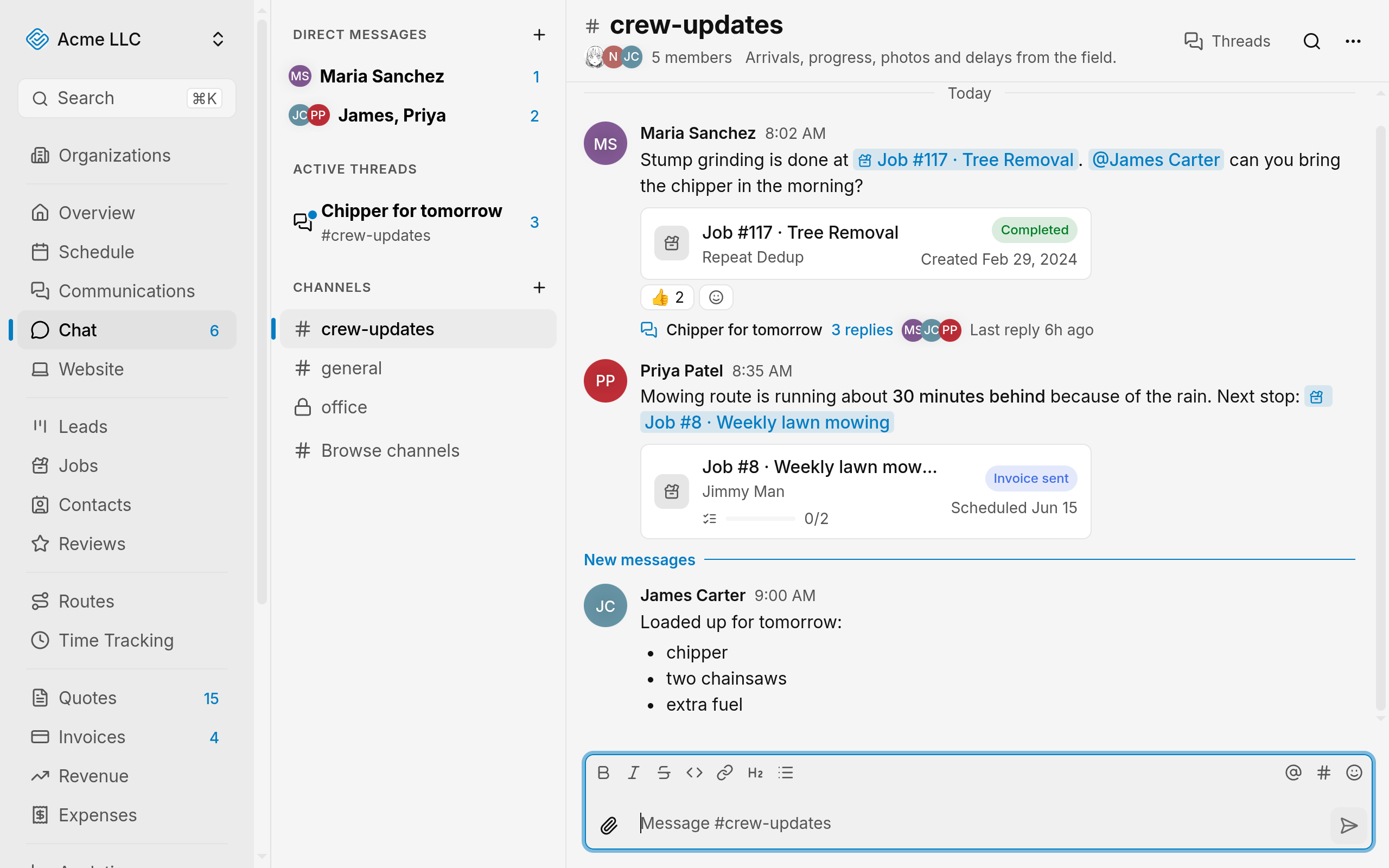
Team Chat is the messaging area of your JobWise Pro dashboard. It holds channels, direct and group messages, and threads on a message. Open it from Chat in the dashboard sidebar, then pick the conversation you need and find each action here.
Find conversations in the sidebar
The sidebar lists conversations in these sections:
- Direct messages holds your conversations with one teammate or a group. A group shows up to three photos.
- Active threads holds the threads you follow that are still open. It shows five, then View N more.
- Channels holds the channels you have joined, followed by Browse channels.
Search messages sits at the top of the sidebar. For results, see Search messages and files.
Unread conversations show their name in bold and a count of new messages. Unread mentions show an @ badge.
Muting a conversation hides its unread count and bold name. For counts and notification levels, see Chat notifications and unread.
Start with the two default channels
Every organization starts with #general and #crew-updates. #general is for announcements and conversation for the whole team, and #crew-updates is for arrivals, progress, photos and delays from the field.
Members join both when they join the organization. An organization that has ever had a channel, even a deleted one, gets no defaults.
To make a channel of your own, see Create and manage channels.
Start a direct or group message
A direct message is a conversation between you and one teammate. A group message adds more teammates to one conversation.
Start one from the plus button next to Direct messages. The button appears for people who can start direct messages.
With no direct messages, the sidebar offers Message a teammate to people who can start one. Steps are in Direct and group messages.
Reply in a thread
A thread is a set of replies under one message. In a message's menu, Open thread appears when the message already has a thread. Start thread appears when it has none and you can post.
Convert to thread appears on a reply that quotes another message in the main feed, for people who can post. It can pull the whole reply chain into a thread.
An open thread appears in a panel beside the conversation. Threads you follow appear under Active threads while they are open. Steps are in Use threads.
Who can see what
Each role sets its own Chat access, and owners always have full access to Chat. In the six default roles, Admin and Manager have full access to Chat. Office Staff, Team Lead, Sales and Tech have edit access.
A permission can be overridden for one person. For the roles themselves, see Roles and permissions.
- Channels: anyone with Chat access sees a channel when everyone can read it. Otherwise, the people and roles named in its settings see it. Owners and Admins see every channel.
- Direct and group messages: only the people in the conversation can read it. Owners and Admins get no access to one they are not in. JobWise support never reads them.
- Posting: edit access to Chat or higher. Owners and Admins can post in any unarchived channel. In other channels, the channel's settings decide who can post.
- Creating channels: full access to Chat.
- Starting direct messages: edit access to Chat or higher.
- Managing channels: renaming, changing who can read and post, and archiving. Owners and Admins manage any channel. A channel's creator manages it while they have full access to Chat.
- Moderating: anyone who can manage a channel can delete other people's messages and reopen archived threads.
Note
An archived channel stays readable for the people who can see it, but nobody can post to it.
Where each action lives
- The plus button next to Direct messages starts a direct or group message.
- The plus button next to Channels creates a channel, for people who can create channels.
- Browse channels is the last item under Channels. It reads Find a channel to join when you have joined none.
- Channel menu: Channel settings, Copy link, and Archive channel or Unarchive channel. Settings and archive appear only for people who can manage the channel. Channels you have joined also show All activity, Mentions only and Mute channel.
- Direct message menu: Notify for every message or Mute conversation.
- Thread menu: Add a title or Rename thread, Copy link, Follow thread or Unfollow thread, and Close thread or Reopen thread. The title and close options appear only for people who can manage the thread.
- Message menu: Reply, Open thread or Start thread, Edit, Pin message or Unpin message, Copy text, Copy link, Convert to thread, and Delete. Steps for these are in Send and edit messages.
- Formatting toolbar: Bold, Italic, Strikethrough, Code, Link, Heading and Bulleted list. For @ mentions, see Mention people.
Related Guides
- Create and Manage Channels Set who can read and post in a channel, keep its settings current, pin messages, and archive it when the work ends.
- Send and Edit Messages Post formatted messages, files, and replies, then edit or delete what you posted.
- Mention People and Records in a Message Notify a teammate, a role or the whole channel, and link a job, quote, invoice, contact, lead or task in a message.
Still Need Help?
If an article did not cover it, send us a message and a real person will get back to you.