Mention People and Records in a Message
Notify a teammate, a role or the whole channel, and link a job, quote, invoice, contact, lead or task in a message.
Mention a teammate, a role or the whole channel to notify them, and link a job, quote, invoice,
contact, lead or task in a team chat message. Type @ for
people, roles and @channel, and # for records, in the message box.
Mention a teammate
Use a teammate mention to notify one person. They are notified after you send the message.
- In the message box, type
@.- An
@typed inside a word, such as in an email address, does not open the list. - Your own name is not in the list.
- An
- Type part of the teammate's name, up to three words.
- A teammate who can't see the conversation is listed after the others, marked Can't see this conversation, and is not notified.
- Press Enter or Tab to pick the highlighted row, or click the teammate's row.
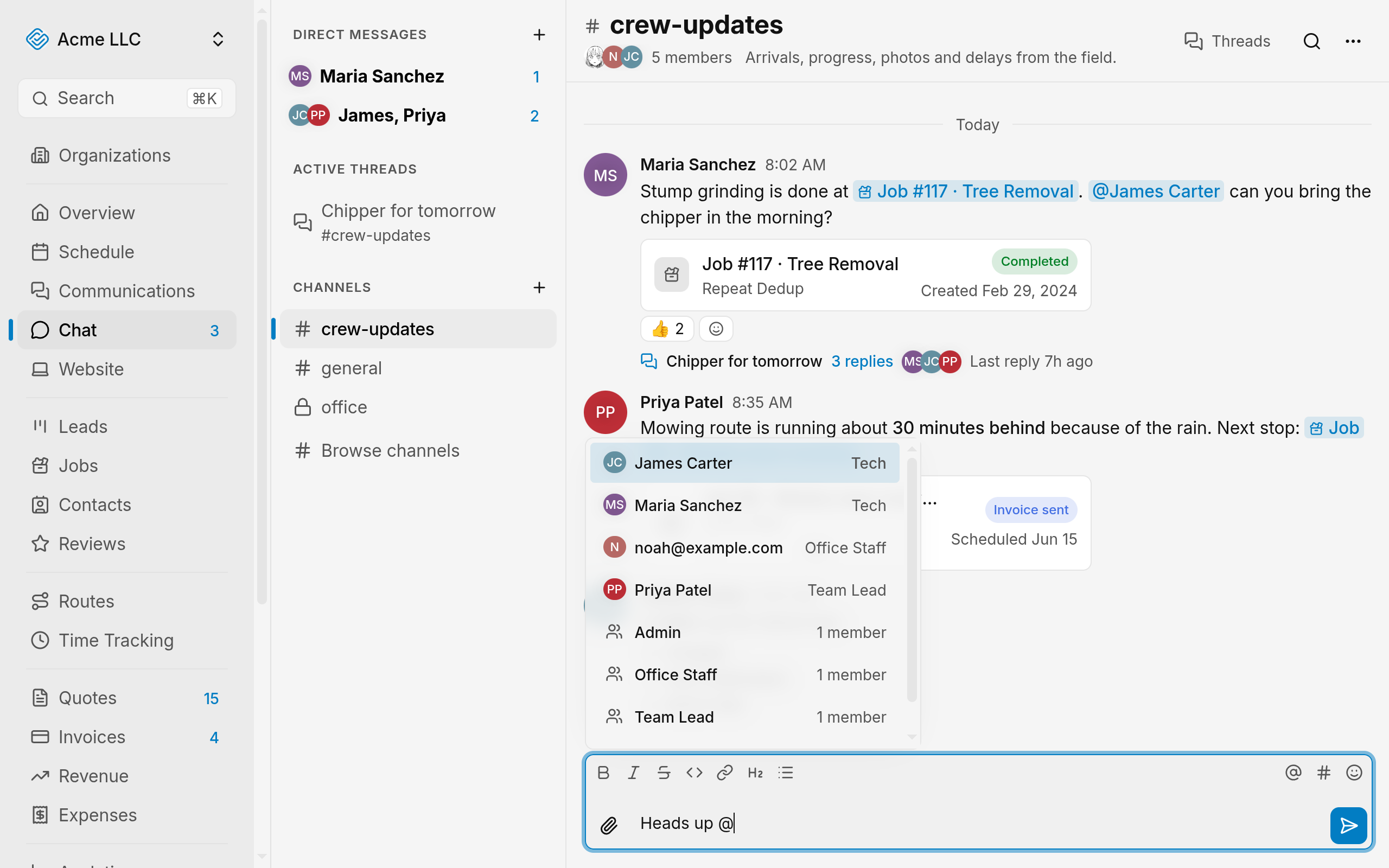
The message box shows @Jane Smith where the typed text was.
Note
Text typed by hand, without picking a row, stays plain text, and nobody is notified for it.
Mention a role
Use a role mention to notify each member who holds the role and can read the conversation, unless they muted the channel.
- In the message box, type
@. - Type the start of the role's name.
- A role appears only when at least one member can read the conversation.
- A direct message lists no roles.
- Pick the role's row. The row shows its member count.
The message box shows @Crew where the typed text was.
Mention the whole channel
Use @channel to notify each joined member who can read the channel, unless they muted the
channel. Only a channel you can post in offers @channel, and direct messages never do. Channel access is covered in
Create and manage channels.
- In the message box, type
@channel. - Pick the @channel row.
The message box shows @channel where the typed text was.
Warning
Each joined member who can read the channel, except you, is notified as soon as you send the message, unless they muted the channel or are already viewing it.
Link a job, quote, invoice, contact, lead or task
Use a record mention to link a record the message is about. Once sent, the record appears in the message with a card under it.
- In the message box, type
#. The list shows recent records across kinds.- Type a kind word first to narrow the list to one kind:
job,quote,invoice,contact,leadortask. Plurals work too, such asinvoices. - The list shows up to three records of each kind, or up to eight of the kind you typed.
- Type a kind word first to narrow the list to one kind:
- To narrow the list, type up to four words: a customer's name, email or phone number, or the record's number or title. A task matches by its title or notes.
- Pick the record's row.
The message box shows the record's label where the typed text was, such as
#Job 1042 · Fence repair.
Tip
Type invoices smith to list only the invoices that match Smith.
Who gets notified
Notifications go out after the message is sent, and only to members who can read the channel. Notification settings are covered in Chat notifications and unread.
- A mentioned teammate is notified if they can read the channel.
- A role mention notifies each member who holds the role and can read the channel, unless they muted the channel.
@channelnotifies each joined member who can read the channel, unless they muted the channel.- You are not notified for your own message.
- A member who has the conversation open sees the message without a notification.
- In a channel, a muted member is notified only for a direct mention. In a direct message, a muted member is not notified.
- Replies in a thread notify its followers, except members whose notifications for that channel are set to mentions only. See Use threads.
- A teammate mentioned in a thread reply starts following the thread, if they can read the channel.
How a linked record appears
- A record you can open shows as a link with its title. Cmd + click or Ctrl + click opens it in a new tab.
- Under the message, each record shows a card with its title, its customer's details, status, date and amount, where the record has them. A job's card shows checklist progress when you can view job checklists. A task's card shows who it's assigned to and whether it's done.
- Three cards show first. When there are more, a button shows the rest, labeled with their count, such as +2 more. After you select it, the button reads Show less.
- A record you can't open shows its kind and a lock, with no details.
- If your access to a kind covers only records assigned to you, other records of that kind show as restricted.
- A deleted record shows as struck-through text, such as Deleted job.
- The list after
#offers only records you can open. - Search results and push notifications name a job, quote or invoice by its kind and number. Contacts, leads and tasks, and records the organization doesn't have, show only their kind. See Search messages and files.
- A message links up to 10 records. The rest stay plain text.
- Text in code formatting, between backticks or in a code block, never becomes a mention or a record link.
Keys in the mention list
- Down arrow and Up arrow move the highlight, and it wraps from the last row to the first.
- Enter or Tab picks the highlighted row. Shift + Enter does not pick a row.
- Escape closes the list and keeps the typed text.
- While a record search is running and no rows are showing yet, Enter and Tab wait for the search instead of sending the half-typed mention as plain text.
Related Guides
- Start Direct and Group Messages Message one teammate or a group of up to nine people, then mute or leave the conversation.
- Use Threads Keep replies to one message together, follow them, and find a channel's threads.
- Search Messages and Files Find a message or file in Team Chat, narrow the results with filters, and open it in its conversation.
Still Need Help?
If an article did not cover it, send us a message and a real person will get back to you.