Start Direct and Group Messages
Message one teammate or a group of up to nine people, then mute or leave the conversation.
Start a direct message with one teammate or a group message with two to eight others, then mute or leave the conversation. Both are listed under Direct messages in the sidebar of the team chat page. Channels are listed under Channels in the same sidebar, and Create and Manage Channels covers them.
Start a direct message
A direct message is a conversation with one teammate, and picking that teammate again reopens it.
- Click the plus icon in the Direct messages header.
- If you have no direct messages yet, click Message a teammate instead.
- In the New Message window, type the teammate's name in the Search people box.
- Click the teammate's name in the list.
- Click Open message.
The conversation opens, and its row appears under Direct messages. To write in it, see Send and Edit Messages.
Start a group message
A group message holds you and two to eight other teammates.
- Click the plus icon in the Direct messages header to open the New Message window.
- Click each teammate who belongs in the group.
- When eight teammates are picked, the other names are disabled.
- Click the x icon beside a picked teammate's name to remove them.
- Click Create group.
- With one teammate picked, the button reads Open message and starts a direct message.
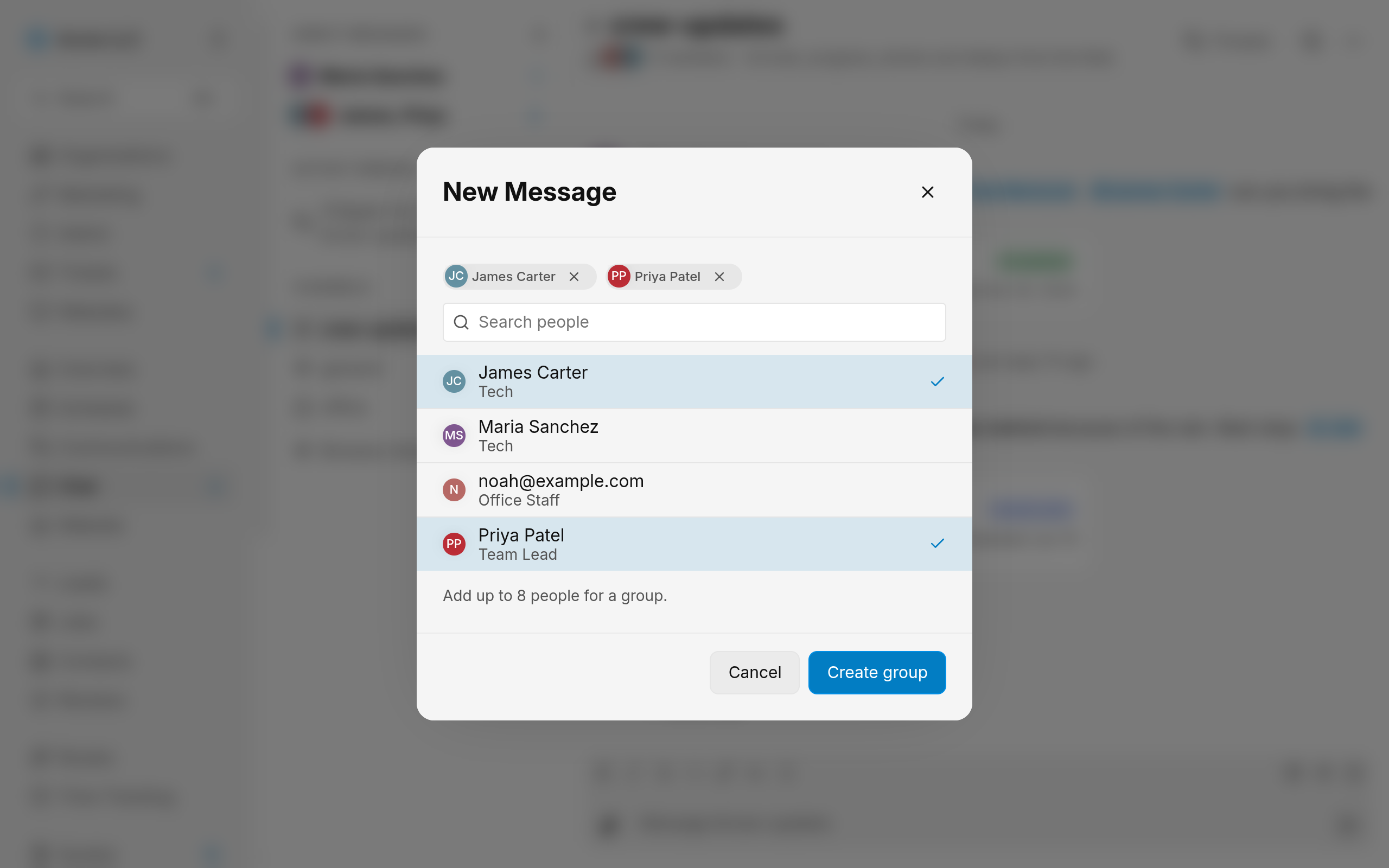
The group opens, and its row is named with the other people's first names, separated by commas.
Note
Picking the same people again reopens their group unless one of them has left it. A different set of people starts a new group.
Mute a conversation
Mute a conversation to quiet it while it stays in your list.
- Open the options menu on the conversation's row.
- Click Mute conversation.
- If the conversation is already muted, click Notify for every message to unmute it.
The row loses its unread count and bold name, and a mention count still shows. For notification levels, see Set Chat Notifications and Unread Counts.
Tip
Right-click a conversation's row to open the same options menu.
Leave a group
Leave a group you are finished with, which removes it from your list.
- Open the options menu on the group's row.
- Click Leave conversation.
- In the confirmation dialog, click Leave conversation to confirm you are leaving the group.
The group leaves the sidebar. If it was open, the page returns to the team chat page.
Warning
Leaving a group ends your access to its messages. To message those people again, start a new group, which opens without the earlier messages.
Who can start a conversation
- Permission: the Chat permission must be Edit or Full. Edit (assigned) does not qualify. Owners count as Full.
- Without that access: the plus icon and Message a teammate do not appear.
- Direct message: one other teammate. It can't be left, so mute it instead.
- Group message: two to eight other teammates, nine people in all. You can leave it.
- Teammate with no chat access: the conversation does not open.
- Group after someone left: picking the same people starts a new group without the earlier messages.
Related Guides
- Use Threads Keep replies to one message together, follow them, and find a channel's threads.
- Search Messages and Files Find a message or file in Team Chat, narrow the results with filters, and open it in its conversation.
- Set Chat Notifications and Unread Counts Choose which team chat messages send you a push, mute conversations, and read the unread counts.
Still Need Help?
If an article did not cover it, send us a message and a real person will get back to you.