Set Chat Notifications and Unread Counts
Choose which team chat messages send you a push, mute conversations, and read the unread counts.
Each team chat conversation has a notification setting that decides which of its messages send you a push. Muting a conversation also changes its unread counts.
Choose how a conversation notifies you
The options menu holds these choices only for a conversation you have joined. Other members keep their own choice.
- Open the chat page.
- Open the options menu for the conversation in the sidebar. Its button is labeled Options for followed by the conversation name.
- Select the notification choice you want:
- For a channel: All activity, Mentions only, or Mute channel.
- For a direct or group message: Notify for every message or Mute conversation.
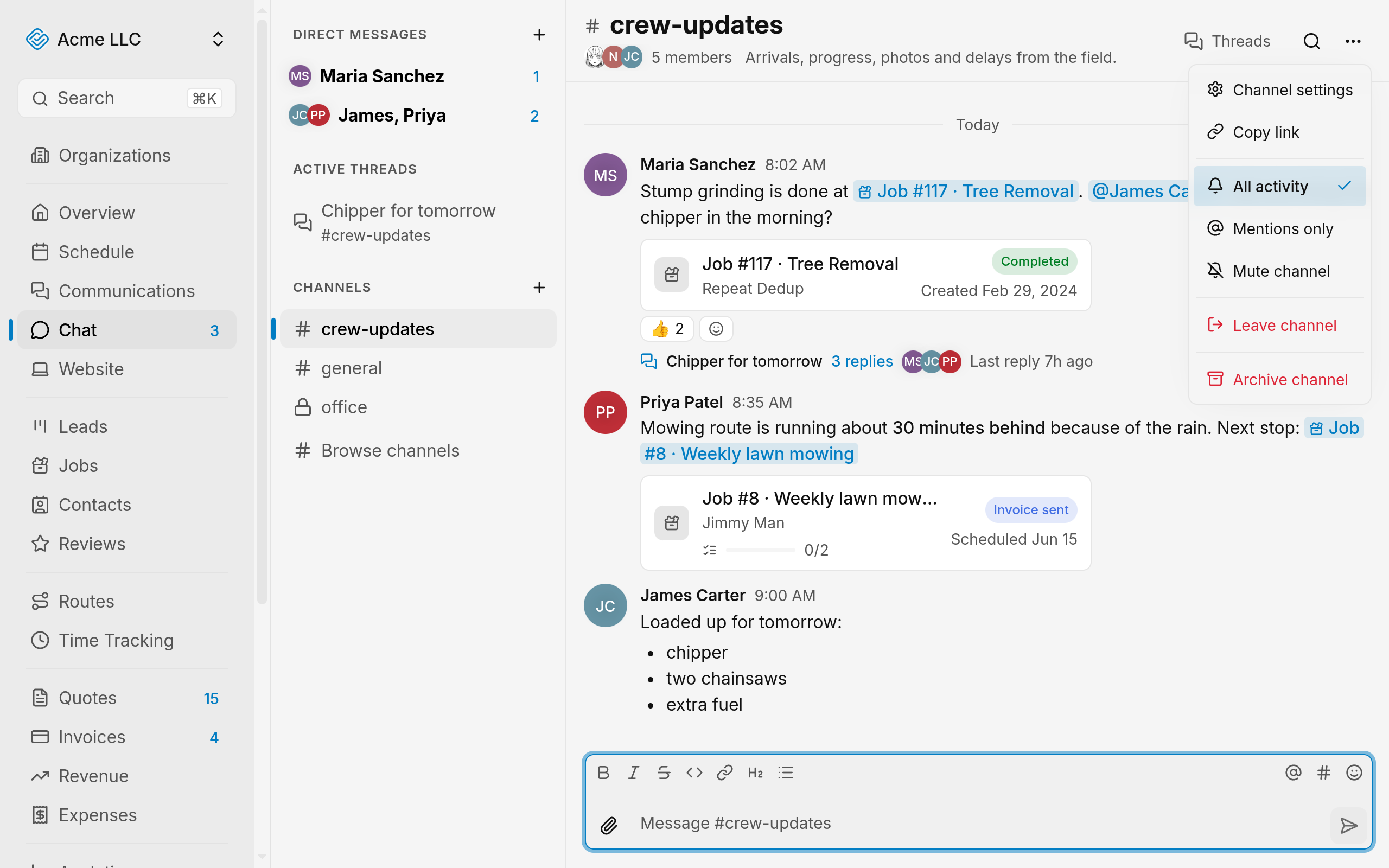
The menu marks your choice as selected.
Note
Muting hides the conversation's unread number and bold name in the sidebar. For a direct or group message, its unread messages also stop counting toward the Chat count.
Turn chat push notifications on or off
Your team chat push settings are on the Notifications page, under Team Chat.
- Open the Notifications page.
- Admins: if Who gets notified is selected, select Your notifications first.
- Find the Team Chat group.
- Find the row for the push you want to change: Direct message, Mention or Thread reply. Each has only a Push toggle. Turn it off to stop that push, or on to start it again.
Changes save as you make them.
Note
A push is sent only when both the conversation's notification choice and the matching Push toggle allow it.
The Who gets notified tab leaves out Team Chat. Chat pushes follow channel access and each member's own choices, not the organization-wide choices for other notifications. For notifications outside chat, see choose your notifications.
What each choice sends as a push
- Every new direct or group message sends a push to the other people in it. A muted conversation sends no pushes, mentions included.
- In a channel, a mention of your name, a role you hold, or @channel sends a push under All activity and Mentions only. Mute channel sends a push only for a mention of your name.
- A reply in a thread goes to the people who follow that thread. Under All activity, you get it when you follow the thread. Under Mentions only, a reply reaches you only if it also mentions you, a role you hold, or @channel.
- The thread's options menu offers Follow thread or Unfollow thread, depending on whether you follow it.
- Nobody gets a push for their own message, or for a message they are viewing.
- A message that reaches you more than one way sends one push, for the most direct reason: direct message, then mention, then thread reply.
- A channel push starts with the author's name, then the text. A direct or group message push shows the text alone.
- Text longer than 140 characters is cut short with an ellipsis. A message with no text sends a note about its files instead.
Note
All activity does not push every channel message. A channel message with no mention and no thread reply sends no push at any choice.
Read the unread counts
The sidebar shows counts on each conversation and thread:
- A number on a row counts that conversation's unread messages. A muted conversation shows no unread number.
- A badge with an @ icon counts mentions. A muted conversation still shows its mentions.
- A conversation with unread messages shows its name in bold, unless it is muted. A channel also shows a dot on its icon.
- In Active threads, a thread shows its counts and, with unread messages, a bold name and a dot. These show even when its channel is muted.
- While threads are hidden, the View N more row shows their unread count.
The Chat count in the dashboard navigation keeps two totals apart: mentions and messages.
- Mentions count in every conversation and thread, muted or not. They include mentions of your role and @channel.
- Messages count unread direct and group messages that are not muted, and unread replies in threads you follow.
- Unread channel messages are not counted in the Chat count. Thread replies count even when their channel is muted.
The count updates live while you are in chat. Elsewhere in the dashboard, it refreshes after you move to another page, at most once a minute.
Related Guides
- Introduction to Team Chat Know which conversation to use, who can see it, and where each chat action lives.
- Create and Manage Channels Set who can read and post in a channel, keep its settings current, pin messages, and archive it when the work ends.
- Send and Edit Messages Post formatted messages, files, and replies, then edit or delete what you posted.
Still Need Help?
If an article did not cover it, send us a message and a real person will get back to you.