Create and Manage Channels
Set who can read and post in a channel, keep its settings current, pin messages, and archive it when the work ends.
A channel is a named conversation in team chat. You create one from the sidebar, then decide who can read it and who can post in it. For the basics, see Introduction to Team Chat.
Create a channel
Only members with full chat access can create a channel.
- Choose Browse channels under Channels in the sidebar.
- If you have not joined a channel yet, the item reads Find a channel to join.
- In Browse Channels, choose New channel.
- The button sits in the panel footer when channels exist, and in the empty state when none do.
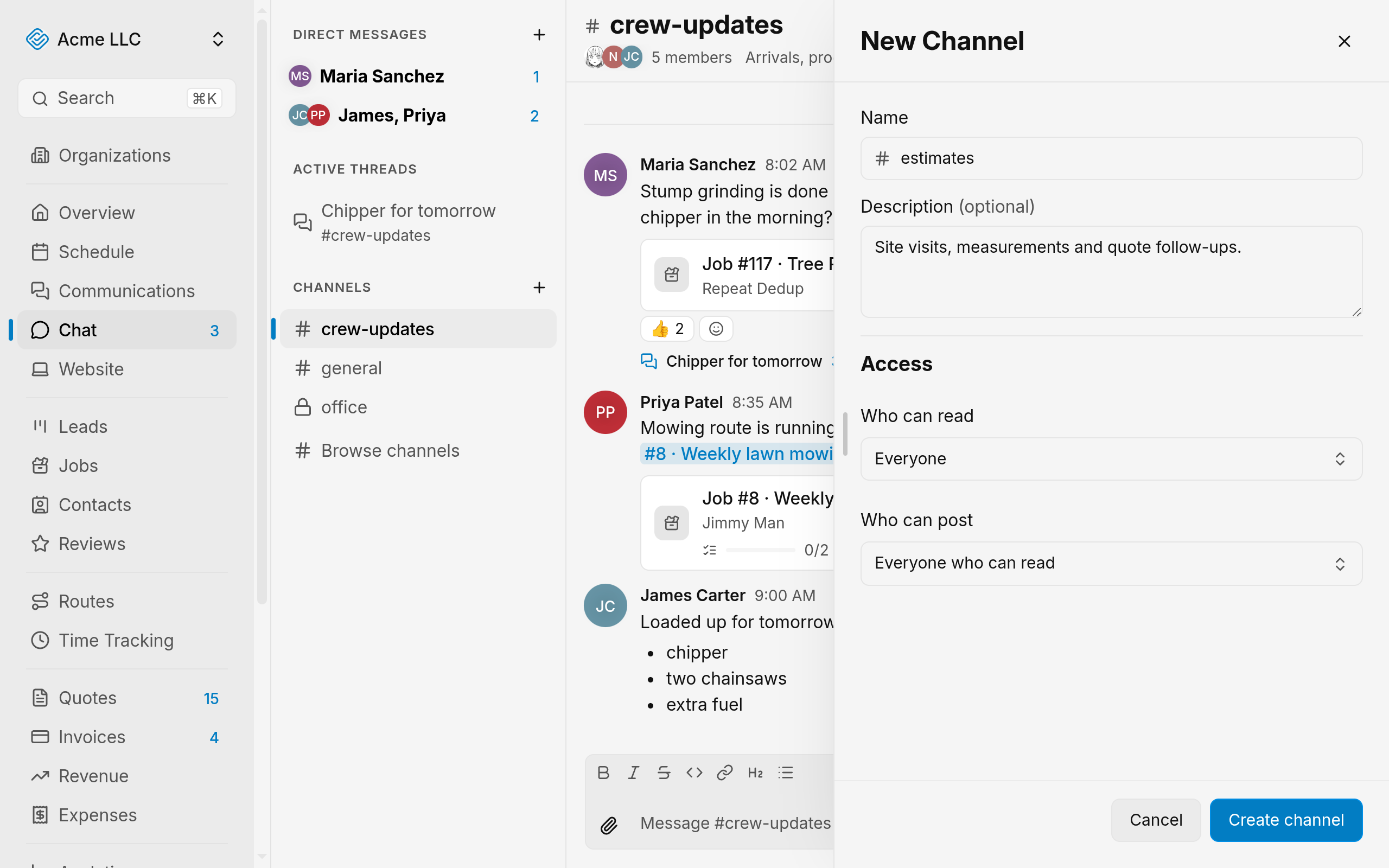
- Type a name in Name.
- Type a Description. The field is optional.
- Under Who can read, choose Everyone or Only selected roles and people.
- Under Who can post, choose Everyone who can read or Only selected roles and people.
- Choose Create channel.
- The button stays disabled until Name has text.
The channel opens, and you are a member of it.
Tip
The plus icon beside Channels in the sidebar opens the New Channel panel directly.
Set who can read and post
Add roles and people to a list when its setting is Only selected roles and people.
- Choose Add people or roles under the restricted setting.
- A role adds every member who holds it. A person adds only that member.
- Type in the search field.
- Choose a role or person.
- To remove a role or person, choose the x icon beside their name.
Each list shows the roles and people you added.
Note
Admins can always read and post, whatever these lists say.
Change channel settings
Use Channel settings to change a channel's name, description, or access.
- Open the Conversation options menu in the channel header.
- Choose Channel settings. The Channel Settings panel opens.
- The item appears only if you can manage the channel.
- Change Name, Description, or the access settings.
- Choose Save changes.
The panel closes.
Note
While Who can read is restricted, removing someone from the read list also removes them from the post list. Members who lose read access no longer see the channel, unless they are admins.
Join and leave channels
Join a channel
Join a channel you can read to add it to your sidebar.
- Choose Browse channels in the sidebar, or Find a channel to join if you have not joined a channel yet.
- Type in the search field to find the channel by name or description.
- Choose Join beside the channel.
The channel opens and appears in your sidebar.
Tip
With the channel open, choose Join channel in the header.
Leave a channel
Leaving takes a channel out of your sidebar, and other members keep it.
- Open the Conversation options menu in the channel header.
- Choose Leave channel.
- The item appears only for a channel you have joined.
- If you can manage the channel, choose Channel settings, then choose Leave in the Leave channel row.
The channel leaves your sidebar at once. To join it again, choose Browse channels.
Pin messages
Pin a message
Only members who can post can pin a message.
- On the message, open the menu labeled More actions.
- Choose Pin message.
- If the message is already pinned, the item reads Unpin message.
The pin button appears in the channel header while a message is pinned.
View and unpin pinned messages
Open the pinned list to find a pinned message or remove its pin.
- Choose the pin icon button in the channel header.
- The number beside the icon counts the pins.
- Choose a message in the list to open it.
- A reply opens in its thread. See Use Threads.
- To unpin, choose the unpin icon beside the message.
- Only members who can post see the unpin icon.
The message leaves the list, and the count drops.
Archive a channel
Archive a channel when its work ends, which stops new posts for every member.
- Open the Conversation options menu in the channel header.
- Choose Archive channel.
- On an archived channel, the same menu shows Unarchive channel instead.
The header shows the Archived badge.
Access rules and limits
- The hash icon marks a channel everyone can read. The lock icon marks a channel restricted to selected roles and people.
- While Who can read is restricted, anyone added to Who can post can also read.
- Owners and admins can manage every channel. The creator can manage a channel only while holding full chat access.
- For what each role can see and change, see Create and Edit Roles and Permissions.
- Creating a channel adds the creator with read and post access. An admin can remove that access.
- Browse Channels lists every channel you can read, joined or not.
- Archived channels do not offer Join channel in the header.
- Name: Between 1 and 80 characters, and unique across channels. Repeated spaces become one space.
- Description: Up to 500 characters.
Related Guides
- Send and Edit Messages Post formatted messages, files, and replies, then edit or delete what you posted.
- Mention People and Records in a Message Notify a teammate, a role or the whole channel, and link a job, quote, invoice, contact, lead or task in a message.
- Start Direct and Group Messages Message one teammate or a group of up to nine people, then mute or leave the conversation.
Still Need Help?
If an article did not cover it, send us a message and a real person will get back to you.