Search Messages and Files
Find a message or file in Team Chat, narrow the results with filters, and open it in its conversation.
Search finds messages and files in Team Chat and narrows them with filters. Selecting a result opens its conversation with that message in view.
Search by words
Use the search box to find a message or file by words in it.
- In the Team Chat sidebar, select Search messages. The Search page opens.
- Type one or more words in the search box. Results appear after a short pause in typing.
- Select Messages or Files. The selected tab decides which list appears. Messages is selected by default.
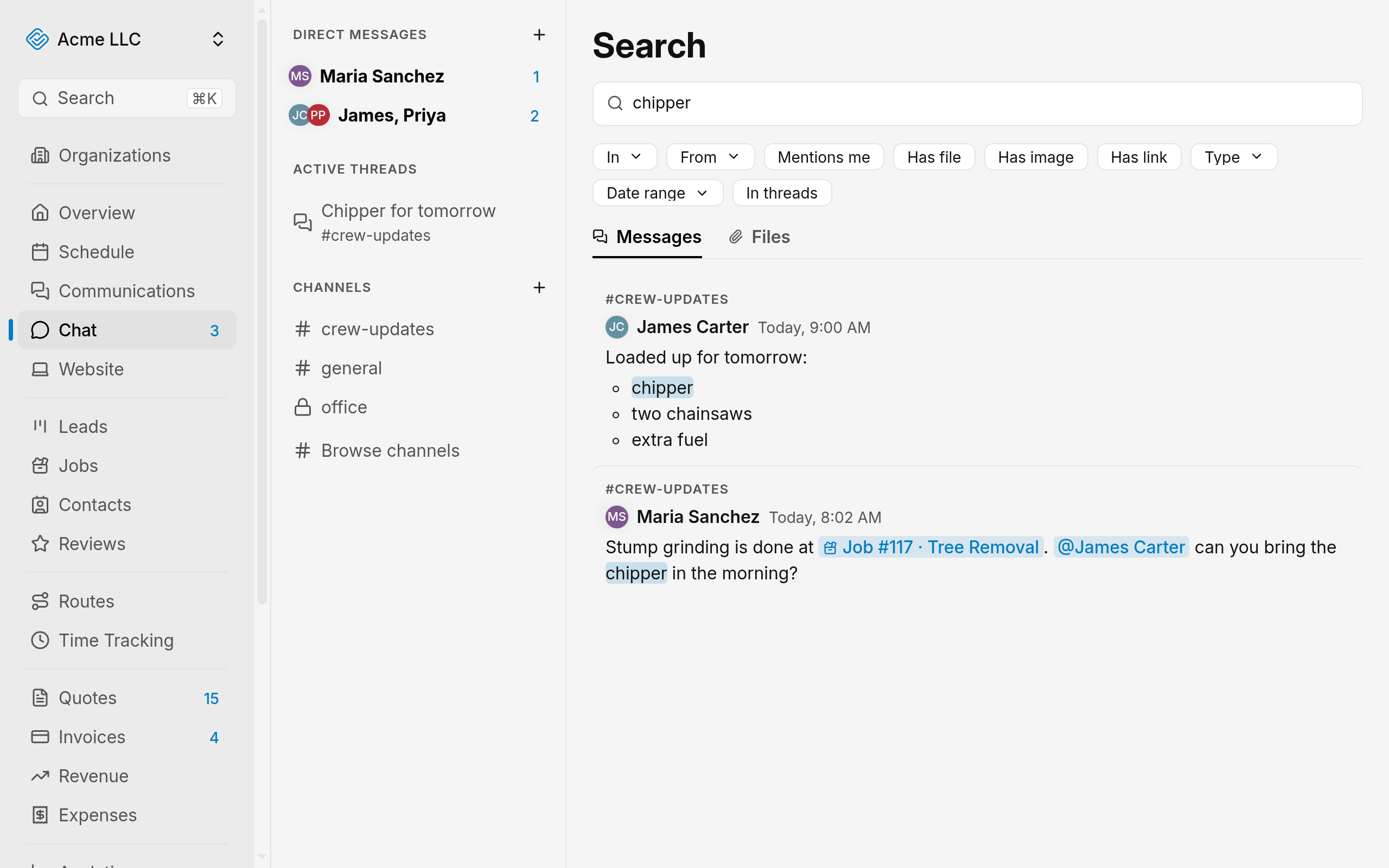
The list under the tabs shows the matches. If more results exist, select Load more at the bottom of the list.
Filter by conversation, person, type, or date
Use the filter buttons under the search box to narrow the results.
- Select In, then select one or more channels or direct messages.
- Direct messages appear under their own heading, by the other person's name.
- The list includes channels you have not joined.
- Select From, then select one or more people. Your name is first, marked You.
- Select Type, then select one or more file types.
- Select Date range, then select Today, Last 7 days, or Last 30 days.
- For other dates, set a custom range in the same picker.
Each button then shows the choice, such as In #general. With more than one choice, it shows the first and a count of the rest. A filter works without words.
Turn filters on and off
Select a filter to turn it on, and select it again to turn it off.
- Mentions me: messages that mention you.
- Has file: messages with a file attached.
- Has link: messages with a link.
- Has image: messages or files with an image, on both tabs.
- In threads: messages in threads.
Note
The Files tab shows only Has image of these filters. Operators for the other filters stay in the search box but do not filter the Files tab.
Type operators in the search box
Picking a filter writes its operator into the search box, and typing an operator applies that filter.
in:a channel, such asin:#general, or a direct message, such asin:@"Jane Smith". Usein:threadfor messages in threads.from:a person, such asfrom:@"Jane Smith", orfrom:mefor yourself. A first name works when only one member has it.mentions:me,has:file,has:link, orhas:imageturns on the matching filter.type:a file type, such astype:pdf.on:one day, such ason:2026-10-26.after:keeps results from that day on, andbefore:keeps results before that day. Days follow your local time zone.
An operator that matches nothing stays in the search box as plain text.
Tip
Clearing the search box removes every filter at once, because the filters live in the box as text.
Open a result
Open a result to see its message in the conversation around it.
- On the Messages tab, select a result.
- A link or chip inside the message stays clickable and does not open the conversation.
- A reply in a thread opens the thread beside the conversation.
- On the Files tab, select a file name.
- To save a file, select the download icon beside it.
The conversation opens with the message in view and briefly highlighted, or the file downloads.
What each tab shows
- Messages: each result shows its channel, a Thread tag on thread replies, the author, and the time. The matching words are marked. A long message is clipped, and its bottom fades out.
- Files: each file shows its name, uploader, channel, date, and size. Image files show a thumbnail.
- In, From, Type, and Date range work on both tabs. On Files, From matches the person who uploaded the file.
- If results fail to load, select Retry.
Related Guides
- Set Chat Notifications and Unread Counts Choose which team chat messages send you a push, mute conversations, and read the unread counts.
- Introduction to Team Chat Know which conversation to use, who can see it, and where each chat action lives.
- Create and Manage Channels Set who can read and post in a channel, keep its settings current, pin messages, and archive it when the work ends.
Still Need Help?
If an article did not cover it, send us a message and a real person will get back to you.