Send and Edit Messages
Post formatted messages, files, and replies, then edit or delete what you posted.
Send messages, files, and replies in a channel or direct message. React to messages, and edit or delete your own, from the message toolbar.
Send a message
Post in the conversation you have open, from its message box.
- Click the message box at the bottom of the conversation.
- If you can't post there, the box is replaced by a line saying why. This includes archived channels and closed threads.
- Type your message.
- Press Enter to send.
- Press Shift + Enter for a new line.
- In a list, Enter adds the next item instead of sending.
- With the cursor inside a code block, Enter adds a new line.
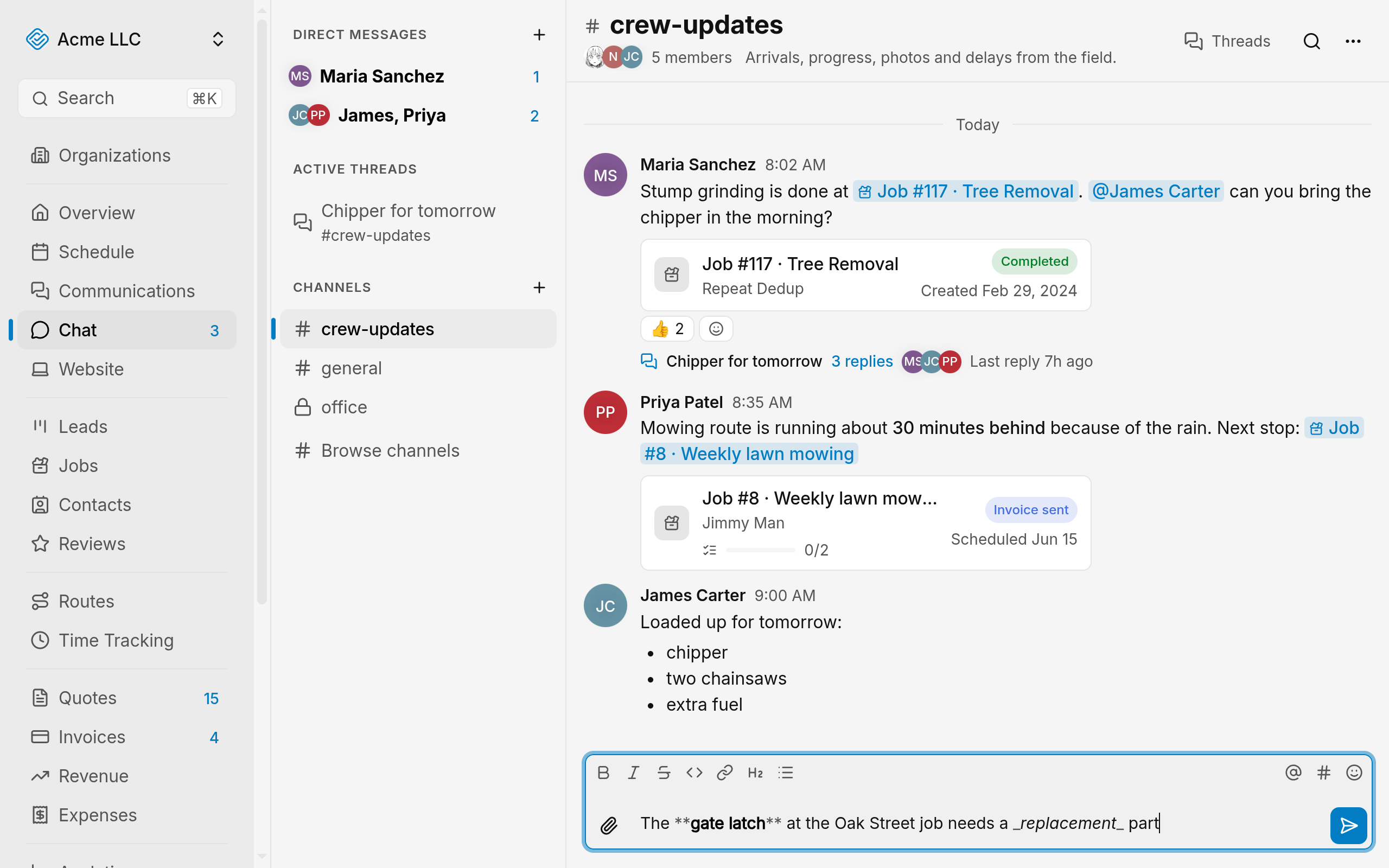
The box clears. If the send fails, your text returns to the box.
Use a slash command
Type a command at the start of the box to run it on send.
- Type
/at the start of the message box. The list shows the commands available there. - Keep typing the command name. The list narrows as you type.
- Click a command, or press Tab, to pick it. Enter also picks while the name is incomplete. The box then holds the command name, ready for the rest of the message.
- Type any text the command takes, then press Enter.
/closecloses the thread you are in and sends nothing. It works only in a thread you can close, and it can't be sent with files attached./shrugadds¯\_(ツ)_/¯to the end of your message. With no other text, it posts only the shrug.- A
/wordthat isn't an available command posts as typed.
Format a message
Format text in the box before you send it.
- Select the text to format.
- Click a format button, or press its shortcut.
- Buttons that don't fit the row sit in the More formatting menu.
Each shortcut works with Ctrl or Cmd.
- Bold: Ctrl + B
- Italic: Ctrl + I
- Strikethrough: Ctrl + Shift + X
- Link: Ctrl + K, with text selected.
- Code, Heading, and Bulleted list: no shortcut.
Tip
Type an asterisk, underscore, tilde, or backtick over selected text to wrap the text in that marker.
Typing @ lists people and roles. In a conversation with records, typing # lists them. See
mentions.
Attach files
Attach files to a message, with or without text.
- Click Attach files, the paperclip icon.
- The button is disabled once the message has the maximum number of files.
- Choose one or more files.
- To attach by dragging, drop the files onto the message box.
- Wait until every file finishes uploading.
- Send stays unavailable until then.
- If a file reads "Upload failed", click Retry beside it, or click its x icon to remove it.
- Press Enter, or click Send.
Images show as thumbnails. Other files show as rows with a download icon.
Reply to a message
A reply quotes an earlier message.
- Hover over the message.
- Click the reply icon in its toolbar.
- Or open More actions, then select Reply.
- Type your reply in the message box.
- Press Enter.
The reply shows a quote of the original message.
Press Escape, or click the x icon in the Replying to banner, to cancel the reply.
Note
A reply can quote only a message from the same conversation.
Inside a thread, Reply isn't offered.
React to a message
Reactions show under the message, each with a count.
- Hover over the message.
- Click a quick reaction in its toolbar, or click Add reaction and pick one from the picker.
- To take your reaction back, click it under the message again.
- A message holds a limited number of different reactions, and a new one past that limit is refused.
- Reactions can't be added in an archived conversation.
Edit a message
Edit the text of a message you posted while you can still post in its conversation.
- Open More actions on your message.
- Or, in an empty message box with no files attached, press the Up arrow key to edit your last message instead.
- Select Edit.
- Change the text in the message box. The box shows an Editing message banner.
- Press Enter, or click the check icon labeled Save.
The message shows the new text. An edit can't clear the text of a message that has no files. To remove the message, delete it.
Press Escape, or click the x icon in the banner, to cancel. Your draft returns to the box.
Note
Edits are refused in an archived conversation and in a closed thread. An edit changes only the text, so attached files stay as they are.
Delete a message
Deleting removes a message for everyone in the conversation.
- Open More actions on the message.
- Select Delete. It appears on your own messages, and for a channel moderator.
- In the confirmation, click Delete message.
If the message started a thread, the thread stays, with a placeholder where the message was.
Warning
Deleting can't be undone, and files attached to the message are deleted too.
A channel moderator can delete any message in a channel, but not in a direct message. Deleting is refused in an archived conversation.
Limits
- A message can be up to 8,000 characters.
- A message can have up to 10 files.
- Each file can be up to 10 MB. Larger files aren't added.
- HTML and SVG files can't be sent.
Related Guides
- Mention People and Records in a Message Notify a teammate, a role or the whole channel, and link a job, quote, invoice, contact, lead or task in a message.
- Start Direct and Group Messages Message one teammate or a group of up to nine people, then mute or leave the conversation.
- Use Threads Keep replies to one message together, follow them, and find a channel's threads.
Still Need Help?
If an article did not cover it, send us a message and a real person will get back to you.