Use Threads
Keep replies to one message together, follow them, and find a channel's threads.
Use a thread to keep replies to one message together, out of the main feed of a channel.
Start a thread on a message
Start a thread from a message in a direct message or channel where you can post.
- Hover over the message and select More actions in its toolbar.
- On touch screens, long-press the message instead.
- Select Start thread.
- If the message already has a thread, select Open thread instead.
- Type your reply in the thread panel that opens.
A thread line appears under the message.
Note
A reply inside a thread can't start its own thread.
Move quote replies into a thread
Convert a quote reply to move its chain into a thread. The chain is the first message, found by following quotes back, plus every reply that answers it, directly or through another reply. The dialog lists the first message under Stays in the chat and the replies under Moves into the thread.
- Open More actions on the quote reply.
- Select Convert to thread.
- The item appears only on quote replies in the main feed, for people who can post.
- If the chain doesn't load, select Retry.
- Type a title in the Thread title field if you want one, up to 100
characters.
- If the first message has a thread, the field is hidden, and the replies join it.
- Select Convert to thread in the dialog.
- If the dialog shows a warning, Convert to thread stays disabled.
The thread opens beside the channel, and the moved replies leave the main feed.
Reply in a thread
- Select the thread line under the message that started it.
- Type a reply in the reply box.
- Send the reply.
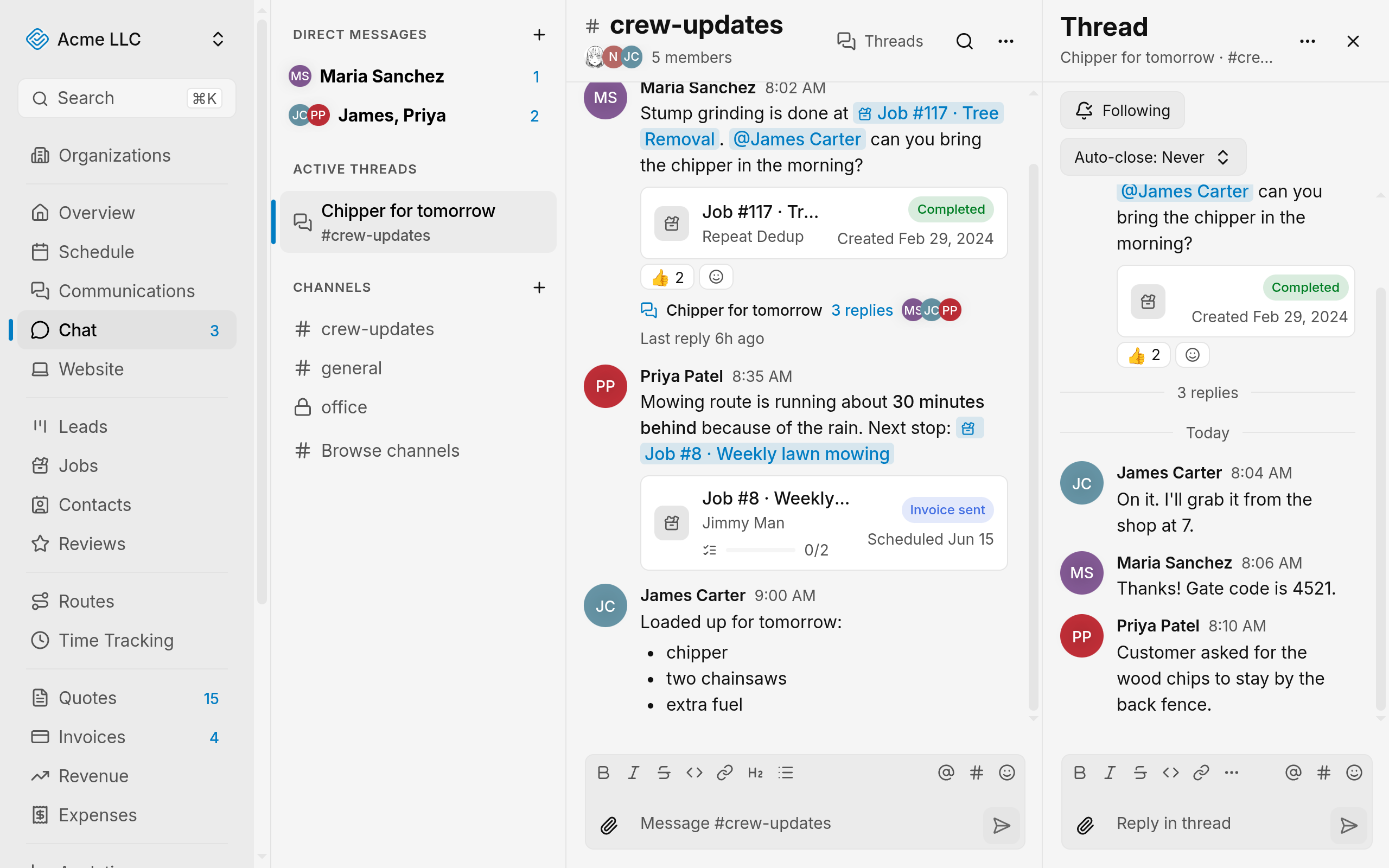
Follow a thread
Select Follow under the thread title to get notified about replies. Select Following to stop.
You also follow a thread automatically:
- You start it or reply in it.
- Someone mentions you in one of its replies.
- Someone else starts it, and you wrote its first message.
- You convert a reply chain into it, or you wrote one of the moved replies.
Find a channel's threads
The Threads list shows a channel's active or closed threads, most recently active first.
- Select Threads in the conversation header.
- Choose Active or Closed.
- Select a thread in the list.
Each entry shows its title or preview, reply count, last activity, and follower avatars. Closed holds threads closed by hand or on their own.
Rename a thread
- Open the Thread options menu at the top of the thread panel.
- Select Rename thread.
- If the thread has no title, select Add a title instead.
- Type the new title in the Title field.
- To remove the title, clear the field.
- Select Save title.
The title shows in the thread line, the Threads list, and the panel header. Saved titles are cut to 100 characters.
Close and reopen a thread
A thread closed by hand is read-only until someone who can manage it reopens it. Open Thread options and select Close thread.
On a thread closed by hand, people who can manage it see a Reopen button in place of the reply box.
Reopen a thread
Open Thread options and select Reopen thread. Or select Reopen in the closed notice.
Close from the reply box
- Select the reply box.
- Type
/close. - Send it.
The thread closes, and nothing is posted.
/close appears only for people who can manage an open thread.
Close automatically
Auto-close closes a thread after a period with no replies. Select the Auto-close control under the thread title, then choose Never, 1 hour, 24 hours, 3 days, or 1 week.
Only people who can manage the thread see the control. A thread that closed on its own reopens when someone replies.
Permissions and limits
- An owner or admin, or the person who created the channel, can rename, set auto-close, close, and reopen any thread. Direct and group messages let any participant who can post do the same.
- Thread starters can do the same while they can post. They can't change a thread that someone else closed.
- In an archived channel, threads are read-only, and reply chains can't move.
- Converting a reply chain needs an owner or admin, or the person who created the channel. The first message's author can convert while they can post. In direct and group messages, any participant who can post can convert.
- Moved replies keep their reactions, files, and quotes.
- A chain moves at most 100 replies. It can't move if a reply has its own thread, or if the first message's thread is closed by hand. Reopen that thread first.
Related Guides
- Search Messages and Files Find a message or file in Team Chat, narrow the results with filters, and open it in its conversation.
- Set Chat Notifications and Unread Counts Choose which team chat messages send you a push, mute conversations, and read the unread counts.
- Introduction to Team Chat Know which conversation to use, who can see it, and where each chat action lives.
Still Need Help?
If an article did not cover it, send us a message and a real person will get back to you.