Set Review Goals
Create a goal for your total reviews, see your progress, and watch your monthly pace.
Set a target for your all-time review count on the Goals tab, then track how close you are to each goal and what monthly pace you need to hit your targets on time.
Add a goal with a target date
Use a date to track pace: the dashboard calculates how many reviews per month you need to stay on schedule, and marks the goal on track, behind, or overdue based on your actual pace over the last six months.
- Open Reviews, then click the Goals tab.
- Click Add goal.
- Enter the Target review count.
- Pick a Target date (optional).
- Click Add goal.
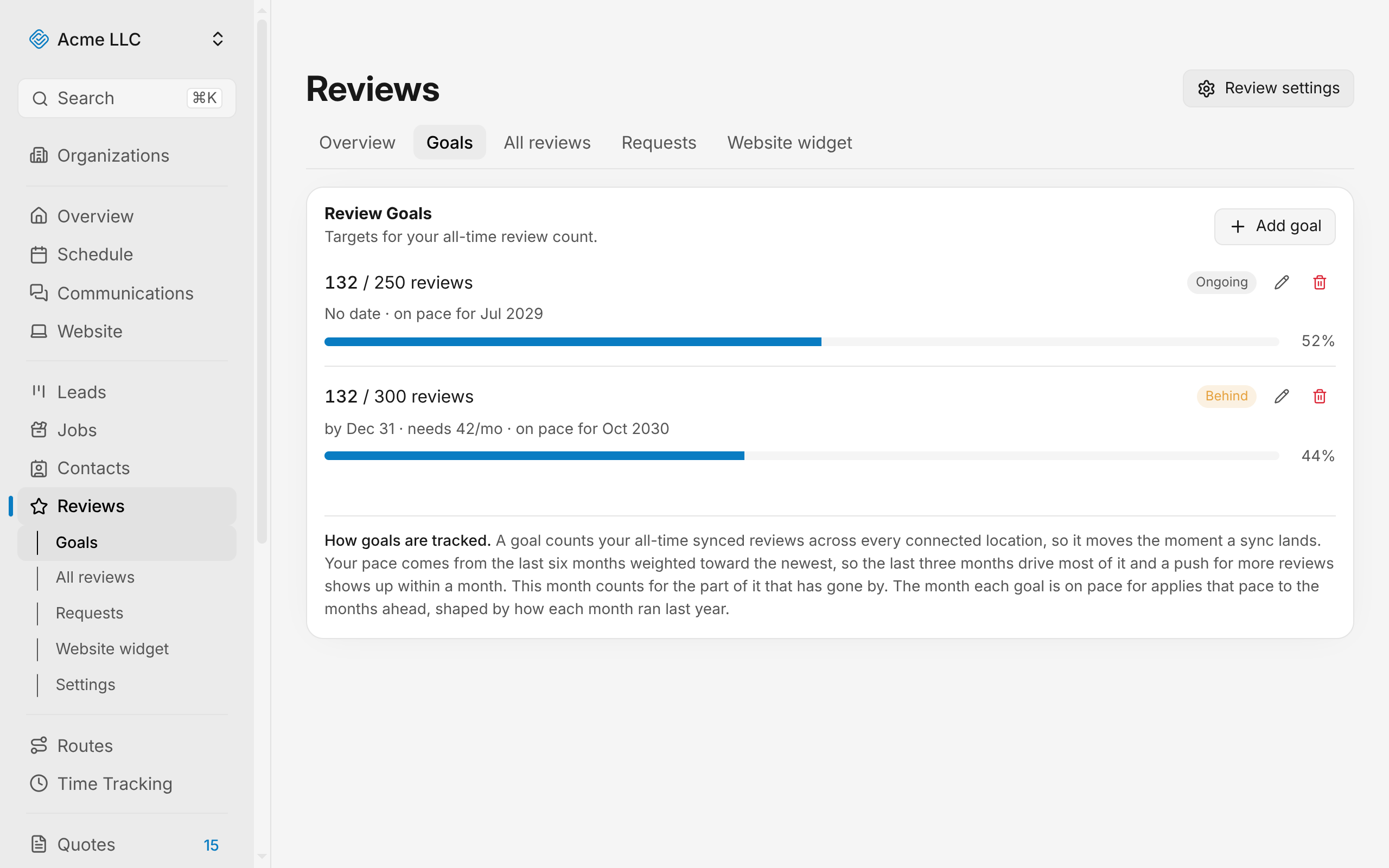
The goal appears in the list with its status, how many reviews are left, the monthly rate it needs, and the month your current pace reaches it.
Add an undated goal
Use a goal with no date to track a milestone without a deadline.
- Open Reviews, then click the Goals tab.
- Click Add goal.
- Enter a target review count.
- Leave the Target date (optional) field blank.
- Click Add goal.
An undated goal reads Ongoing and adds no pace line to the chart until you give it a date.
Understand goal statuses
A goal's status depends on whether it has a date and how your recent pace compares to what you need.
- Achieved: You have reached or passed the target review count.
- On track: You have a target date, and your recent monthly pace keeps you on schedule.
- Behind: You have a target date, and your recent monthly pace is slower than what the target needs.
- Overdue: Your target date has passed, and you have not yet reached the target count.
- Ongoing: You have no target date; progress toward the goal is ongoing.
Edit a goal
- Open Reviews, then click the Goals tab.
- Click the pencil icon on the goal's row.
- Change the target count, the target date, or both.
- Click Save changes.
The status is calculated from your current total and recent pace each time you view the page.
Delete a goal
- Open Reviews, then click the Goals tab.
- Click the trash icon on the goal's row.
- Confirm the deletion.
The goal leaves the list and its pace line leaves the Overview chart. Your reviews are untouched.
Warning
Deleting a goal cannot be undone.
View goals on the Overview chart
The Overview page chart shows reference lines for the monthly pace each goal needs. Each line projects forward from your current pace, so you can see visually which goals are on track.
Goal limits and constraints
You can keep up to 20 goals at a time. A target must be a whole number from 1 to 1,000,000 reviews. Two goals cannot share the same target count.
Related Guides
- Add Reviews to Your Website Build a reviews widget, customize its look, copy the embed code, and paste it on your site.
- Introduction to Reviews Manage customer reviews from Google, reply to them, and track your ratings.
- Connect a Google Business Profile Link your profile, pick which locations sync reviews, and manage automatic or manual syncing.
Still Need Help?
If an article did not cover it, send us a message and a real person will get back to you.