Choose Where Customers Review You
Add and manage the sites where customers can leave reviews when you request them.
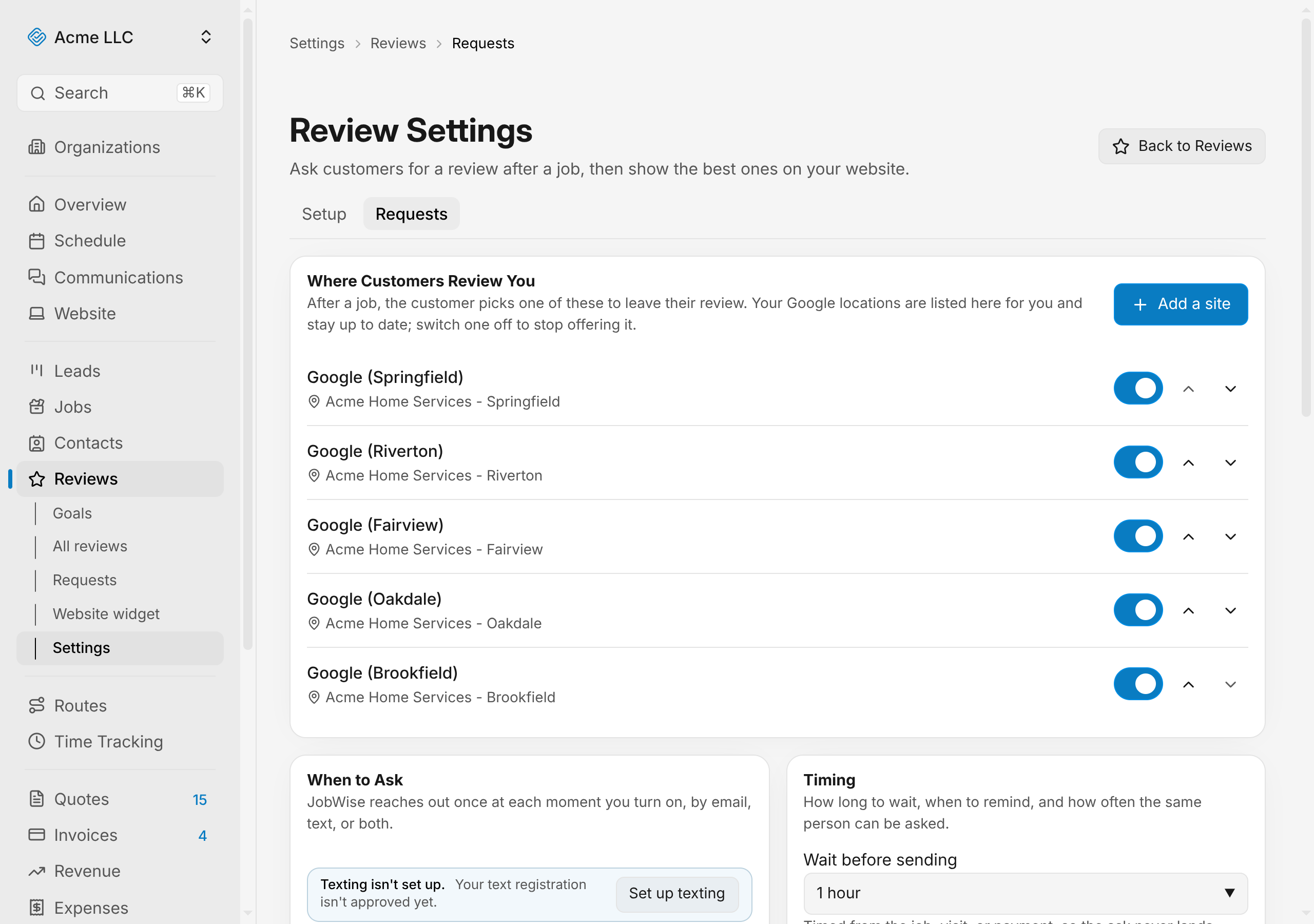
When you ask customers for reviews, they click a button to pick one of the review sites you've set up. You control which sites appear, what they're called, and the order they show in. Sites that come from your connected Google locations update themselves; everything else you manage by hand.
Add a site
Open Review Requests, scroll to Where Customers Review You, and click Add a site.
- Select a Platform: Google, Yelp, BBB, Facebook Reviews, Angi, HomeAdvisor, or a custom platform of your choice.
- Enter the Review URL for the site. The URL must start with http:// or https:// and be no longer than 500 characters.
- Optionally give it a Display name to show customers instead of the platform's default. Leave it blank to use the platform name as is.
- Click Add site.
The site now appears in your list and becomes an option for customers.
Edit a site
You can only edit custom platforms you've added by hand. Sites from your connected Google locations stay up to date on their own; to stop offering them, turn them off.
- Find the custom site in Where Customers Review You and click the pencil icon.
- Change the Display name or Review URL.
- Click Save changes.
The review page updates immediately.
Note
A Google location takes its name and link from your connected profile, so it stays current on its own.
Reorder sites
The order they appear in your settings is the order customers see them.
- Find the site in Where Customers Review You.
- Use the chevron up and chevron down icons to move it.
The review page updates immediately.
Switch a site off
Turn off a site to stop offering it to customers without removing it from your settings.
- Find the site in Where Customers Review You.
- Click the toggle next to it to turn it off.
Customers no longer see it on the review page, but you can turn it back on anytime. Earlier clicks for that site stay in your reports.
Remove a site
Deleting a site takes it out of your settings permanently. Earlier clicks for it stay in your reports.
- Find the custom site in Where Customers Review You and click the trash icon.
- You can only delete custom platforms you've added by hand. To remove a Google location, turn it off instead.
- Confirm that you want to remove it.
The site is gone from your settings and your list.
Warning
Removing a site cannot be undone.
Preview the page customers see
The review page appears in a preview at the bottom of the Review Requests screen.
- Click the Review page tab in the preview.
- You see the exact buttons your customers will see in the order you set them, with your logo and brand color.
With every site switched off, customers have no buttons to pick from.
Sites you can manage
- Google locations: Come from your connected Google Business profile. One location shows as "Google"; multiple locations add the city in brackets to tell them apart. You can only turn these on and off.
- Custom platforms: Yelp, BBB, Facebook, Angi, HomeAdvisor, or your own. You control the label and the link.
Related Guides
- Set Up Automatic Review Requests Choose when to ask customers, send on email or text, and adjust reminders and wait times.
- Track Review Requests See which review requests went out, when customers opened them, and who clicked through.
- Set Review Goals Create a goal for your total reviews, see your progress, and watch your monthly pace.
Still Need Help?
If an article did not cover it, send us a message and a real person will get back to you.