Set Up Automatic Review Requests
Choose when to ask customers, send on email or text, and adjust reminders and wait times.
Choose the moments a customer receives a review request, pick email or text for each, and set how long to wait before asking the same customer again.
Choose when to ask
Open Settings for review requests, then turn on the moments you want. Each moment sends a request once at the channel or channels you select.
- Check Email, Text, or both for each moment.
- A job is completed
- A recurring visit is completed
- An invoice is paid
- Sent by hand: the ask-for-a-review button on a job or a contact
- Clear both Email and Text for a moment to turn it off entirely.
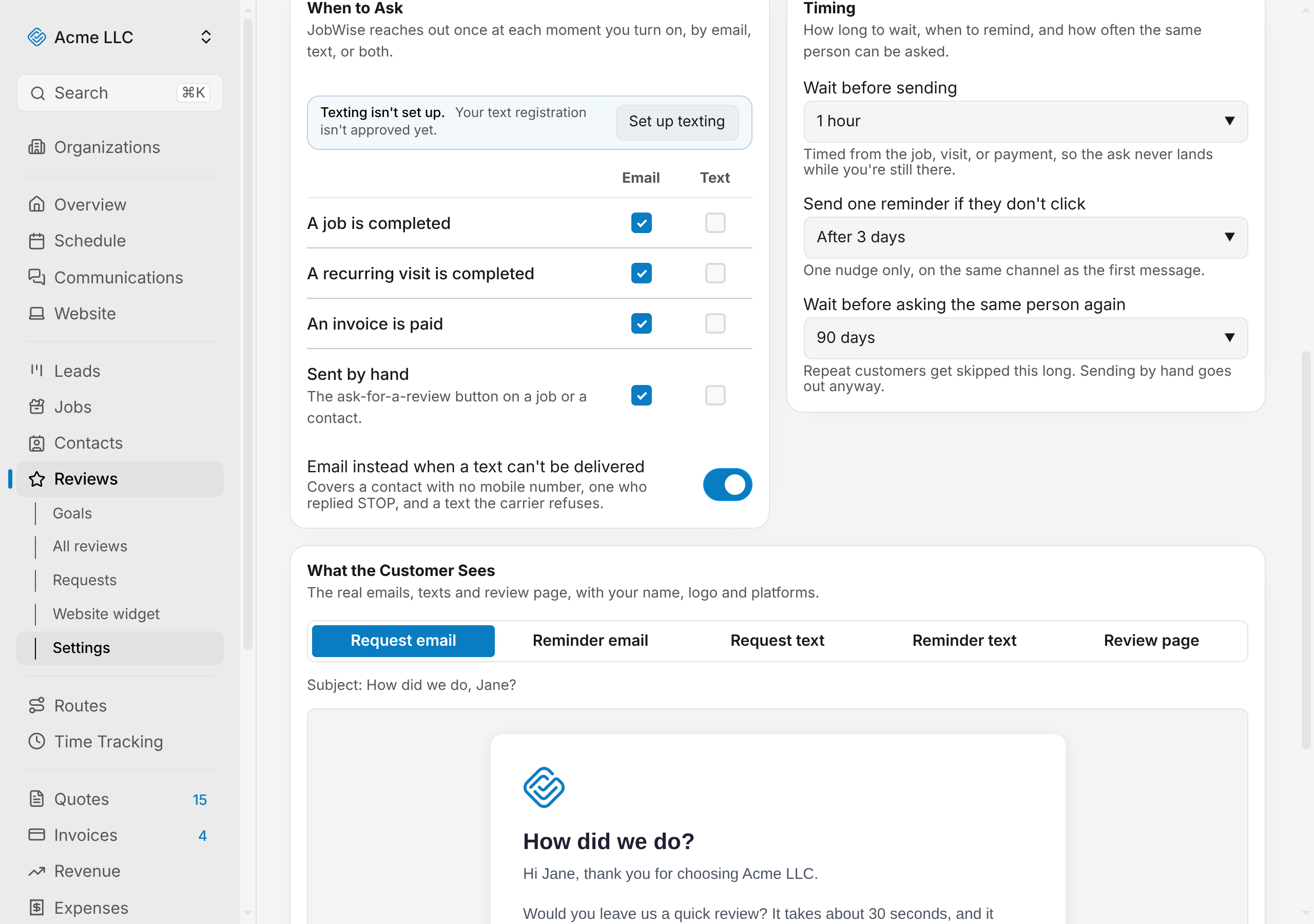
When no moment is turned on, automatic requests never go out, and the ask-by-hand button sends nothing until you turn on at least one moment.
Note
Texting needs a business number set up in Communications before the Text boxes can be used.
Turn on email fallback
When a text cannot be delivered, send the request by email instead. This covers contacts with no mobile number, ones who replied STOP, and texts the carrier refuses.
- Check Email instead when a text can't be delivered.
Fallback only works for moments that have text turned on. If a moment uses text only and the contact cannot receive text, they get the email instead.
Set the wait before sending
Add a delay between when a job, visit, or invoice is ready and when the request goes out.
- Open the Wait before sending dropdown.
- Choose a delay from Immediately to 2 days.
The wait is timed from the job, visit, or payment, so the ask never lands while you are still there.
Send a reminder
JobWise sends one reminder if the customer does not click the first request.
- Open the Send one reminder if they don't click dropdown.
- Choose when to send the reminder: from Off to After 7 days.
The reminder goes out on the same channel as the first message.
Set the cooldown
Control how long to wait before asking the same customer again.
- Open the Wait before asking the same person again dropdown.
- Choose a cooldown from 30 days to 1 year.
Repeat customers are skipped for this long after their last request. Sending by hand bypasses the cooldown and goes out anyway, but a single manual send cannot go out twice in the same minute.
Preview the messages
See exactly what the customer receives on each channel, with your logo, name, and review platforms.
- Open the What the Customer Sees preview.
- Use the buttons to switch between the request email, request text, reminder email, reminder text, and the page the link takes them to.
The preview renders the real emails and texts that are sent, using the same functions and your branding.
Ask a customer by hand
Use this for a customer you want to ask now, outside the moments you set above.
- Open the job or the contact you want to ask about.
- Open the actions menu.
- Choose Ask for a review.
- Confirm the send.
The request goes out on the channels turned on for Sent by hand, and the wait before asking the same person again does not hold it back.
Warning
This reaches the customer straight away, even if you asked them recently.
What blocks a text
Texting requires setup and customer consent. A text cannot be sent when:
- No business number yet: Add one in Communications.
- A business number still being approved: Wait for the process to complete.
- A text registration not yet approved: The verification process takes time.
- Texting turned off: Turn it back on in Communications.
- A contact with no mobile number: Add the phone number to the contact, or use email.
- A contact who opted out of texts: Email is an alternative.
- A text the carrier cannot deliver: Fallback to email applies.
Tip
Turn on Email instead when a text can't be delivered so a text that fails still reaches the customer.
Related Guides
- Track Review Requests See which review requests went out, when customers opened them, and who clicked through.
- Set Review Goals Create a goal for your total reviews, see your progress, and watch your monthly pace.
- Add Reviews to Your Website Build a reviews widget, customize its look, copy the embed code, and paste it on your site.
Still Need Help?
If an article did not cover it, send us a message and a real person will get back to you.