Link Reviews to Contacts
Link reviews to contacts by accepting suggestions, searching by hand, or creating a new contact.
Every review shows whether it came from a known contact. JobWise Pro links reviews automatically when a contact clicks your review request or their name matches a contact in your account, and you can link reviews by hand whenever the automatic match is wrong or missing.
Accept a suggestion
When a review has no contact yet but JobWise Pro found one or more likely matches, a list of suggestions appears on the review card. Click one to link the review.
- Scroll to the review you want to link.
- Look for suggested contacts below the review text.
- A contact is suggested if they opened your review request or their name matches the reviewer's name, allowing for short forms and common given-name variants.
- Click a contact's name.
The linked contact is now credited on the review card with a label indicating how it was matched.
Tip
If no suggestions appear, the review has already been linked or marked as having no contact.
Search for a contact by hand
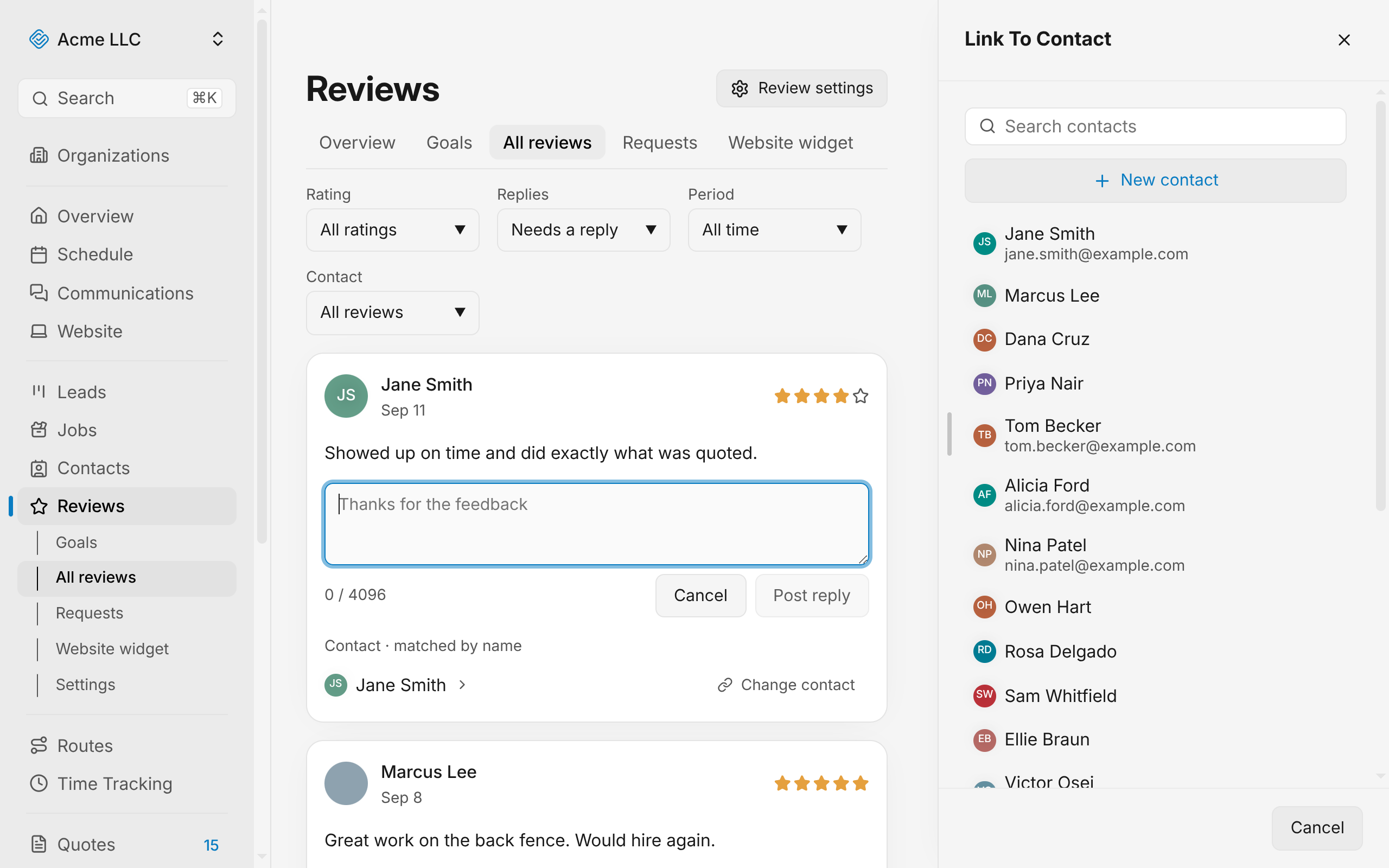
When no suggestions fit or you need a contact not in the suggestions list, open the picker to search all contacts.
- Scroll to the review.
- If suggestions are showing, click Search contacts. Otherwise, click Link to contact.
- Type the contact's name or email in the search field.
- Click the contact's name in the list.
The linked contact is now credited on the review card with a label indicating it was linked by a teammate.
Create a new contact from the review
If the reviewer is not in your contacts yet, create them while linking the review.
- Open the contact picker as described above.
- Click New contact.
- Fill in the contact's details and save it.
The newly created contact is now credited on the review card with a label indicating it was linked by a teammate.
Change a link that is wrong
If a review is linked to the wrong contact, you can change it.
- Scroll to the review.
- Click Change contact.
- Search for the correct contact and click it, or create a new one.
The new contact is now credited on the review card.
Clear a link
If a review is linked to a contact but is not one you want, mark it as having no contact instead of leaving it unlinked. Once marked, the review stays unlinked even if JobWise Pro could match it automatically.
- Scroll to the review.
- Click Change contact or Link anyway.
- Click Clear the link at the bottom of the picker.
The review card now reads No contact beside the Contact label.
Filter reviews by how they are credited
The All reviews list narrows to unlinked, linked, or decided reviews.
- At the top of the list, find the Contact dropdown.
- Choose one of the options:
- All reviews to see every review.
- Needs a contact to show reviews not yet linked or decided.
- Linked to a contact to show reviews credited to a contact.
- Marked no contact to show reviews you decided have no contact.
The list updates to show only the reviews matching your choice.
How reviews are credited
- Contact · from review request: JobWise Pro matched the review automatically because the contact opened your review request around the time the review appeared.
- Contact · matched by name: JobWise Pro matched the review automatically because the reviewer's name matches the contact's, allowing for short forms and common given-name variants.
- Contact · linked by a teammate: Someone on your team linked the review by hand.
- No contact: Someone on your team decided this review has no contact, and it stays that way even if a name or click later matches.
- Not linked to a contact: The review has not been matched or linked yet.
Related Guides
- Choose Where Customers Review You Add and manage the sites where customers can leave reviews when you request them.
- Set Up Automatic Review Requests Choose when to ask customers, send on email or text, and adjust reminders and wait times.
- Track Review Requests See which review requests went out, when customers opened them, and who clicked through.
Still Need Help?
If an article did not cover it, send us a message and a real person will get back to you.