Connect a Google Business Profile
Link your profile, pick which locations sync reviews, and manage automatic or manual syncing.
Connect your Google Business Profile to JobWise Pro, then choose which of your locations feed reviews into the dashboard. Reviews arrive automatically every hour, and you can pull them on demand at any time.
Connect your Google Business Profile
The Google account you use must manage your Business Profile.
- Go to Settings > Reviews > Connect Google.
- Click Connect Google.
- Follow Google's login flow. Google asks which account manages your profile and whether to share your reviews with JobWise.
- You return to the Reviews settings. The connected account name appears under Connect Google, and below it, a list of locations you can turn on.
If you have more than one account managing different locations, repeat these steps for each one.
Turn locations on and off
Once connected, choose which of your Business Profile listings sync their reviews into JobWise. Toggling a location saves instantly, and the listings you pick while first setting this up import a moment later.
- Go to Settings > Reviews > Choose Locations.
- The list shows all locations Google found for your connected account.
- Turn on any location whose reviews you want to see. Turn off any you don't. Each toggle saves as you flip it.
If your account manages more than one location and you have multiple accounts connected, each account's list appears separately. When several accounts offer the same location, it is listed under the first one.
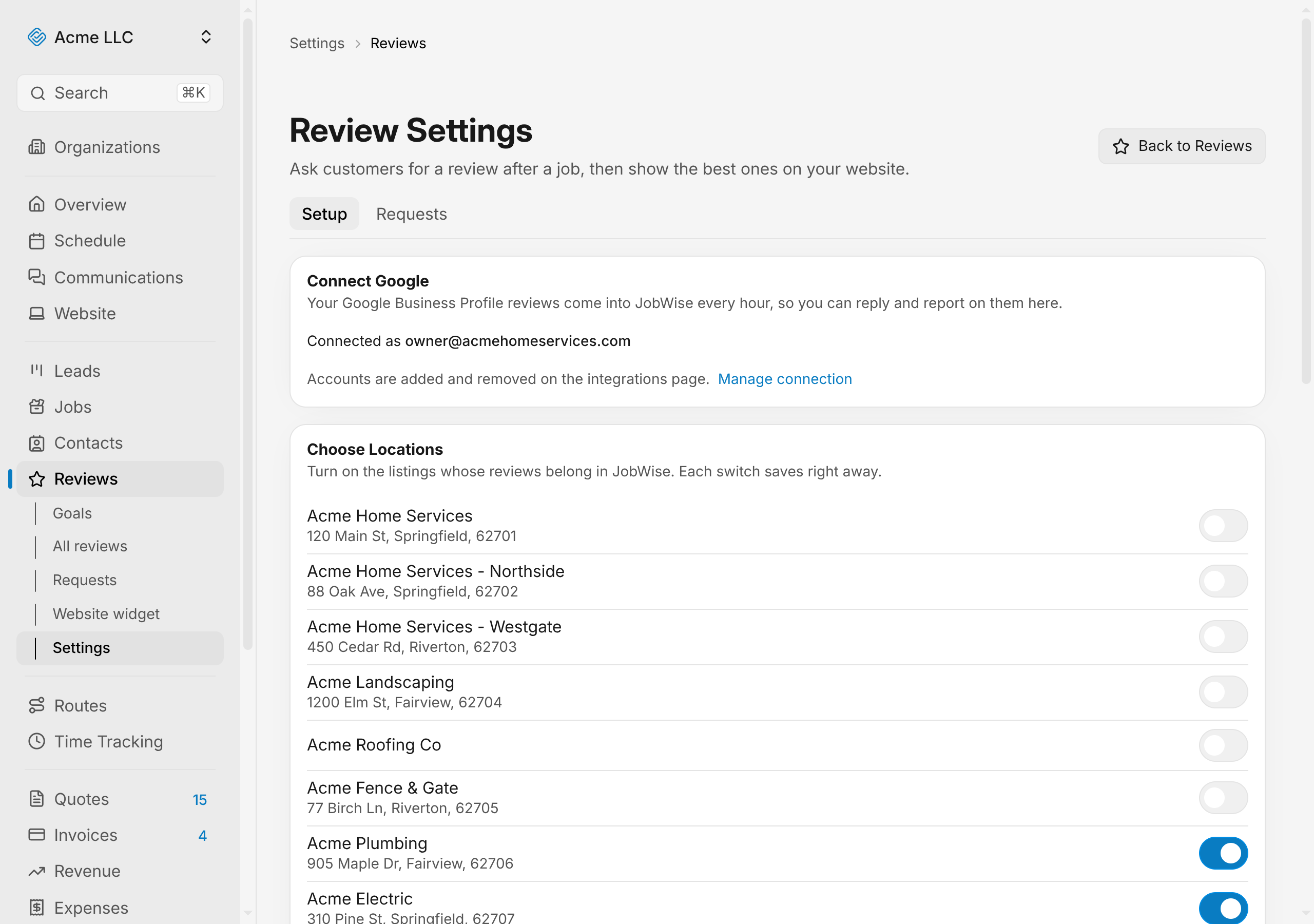
Enabled locations now feed reviews into the Reviews dashboard, covered in introduction to reviews.
Note
The setup import starts a second or two after your last switch, so picking several listings in a row is one import covering all of them. It happens once, while you are still on the page. A listing you add later comes in on the next scheduled sync, within a few minutes, or straight away with Sync now. A long review history keeps importing in the background either way.
Sync reviews on demand
Reviews arrive automatically every hour. You can also pull them now without waiting.
- Go to Settings > Reviews > Choose Locations.
- Click Sync now at the bottom of the list.
- JobWise pulls reviews from your enabled locations. The count of new and updated reviews is reported when the pull finishes.
The button is unavailable while a cooldown is active: manual syncs are limited to once every 5 minutes per organization, because Google caps how often its reviews can be read. The line next to the button gives the last sync time.
Note
A sync too soon after the last one is refused, and the setup import counts as one. Reviews still arrive on their own every hour.
Reconnect an account that stopped syncing
When your Google account's authorization expires or is revoked, the Reviews settings show that account needs reconnecting. Syncing pauses for that account until you reconnect it.
- Go to Settings > Reviews.
- Under Connect Google, find the account that shows Reconnect needed.
- Click Reconnect and follow Google's login.
- When you return, that account is active again and its locations resume syncing.
If an account was removed from your Google workspace entirely, its locations move to a "No connected account" group. They stop syncing and cannot be turned back on. To resume, you must connect a different account that manages those locations.
Delete reviews from locations you turned off
When you turn off a location, its reviews stay saved in JobWise. If you later delete that location's account, or decide you no longer want its reviews at all, you can remove them.
- Go to Settings > Reviews > Choose Locations.
- Scroll to the bottom under Saved reviews from locations that stopped syncing.
- Expand the disclosure to see locations whose reviews are stored but no longer syncing.
- On the location you want to clear, click the trash icon.
- Confirm the deletion.
The reviews stop counting on the Reviews dashboard and leave your contacts' timelines.
Warning
Deleting a location's saved reviews cannot be undone. Turning that location back on imports its reviews from Google from scratch.
Related Guides
- Reply to Reviews Answer a review, edit your response, and understand Google's approval of it.
- Link Reviews to Contacts Link reviews to contacts by accepting suggestions, searching by hand, or creating a new contact.
- Choose Where Customers Review You Add and manage the sites where customers can leave reviews when you request them.
Still Need Help?
If an article did not cover it, send us a message and a real person will get back to you.