Add Reviews to Your Website
Build a reviews widget, customize its look, copy the embed code, and paste it on your site.
Add a reviews widget to your website displaying your synced Google reviews. Configure the layout, theme, and filters in the builder, then copy and paste the embed code on your site.
Build the widget
Open the reviews widget builder to pick a layout, theme, and filters.
- Open Reviews.
- Click the Website widget tab.
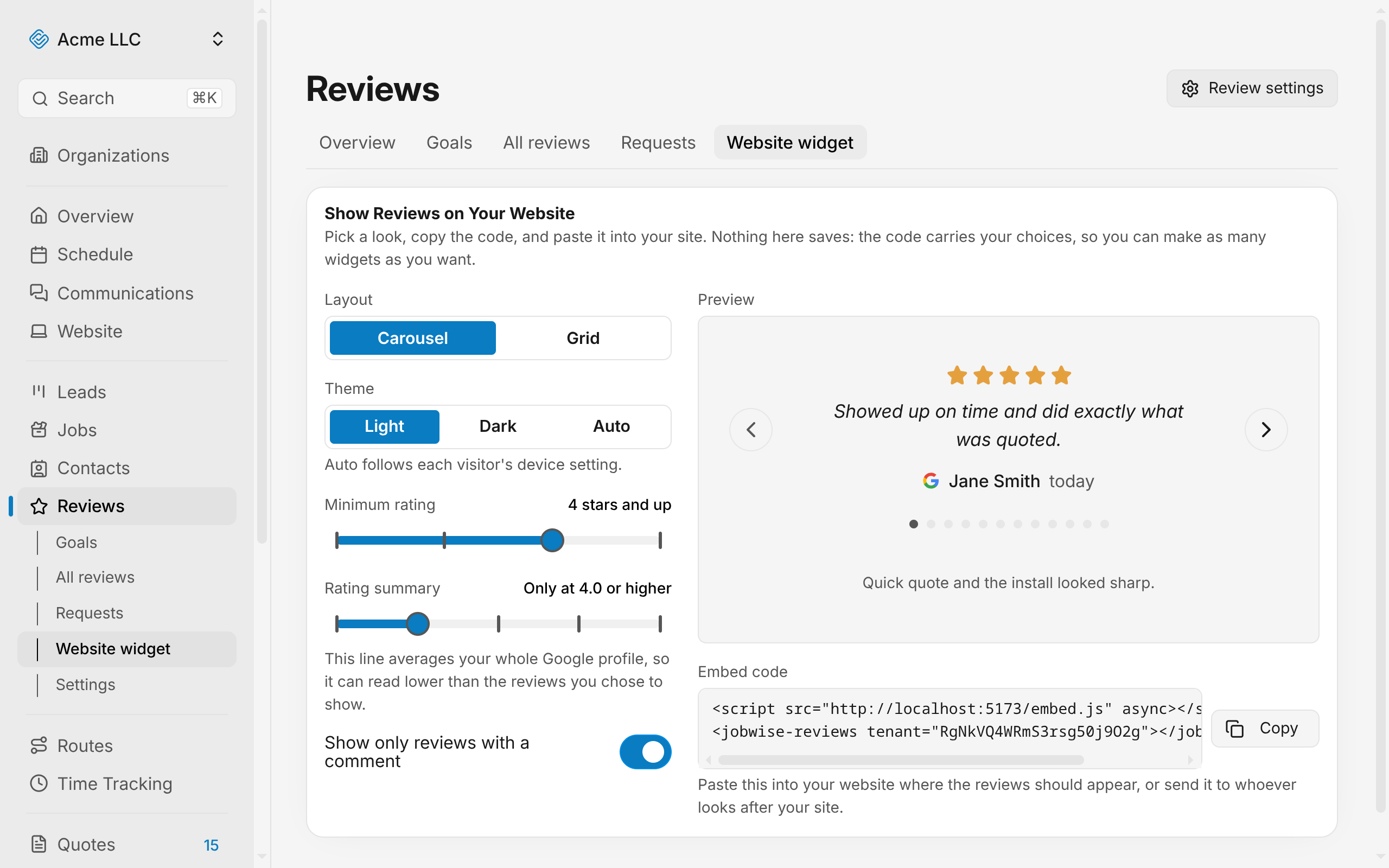
The builder opens with default settings. You are now looking at the preview, which updates as you change each option.
Pick a layout
The layout controls how reviews stack on your site.
- In the builder, find the Layout section.
- Click Carousel to display one review at a time with navigation arrows, or click Grid to stack all matching reviews.
Note
The grid shows all matching reviews. A carousel displays one at a time, with dots to jump between them or arrows to move to the next. Visitors can also swipe on touch devices.
Pick a theme
The theme controls the text color and button appearance.
- Find the Theme section.
- Click Light for dark text on a light background, Dark for light text on a dark background, or Auto to match each visitor's device preference.
The widget inherits your site's own background color and sits invisibly on it. Pick the theme that matches your site's look.
Filter reviews by star rating
Show only reviews with a certain minimum rating.
- Find the Minimum rating slider.
- Drag the slider to set the lowest star count to display: Any rating, 3 stars and up, 4 stars and up, or 5 stars only.
The preview updates to show only reviews that meet the threshold, and collapses when none match.
Show only reviews with comments
Hide reviews that are stars alone, with no written comment.
- Find the Show only reviews with a comment toggle.
- Turn it on to hide reviews without text.
The preview updates. If the filter hides all reviews, the widget shows nothing on your site.
Decide when to show the rating summary
The rating summary is a single-line headline showing your Google average and total review count.
- Find the Rating summary slider.
- Drag to set when the summary appears:
- Always show it displays the headline on the widget no matter what.
- Only at 4.0 or higher (or other thresholds) shows the headline only when your average meets that level.
- Only at a perfect 5.0 shows it only when your average is exactly 5.0.
- Never show it hides the headline.
Note
The rating summary averages your whole Google profile, so it can read lower than the reviews you chose to show.
The summary hides if you have no synced reviews yet.
Copy the embed code
Once you are happy with the preview, copy the code to add the widget to your site.
- Find the Embed code section below the preview.
- Click the Copy button next to the code.
Send the code to whoever manages your website, or paste it yourself into your site's editor.
Paste the widget on your site
Paste the embed code wherever reviews appear on your site.
- Open your website editor or content management system.
- Find the page or section where you want the widget.
- Paste the code from JobWise Pro.
Visitors see reviews pulled from your synced Google profile, filtered by your chosen settings.
Warning
The embed code is public: it sits in the HTML of your web page. Do not treat it as a secret; visitors can see it.
Create multiple widgets
Each embed code carries its own configuration, so you can create differently filtered widgets for different pages.
- Change the filters or theme in the builder (for example, set the minimum rating to 4 stars and the layout to grid).
- Copy the new embed code and paste it on a different page or section of your site.
- Change the filters again in the builder (for example, set the theme to dark and filter to only 5-star reviews).
- Copy and paste this version elsewhere.
Each widget carries its own settings in the code, so changing the builder does not affect widgets already on your site.
When the widget shows nothing
If the widget collapses to nothing on your site (takes no visible space), it means no reviews matched your filters at that moment.
- If you filtered to 5-star reviews only but all your recent reviews are 4 stars, the widget hides.
- If you toggled on Show only reviews with a comment and your reviews are all star ratings, the widget hides.
- If you have no synced reviews yet, the widget is always empty.
The widget stays in your HTML. Once you connect Google reviews or adjust the filters to match available reviews, the widget appears without any change to the embed code.
Related Guides
- Introduction to Reviews Manage customer reviews from Google, reply to them, and track your ratings.
- Connect a Google Business Profile Link your profile, pick which locations sync reviews, and manage automatic or manual syncing.
- Reply to Reviews Answer a review, edit your response, and understand Google's approval of it.
Still Need Help?
If an article did not cover it, send us a message and a real person will get back to you.