Reply to Reviews
Answer a review, edit your response, and understand Google's approval of it.
Reply to reviews on your Google listing directly from JobWise Pro. Connect your Google Business Profile first, then browse reviews and post replies. Google checks each reply for policy violations before publishing it, and the status shows you what happened.
Filter to find reviews needing replies
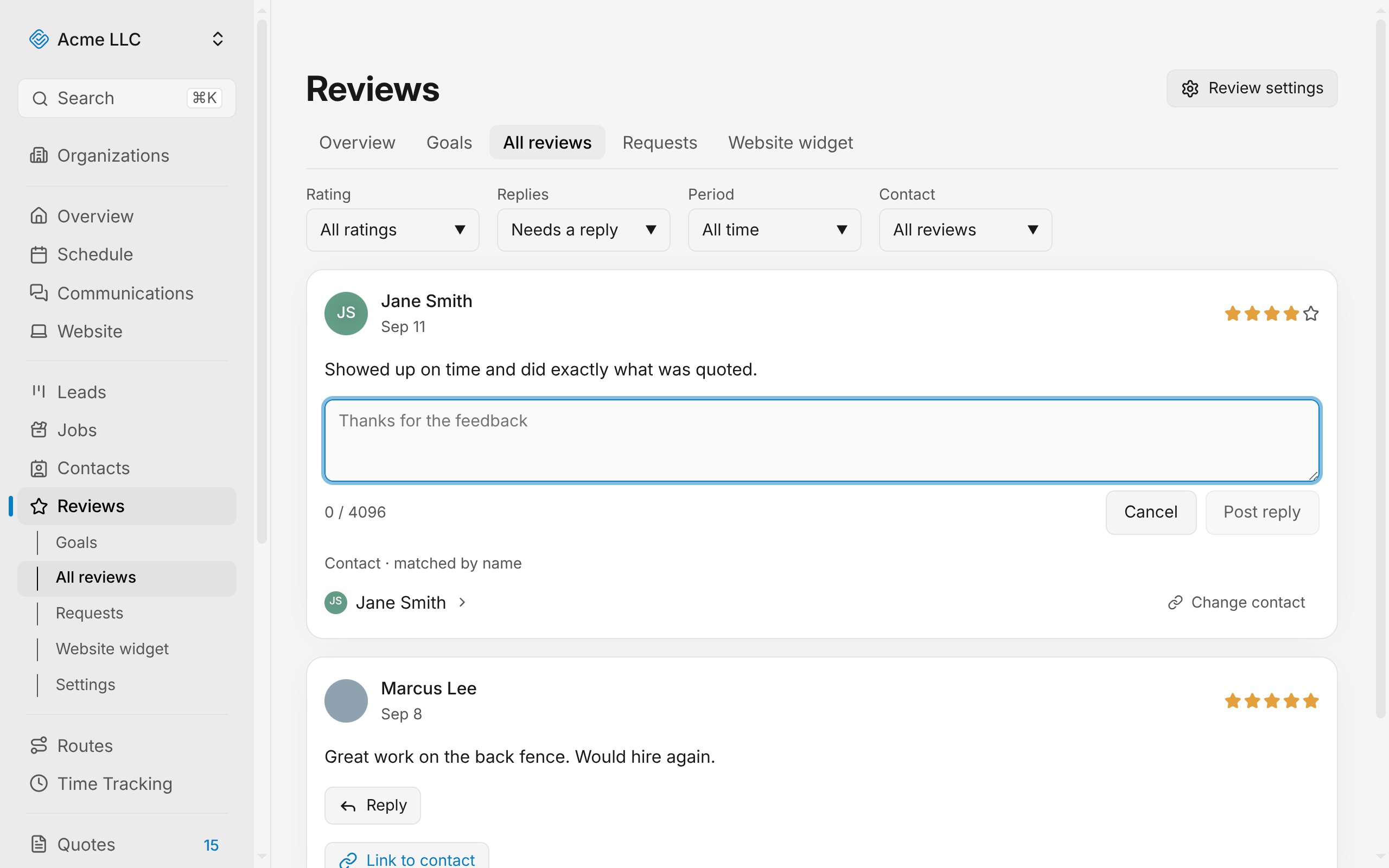
The All reviews list has four filters to narrow what you see.
- Open All reviews.
- Click a filter dropdown to narrow the list.
- Rating: show only reviews with a specific star count, or all ratings
- Replies: show only reviews you have answered, only those waiting for a reply, or all reviews
- Period: show reviews from the last 30 days, 90 days, or year, or all time
- Contact: show reviews you have linked to a contact, or those that need a contact, or those you marked as having no contact
The list updates instantly and the filters stack: pick multiple to find a specific set.
Write and post a reply
Open a review and type your response.
- Open All reviews.
- Click Reply on any review, or if the review already has a reply you posted, click the pencil icon to edit it.
- Type your answer in the text box. The counter under it tracks how much of the limit you have used.
- Click Post reply.
Your reply posts to Google immediately. The reply's status changes to Pending while Google checks it, then to Live if approved or Rejected if it violates policy.
Warning
Very long replies are refused when posted.
Jump straight to a review from the Overview
The Needs a Reply card on the Overview lists the newest reviews with no response yet.
- From any page, open the Overview.
- In the Needs a Reply section, click Reply on the review you want to answer.
The All reviews list opens with that review's editor ready to type into. Click View all to see the full list instead.
Understand reply states
Once you post a reply, Google checks it and either publishes or rejects it.
- Live: Google approved the reply and it is published on your listing.
- Pending: Google is still checking the reply.
- Rejected: Google refused to publish this reply. The reason appears below the text; edit the reply to remove the policy violation and try again.
The reply's date shown is when you last posted or edited it, not when Google approved it.
Edit a reply you already posted
Once you post a reply, an edit button appears next to the reply status if you want to revise it.
- Open All reviews.
- Find the review with a reply.
- Click the pencil icon next to the reply status.
- Update the text and click Post reply.
A rejected reply can be edited and resubmitted; the status updates once Google rules on it.
What blocks the reply control
If the Reply button is disabled or missing, one of these is true:
- Google is not connected: Connect your Google Business Profile in Reviews settings.
- Google connection needs refresh: Reconnect your Google Business Profile in Reviews settings.
- You don't have reply permission: Only members with review editing rights can post replies.
- Reviews have not synced: Sync reviews first so the system knows which reviews exist on your listing.
Hover over the disabled button to see the exact reason.
Related Guides
- Link Reviews to Contacts Link reviews to contacts by accepting suggestions, searching by hand, or creating a new contact.
- Choose Where Customers Review You Add and manage the sites where customers can leave reviews when you request them.
- Set Up Automatic Review Requests Choose when to ask customers, send on email or text, and adjust reminders and wait times.
Still Need Help?
If an article did not cover it, send us a message and a real person will get back to you.