Introduction to Reviews
Manage customer reviews from Google, reply to them, and track your ratings.
The Reviews area is where you connect your Google Business Profile, collect customer reviews automatically, reply without leaving the dashboard, and ask past customers for one. It shows how many reviews you have gathered, what your average rating is, and which reviews still need a response.
Connect your Google Business Profile
Connecting your Google Business Profile is the first step; nothing syncs until you do. When you connect, you authorize JobWise to access your profile and sync reviews from the locations you select automatically.
- From the Overview, click Connect Google in the setup checklist.
- Follow the Google authorization flow.
Once authorized, your locations appear in settings and the checklist marks this step complete.
Note
If your connection needs refreshing, a banner at the top of Reviews tells you to reconnect.
Choose which locations sync reviews
Your organization can have multiple locations listed in Google Business Profile, but only the ones you select send reviews to JobWise. Choose the locations you want to monitor.
- From the setup checklist, click Choose locations.
- Select each location you want to receive reviews from.
When you save, reviews from those locations begin syncing.
Review what the Overview shows
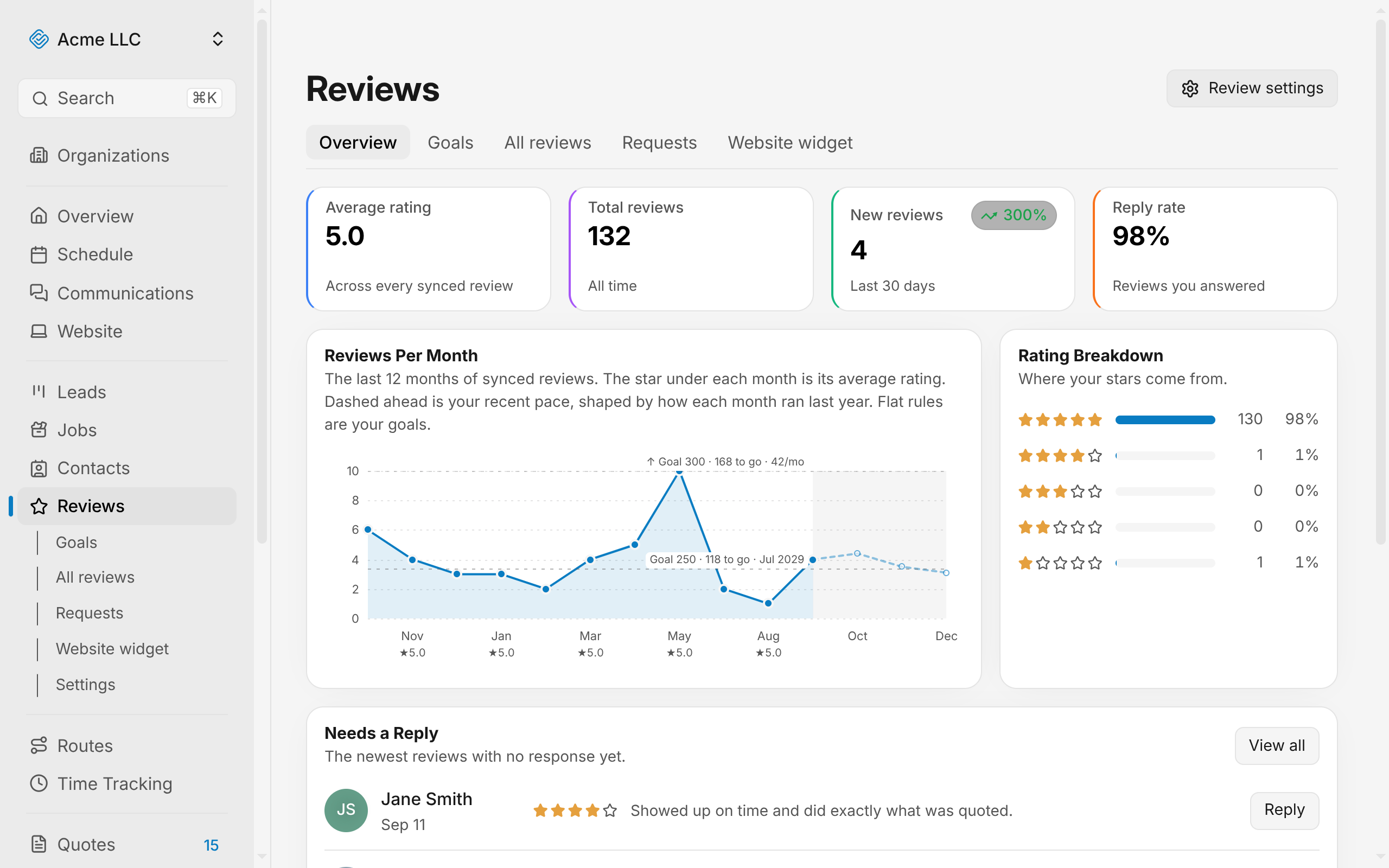
The Overview displays your review activity at a glance. Here is what each number means:
Average rating: The mean of every star rating across all synced reviews.
Total reviews: The lifetime count of reviews synced from your locations.
New reviews: How many reviews arrived in the last 30 days. If the number changed from last month, a small badge shows the percentage increase or decrease.
Reply rate: The percentage of reviews you have answered with an owner's reply.
Reviews Per Month: A chart of the last 12 months showing how many reviews landed each month, with the average rating for that month marked underneath. If you have set review goals, the chart shows the pace you need to stay on track.
Rating Breakdown: A distribution showing how many 5-star, 4-star, 3-star, 2-star, and 1-star reviews you have, with the count and percentage. Click a star rating to see only the reviews at that rating.
Needs a Reply: The five newest reviews with no owner response yet. Click Reply to respond, or view all unanswered reviews.
Request Funnel: Metrics for review requests sent in the last 30 days. Sent is the count of emails dispatched. Opened is how many were read. Clicked is how many tapped a platform link. Click rate is the percentage of sent requests that led to a click.
Reply to reviews
Replying to reviews lets you respond to feedback, thank customers for positive ratings, and address concerns. The newest unanswered reviews appear on the Overview; you can also browse and filter all reviews by rating or reply status.
You must be connected to Google to reply, and a very long reply is refused when you post it.
Ask past customers for reviews
Asking customers for reviews emails or texts them a link to the review sites you offer. Requests go out when a job or a recurring visit is finished, when an invoice is paid, or when you ask by hand. First, choose where you want customers to review you, then track how many requests land.
Link reviews to contacts
Linking reviews to contacts credits a review to the contact who left it.
Set review goals
Review goals let you track a target number and watch your pace against it on the Overview chart. Undated goals track progress; dated goals show the monthly pace you need to stay on track.
Show reviews on your website
Adding reviews to your website shows your synced reviews in a widget on your own site.
Related Guides
- Connect a Google Business Profile Link your profile, pick which locations sync reviews, and manage automatic or manual syncing.
- Reply to Reviews Answer a review, edit your response, and understand Google's approval of it.
- Link Reviews to Contacts Link reviews to contacts by accepting suggestions, searching by hand, or creating a new contact.
Still Need Help?
If an article did not cover it, send us a message and a real person will get back to you.