Share a Client Portal
Share a portal link with a contact to show their balance, invoices, quotes, contracts and job files, then track and revoke it.
A client portal link is a page for one contact that shows what they owe, their invoices and quotes, the contracts they're asked to sign, their shared job files and their saved cards. You create the link on the contact's page, send it yourself, and revoke it to end access.
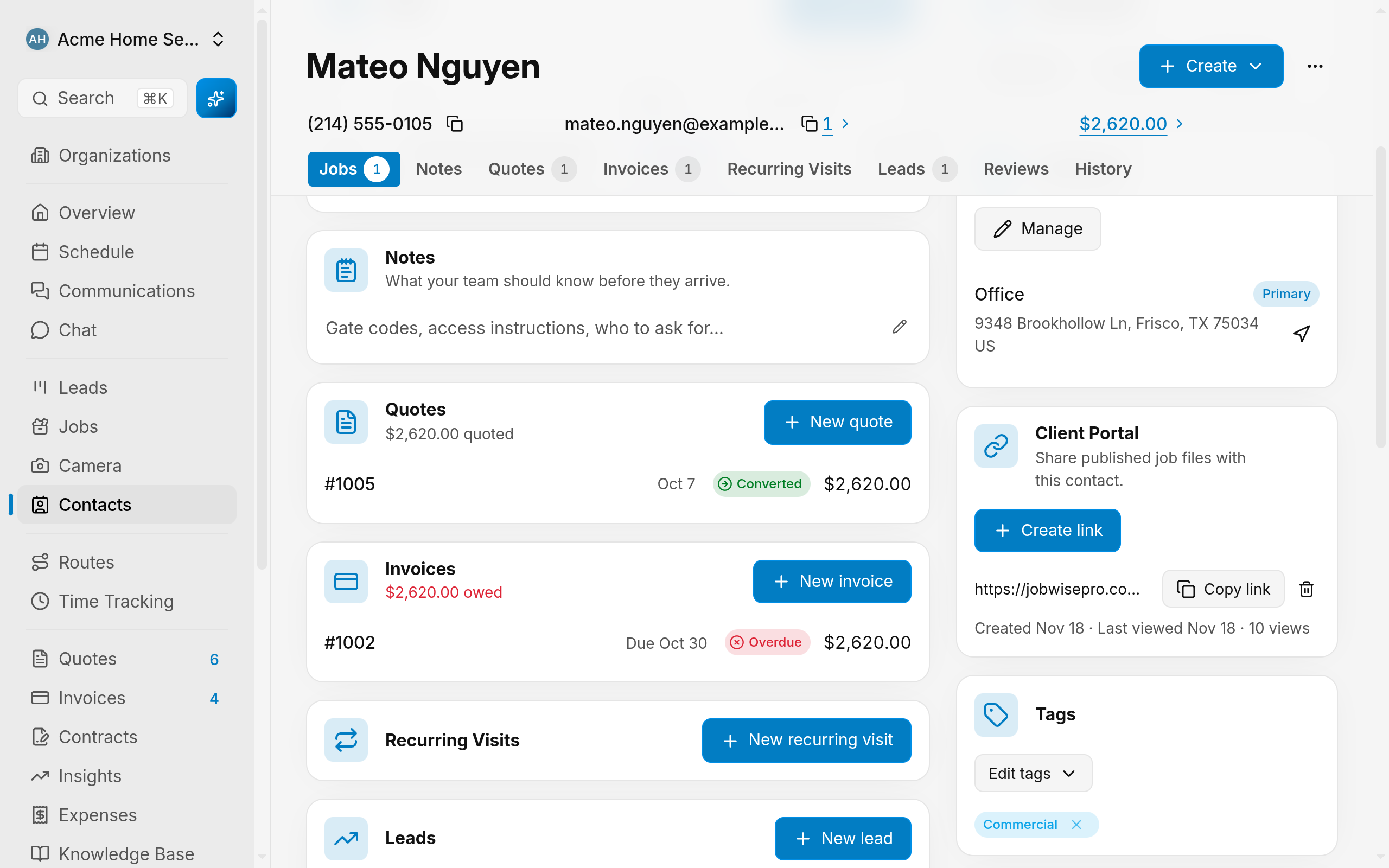
Create a link for a contact
Create a link when a contact needs their balance, invoices or shared files. Each Create link adds a new link, and links you created earlier stay live until revoked.
- Open the contact from the Contacts page.
- Find the Client Portal card on the contact's page.
- Only roles with edit access to contacts see the card (src/routes/dashboard/[id]/contacts/[clientId]/+page.svelte:98,110).
- Click Create link.
- If your plan does not include job files, the link is not created. Compare plans in change your plan.
The new link appears in the card, and it is copied to your clipboard (src/routes/dashboard/[id]/contacts/[clientId]/+page.svelte:130).
Note
The card lists up to 50 live links, newest first.
Send the link to the contact
JobWise Pro copies the link but does not send it, so you send it from your own email or messages.
- Click Copy link on the link's row to copy it again.
- Paste the link into an email or text message to the contact.
After the contact opens the link, the card shows when they last viewed it.
Warning
Anyone with the link can see this contact's invoices, quotes, contracts, shared job files and saved cards, can sign or decline contracts sent to the contact, and can add, remove or change the card you charge. Send it only to the contact, and revoke it if it reaches anyone else.
Check when the contact viewed a link
Each link's row in the Client Portal card shows the date the link was created and how many times it was viewed (src/routes/dashboard/[id]/contacts/[clientId]/+page.svelte:757-760).
The row also shows the date of the latest visit, or that the contact has not opened the link yet.
A visit is one load of the contact's portal home page (src/routes/portal/[token]/+page.server.ts). A reload counts again. Opening a job's files or the payment methods page does not count.
Revoke a link
Revoke a link to end access through it. Other links for the same contact keep working.
- Click the trash icon at the right of the link's row.
- Click Revoke link in the confirmation dialog.
The link leaves the card and stops working (src/lib/server/job-files/client-portal.ts). Files the contact already opened can stay visible in their browser for a short time.
Warning
Revoking can't be undone. Create a new link to give the contact access again.
What the contact sees on the portal home page
The portal home page at a link lists everything shared with the contact. Invoices, quotes and contracts sort newest first, and jobs sort by title.
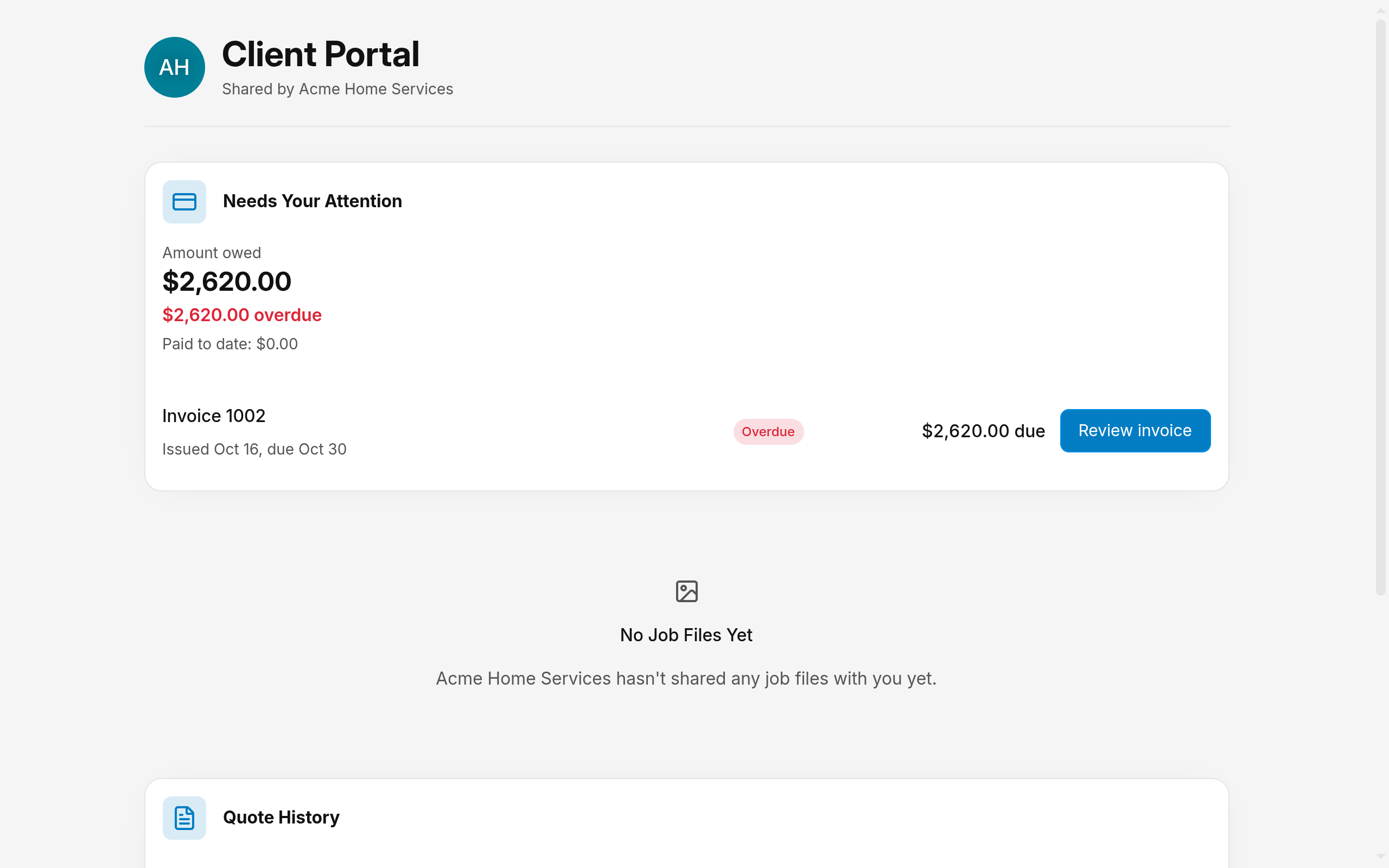
- Needs Your Attention: the card title when an invoice has a balance, a quote is awaiting a decision or a contract is awaiting the contact's signature. Otherwise the title is Account Summary.
- Amount owed: the total balance across shared invoices. The page also shows one overall overdue total, which counts invoices flagged overdue and invoices whose due date has passed in the business's time zone (src/lib/server/client-portal/documents.ts). An invoice flagged overdue shows an Overdue badge.
- Paid to date: the total paid across shared invoices.
Invoices with a balance sit under Needs Your Attention with a Review invoice button. Paid invoices move to Invoice History. Draft and voided invoices are not shown. For how invoices get paid, see Collect a Payment.
- Payment due: any invoice that is not paid, overdue or partially paid.
- Partially paid: part of the balance has been paid.
- Overdue: the invoice is flagged overdue.
- Paid: no balance remains.
Quotes with the status sent appear under Quotes to Review with the label Awaiting your decision and a Review quote button. Accepted, converted and declined quotes appear under Quote History as Accepted or Declined. Only sent, accepted, declined and converted quotes are shown. For how contacts respond to quotes, see Customer Approval.
A contract appears when it is linked to the contact and the contact's email address is one of its signers. Review and sign and View contract open the same signing page the contact gets by email. Drafts and voided contracts are not shown (src/lib/server/client-portal/documents.ts). For sending contracts, see Introduction to Contracts.
- Contracts to Sign: contracts the contact hasn't signed yet, labeled Awaiting your signature with a Review and sign button.
- Contract History: every other contract, labeled Waiting on others when the contact signed and other signers still have to, Signed once everyone signed, or Declined when anyone declined. A contract with more than one signer shows how many have signed.
Jobs and Files lists each job with at least one shared file, with its date, address, status and shared file count. View files opens that job's files. Publishing files to a job is covered in Share Job Photos and Documents.
The footer has a Payment Methods section and a contact section with the business's details.
Saved cards the contact manages
The contact opens saved cards from Manage payment methods in the footer of the portal home page (src/routes/portal/[token]/+page.svelte). Each card shows its brand, last four digits and expiry. The card that invoices are charged to is marked Default.
- Add card opens Stripe's card form. The card saved there becomes the default.
- Make default on another card moves the default to that card.
- Remove opens a confirmation with Remove card. Removal is permanent, and the contact must add the card again to use it. If the removed card was the default, automatic charges skip the contact until a new default is chosen (src/lib/server/client-portal/payment-methods.ts).
A contact can't add a card until you connect payments (src/routes/portal/[token]/payment-methods/+page.svelte).
Related Guides
- Introduction to Contacts Find, open, and update every customer and prospect, and see each contact's work, money, and history.
- Add a Contact Save a new contact with their name, phone, email, and addresses, then update those details as they change.
- Import Contacts Bring customers in from Jobber, Housecall Pro, or a CSV file, and skip the ones you already have.
Still Need Help?
If an article did not cover it, send us a message and a real person will get back to you.