How a Customer Approves a Quote
Set the signature requirement and see what each customer response records.
Every quote you send carries a private link to a public page where the customer accepts or declines it. One setting decides whether that approval needs a typed name and a drawn signature. Sending the link is covered in send a quote.
Choose whether customers must sign
The signature requirement applies to every quote your organization sends.
- Open Quote Settings.
- Find the Customer approval card.
- Turn Require customer signature for quote approval on or off.
- On: the customer types a name and draws a signature before the approval records.
- Off: the approval records on one click.
- Click Save changes.
- Save changes appears only for members with permission to edit settings.
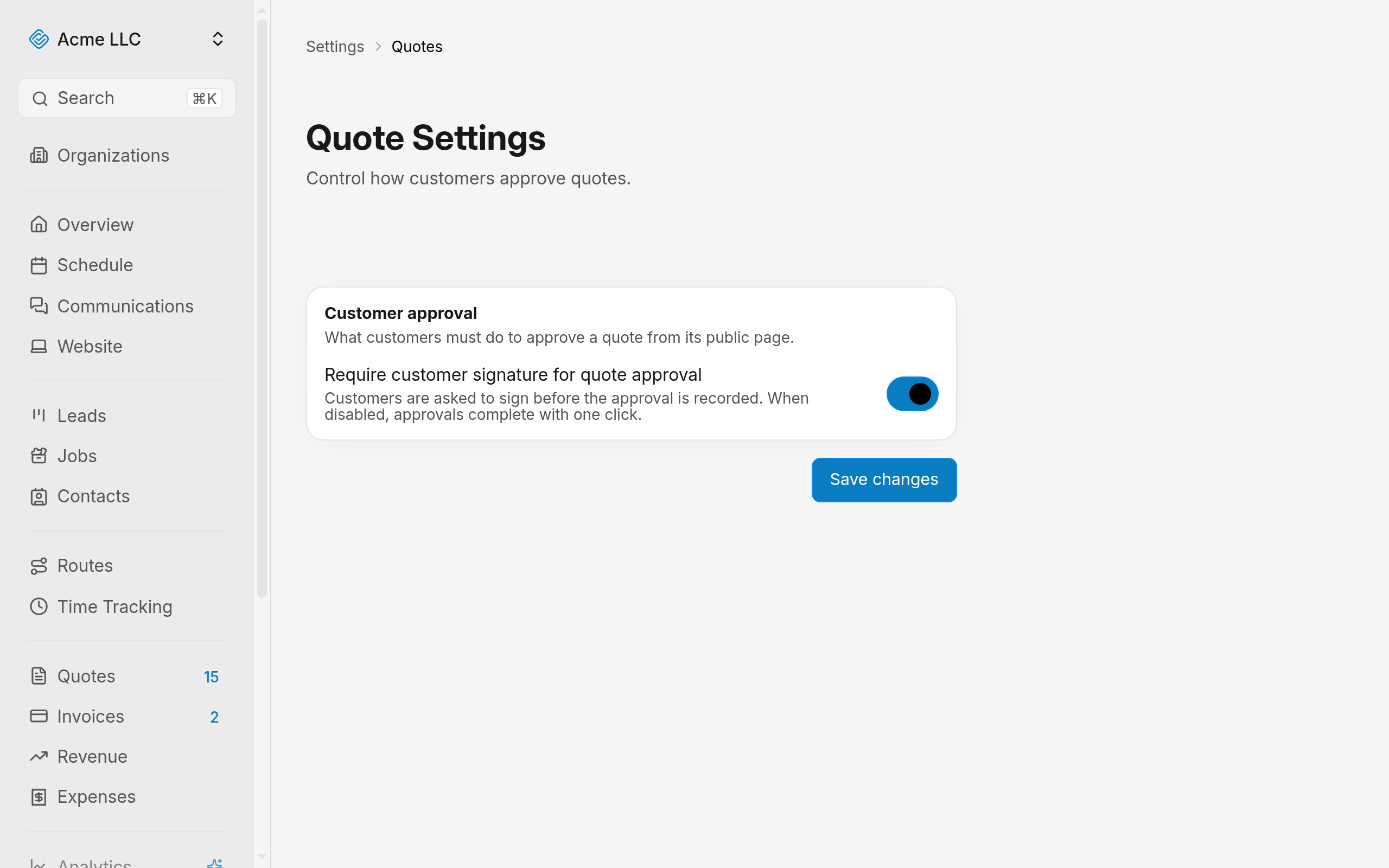
The next customer who opens a quote link gets the saved behavior.
Note
An organization that never saved this setting requires a signature.
How the customer accepts
The link opens without a sign-in, and only the exact link you sent works. A quote sent before access links existed opens from any copy of its link. The page shows your business name, the contact's name and email, the quote date, Valid until, the line items, notes, terms and Total.
- Click Accept quote.
- With the signature requirement off, this records the approval.
- Type a name in Your name in the Approve Quote window.
- It arrives filled with the contact's name from the quote.
- Draw in Signature.
- Click Submit approval.
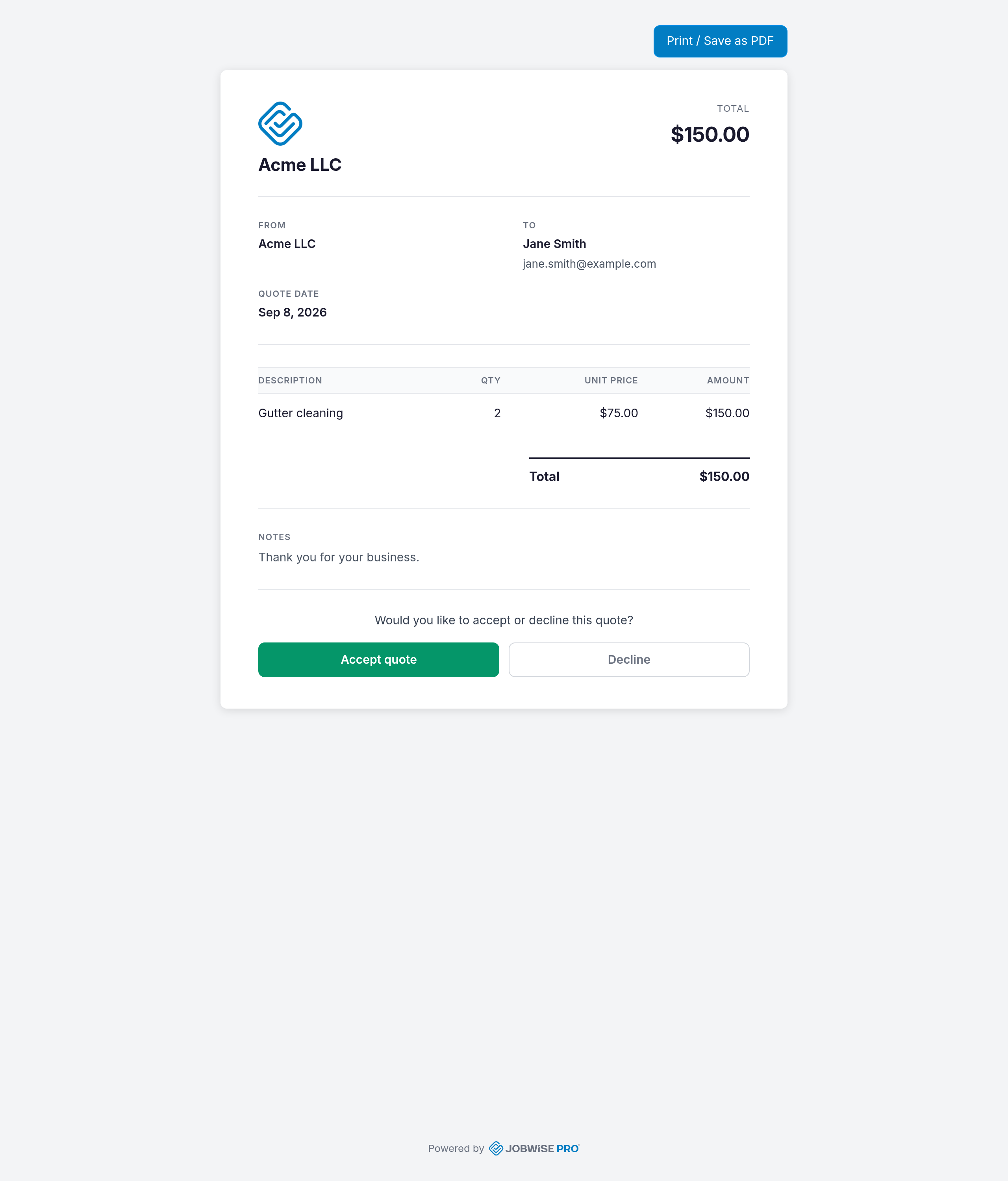
The page shows the quote as accepted, and the status in your dashboard changes to Accepted.
Note
Submit approval stays inactive until both the name and the signature are filled in.
How the customer declines
Declining takes no signature, whatever the setting says.
- Click Decline.
- Confirm the decline.
The page shows the quote as declined, and the status in your dashboard changes to Declined.
Check a response in your dashboard
Each quote keeps its own record of what the customer did, alongside the rest of the detail covered in manage quotes.
- Open Quotes.
- Open the quote.
- Read the approval details: the signed name, the signature image, and the first and most recent customer visit.
Tip
Visits by members of your organization leave the visit dates alone, so you can open the link yourself.
What each response records
- One-click approval: the time of the approval, credited to the customer.
- Signed approval: the same, plus the typed name and the drawn signature stored as an image with your organization's files.
- Decline: the declined status only.
- Accepted by a team member: the member who accepted, in place of any signed name.
An acceptance notifies your organization with the quote number, contact name and amount, updates any job attached to the quote, and leaves the quote ready to convert to an invoice. A decline sends its own notification.
Limits on customer responses
- Only a quote you have sent takes a response. A draft link opens only for members of your organization who can view quotes, with no buttons. Anyone else sees a not-found page until the quote is sent or marked as sent.
- A signed-in member of your organization gets no buttons, and a response from a member is refused.
- Editing a sent quote re-sends the customer the updated copy. An approval against the older page fails, and the page reloads with the current terms.
- Valid until shows on the page, and a customer can still accept after that date.
Warning
Once a quote is accepted, its line items, total, Valid until date and terms can no longer change.
Related Guides
- Convert an Accepted Quote Into an Invoice Turn an accepted quote into an invoice that reaches the customer with its lines intact.
- Find and Manage Quotes Search the quotes list, read where each quote stands, and act on it from its row.
- Create a Quote Build a quote on a blank document page, price the work, and send it to the customer.
Still Need Help?
If an article did not cover it, send us a message and a real person will get back to you.