Manage Automations
Turn JobWise Pro's automatic tasks on or off, and change how each one runs, from one page.
The Automations page in Settings lists everything JobWise Pro does on its own for your business, grouped by area. Switch an automation on or off there, or open it to change its settings. Automations that your account doesn't include, or that your role can't view, are not listed.
Open the Automations page
The page has one tab per area. Each tab lists the automations in that area.
- Open Automations from Settings.
- Select the tab for the area you want, such as Customer Messages or Reviews.
- If the list doesn't load, your settings are unchanged. Select Try again to load it again (src/routes/dashboard/[id]/settings/automations/+page.svelte:111-113).
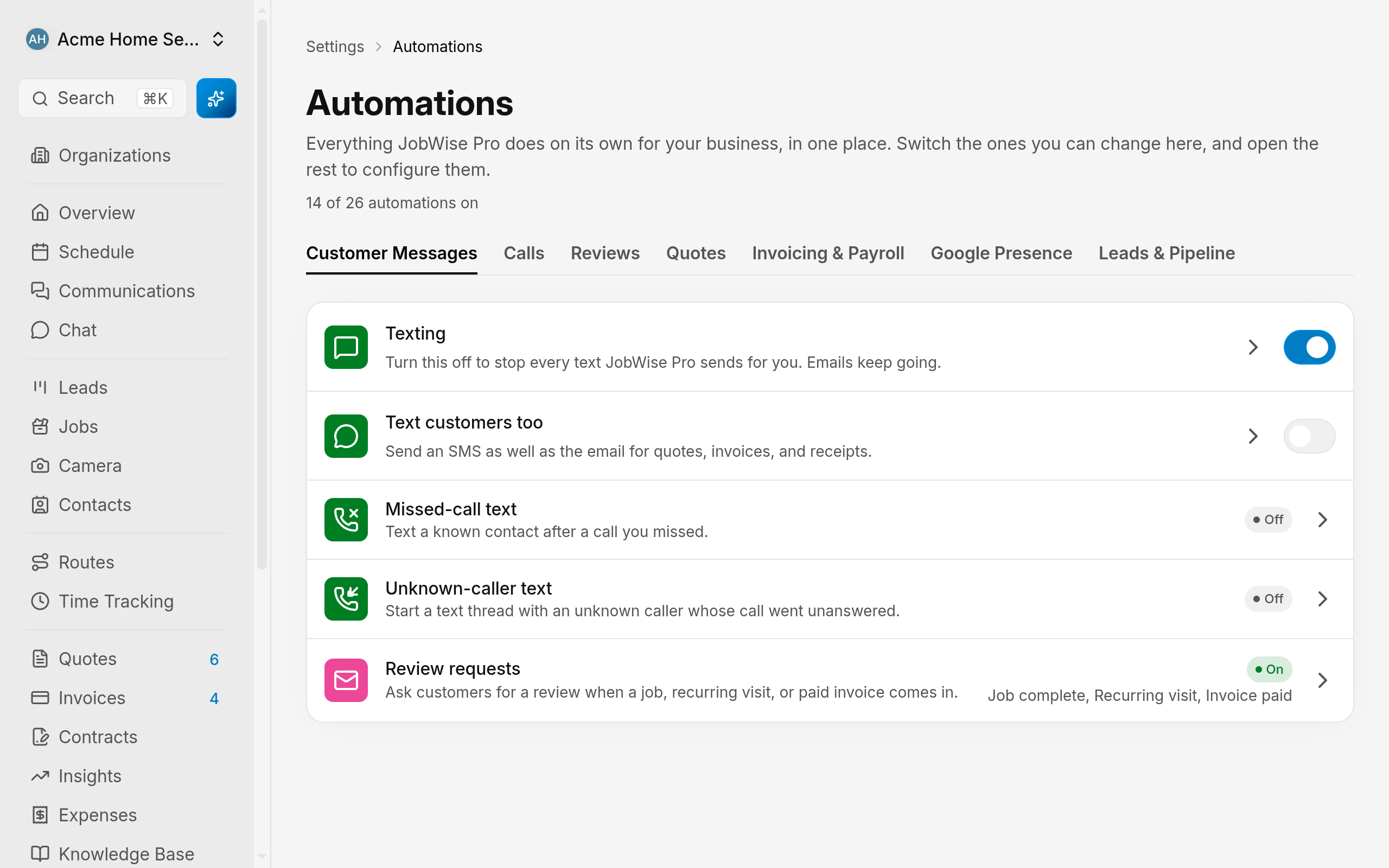
The header shows how many automations are on, out of the total on the page (src/routes/dashboard/[id]/settings/automations/+page.svelte:137-141).
Turn an automation on or off
The switch on each row saves the change as soon as you flip it. There is no save step.
- Find the automation's row in its tab.
- Turn its switch on or off.
- If the switch is disabled, your role can't change it. See Who can change automations.
The switch shows the new state, and the header count updates to match.
Note
Turning off Texting stops every text JobWise Pro sends for you. Emails keep going.
Change an automation's settings
Rows that have settings open a panel instead of a page. The panel holds the fields for that one automation.
- Select the row, such as Missed-call text to contacts. The panel opens with the automation's title.
- Change the fields in the panel.
- Only members with access to the setting can change its fields. Others see the fields read-only, and no Save changes button appears (src/routes/dashboard/[id]/settings/automations/+page.svelte:203,265-267).
- Select Save changes.
- If a field is invalid, the panel stays open. Missed-call text to contacts needs a message before it can turn on (src/lib/server/automation-definitions/fields.ts:54-59).
The panel closes, and the row shows the saved value. Select Open full settings at the bottom of the panel to open the page where the automation is set up.
Open an automation's page
Rows that have a page of their own link to it. Select the row's name to open it. The stage and status switches under Leads & Pipeline have neither a panel nor a page.
Texting and the call automations open the communications settings. See Phone and texting settings.
Automation groups
- Customer Messages: Texting, Text quotes, invoices, and receipts, Appointment confirmation text, Missed-call text to contacts, and Missed-call text to new callers. Appointment confirmation text texts the customer when you schedule a request, schedule a job, or add a visit to a job. Turning a request into a job at the request's own time doesn't text again, and neither does moving an appointment later. Appointments the AI assistant creates or that have already started never send one. Missed-call text to contacts texts a caller who is already a contact after a call you missed. Missed-call text to new callers starts a text thread with a caller who isn't a contact yet. Review requests also appears in this tab.
- Calls: Voicemail, After-hours voicemail, Call recording, and Call transcription.
- Reviews: Review requests, which asks customers after a job, a recurring visit, or a paid invoice, and AI replies to Google reviews. See Ask customers for reviews and Reply to reviews.
- Quotes: Instant quote expiry, which sets how long instant quotes stay valid.
- Invoicing & Payroll: Email recurring invoices, Invoice recurring job visits, AI credit top-up, and Send payroll hours to Gusto. Recurring schedules are covered in Manage recurring invoices.
- Google Presence: Monthly Google ranking scan, which checks where each Google location ranks in local search once a month.
- Leads & Pipeline: Contact forms create leads, plus the stage and status automations. See Automate lead stages.
Who can change automations
- Members whose role can't view automations don't see Automations in Settings (src/lib/settings-nav.ts:201-211).
- Each automation needs view access to its own area. Automations outside it are not listed (src/lib/server/automation-definitions/access.ts).
- Switches and settings panels need edit access to the automation's area:
- Customer Messages and the Calls voicemail rows: access to phone and texting settings.
- Call recording and Call transcription: full access to phone and texting settings.
- Review requests and AI replies to Google reviews: edit access to settings.
- Instant quote expiry: full access to quoting tools.
- AI credit top-up: full access to settings.
- Leads & Pipeline switches: full access to automations.
- Email recurring invoices, Invoice recurring job visits, Monthly Google ranking scan, and Contact forms create leads have no switch or panel here. They show On or Off and link to their page.
Your role sets these permissions. See Roles and permissions.
What each setting changes
- Instant quote expiry: instant quotes expire after 1 to 365 days. The default is 30.
- Review requests: wait before sending, from 0 to 10080 minutes (0 sends right away). Reminder, from 0 to 30 days (0 turns it off). Don't ask the same contact again for 0 to 3650 days.
- Missed-call text to contacts and Missed-call text to new callers: a message up to 500 characters. Turning either on requires a message.
- Appointment confirmation text: a message up to 500 characters, with tags that fill in the customer's first name, the appointment's title on the schedule, its date, time and address, the team members on it, and your business name. An address or team member the appointment doesn't have is left out of the sentence, and a team member with no name on their profile is left out too. Clear the message to go back to the default.
- After-hours voicemail: set both the start and the end of business hours, or clear both.
- Call recording: an announcement before recording, and a delete-after period or Keep forever. A blank announcement uses the default.
- AI replies to Google reviews: a reply style. A blank style uses the default voice.
- AI credit top-up: buy a credit pack when the balance drops below 10 to 10,000 credits, with up to 20 automatic purchases per month. This entry does not appear in the iOS app.
Warning
AI credit top-up charges your saved card each time the balance drops below the threshold, up to the monthly limit.
Related Guides
- Change Your Plan Move to the plan you need, manage add-ons, and keep your card current.
- Transfer Ownership or Delete the Organization Hand the organization to another member, or delete it and end its billing.
- Edit Your Business Profile Change your organization name, contact details, address, and timezone from one settings page.
Still Need Help?
If an article did not cover it, send us a message and a real person will get back to you.