Set Up Two-Factor Authentication
Add an authenticator app to your account, add a spare, and remove the ones you no longer use.
Two-factor authentication asks for a six-digit code from an authenticator app after your email and password. Authenticators live on the Security tab of account settings, the dialog that opens from the account menu at the bottom of the sidebar. The rest of that dialog is covered in Introduction to Your Account.
Turn on two-factor authentication
Start with the authenticator app installed on the phone or computer you sign in with.
- Click your name and avatar at the bottom of the sidebar.
- Click Account.
- Open the Security tab.
- Type a device name in the Two-Factor Authentication card, such as Work phone.
- A name already in use gets a number added to it.
- Click Enable 2FA.
- Scan the QR code in the Add Authenticator dialog with your app.
- No camera, or the scan fails: click Enter key manually and type the key into the app instead.
- Type the six-digit code from the app into the code boxes.
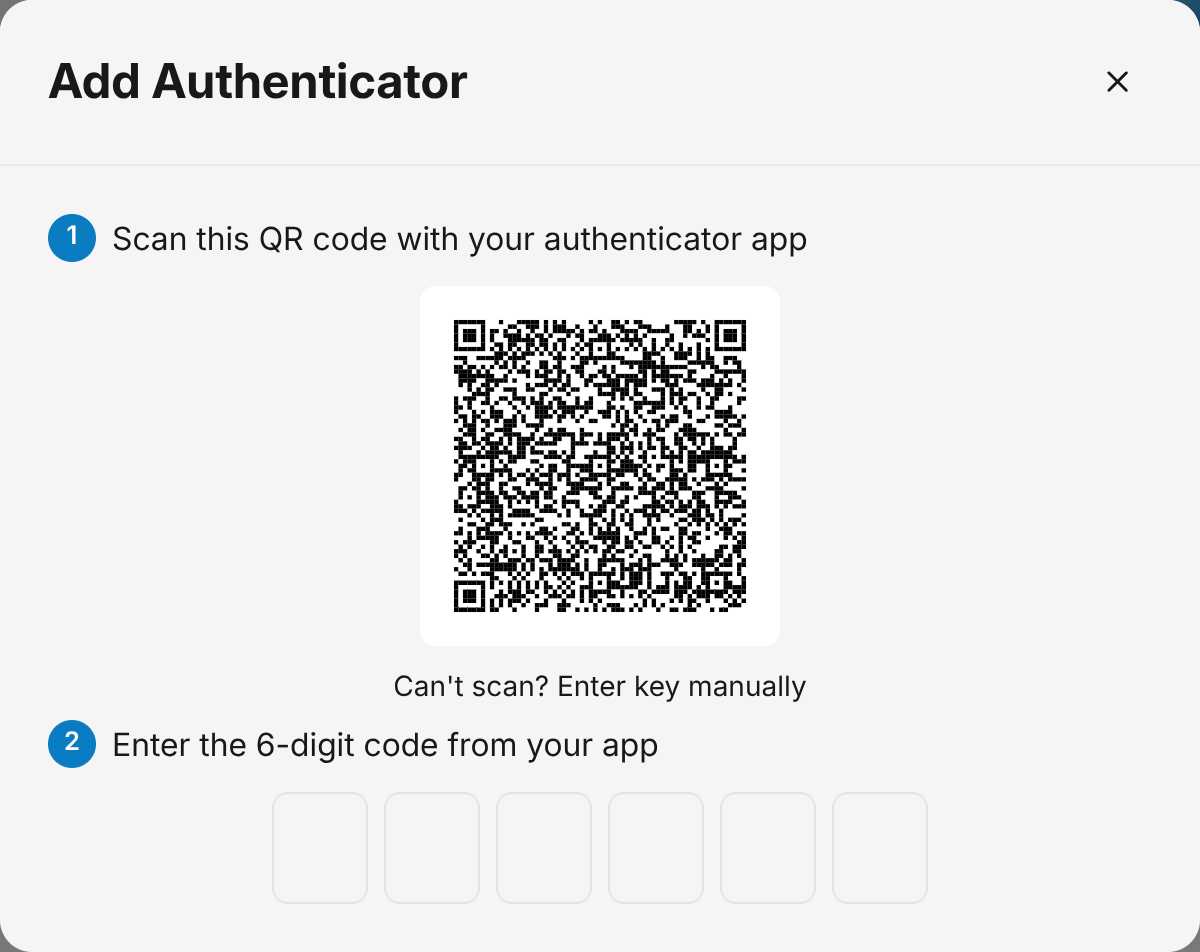
The dialog closes and the card lists the authenticator with the date it was added.
Note
Closing the dialog before you enter a code leaves two-factor authentication off.
Add another authenticator
Once two-factor authentication is on, the card offers Add authenticator and asks for no device name.
- Click your name and avatar at the bottom of the sidebar, then click Account.
- Open the Security tab.
- Click Add authenticator.
- Scan the new QR code with the second app.
- Type the six-digit code from that app into the code boxes.
Both authenticators are listed in the card, each with the date it was added.
Warning
With one authenticator, losing that app leaves no way to finish the six-digit step. Add a second one while you still have access to the first.
Remove an authenticator
Removing an authenticator takes effect immediately, with no confirmation step.
- Click your name and avatar at the bottom of the sidebar, then click Account.
- Open the Security tab.
- Click Remove next to the authenticator you no longer use.
The authenticator leaves the list. Removing the last one turns two-factor authentication off and brings back the device-name box and Enable 2FA.
What changes at sign-in
Email and password now land on the Two-Factor Authentication page, which asks for the six-digit code from your app. The code submits as soon as the sixth box is filled. Back to sign in leaves the code step.
Resetting your password with two-factor on
A reset link shows the new-password form first. After you submit it, the Two-Factor Authentication page asks for your code, then returns you to the form to submit the new password once more. The full steps are in Reset Your Password. Changing a password you still know is covered in Change Your Email or Password.
Related Guides
- Choose Your Notifications Pick which activity reaches you by email or push, and who gets each alert in your organization.
- Join an Organization Use your invitation email to set a password, then open the organization you were added to.
- Delete Your Account Erase your sign-in and personal details for good, and hand over or delete the organizations you own first.
Still Need Help?
If an article did not cover it, send us a message and a real person will get back to you.