Change Your Email or Password
Update your sign-in email or your password from the Security tab in account settings.
Your email address and your password are the two things you sign in with. Both are changed on the Security tab in account settings, and both ask for your current password before anything changes.
Open account settings
Account settings is a dialog rather than a page, and it holds everything about your account.
- Click the account menu showing your name and avatar at the bottom of the sidebar.
- Click Account.
- Click the Security tab.
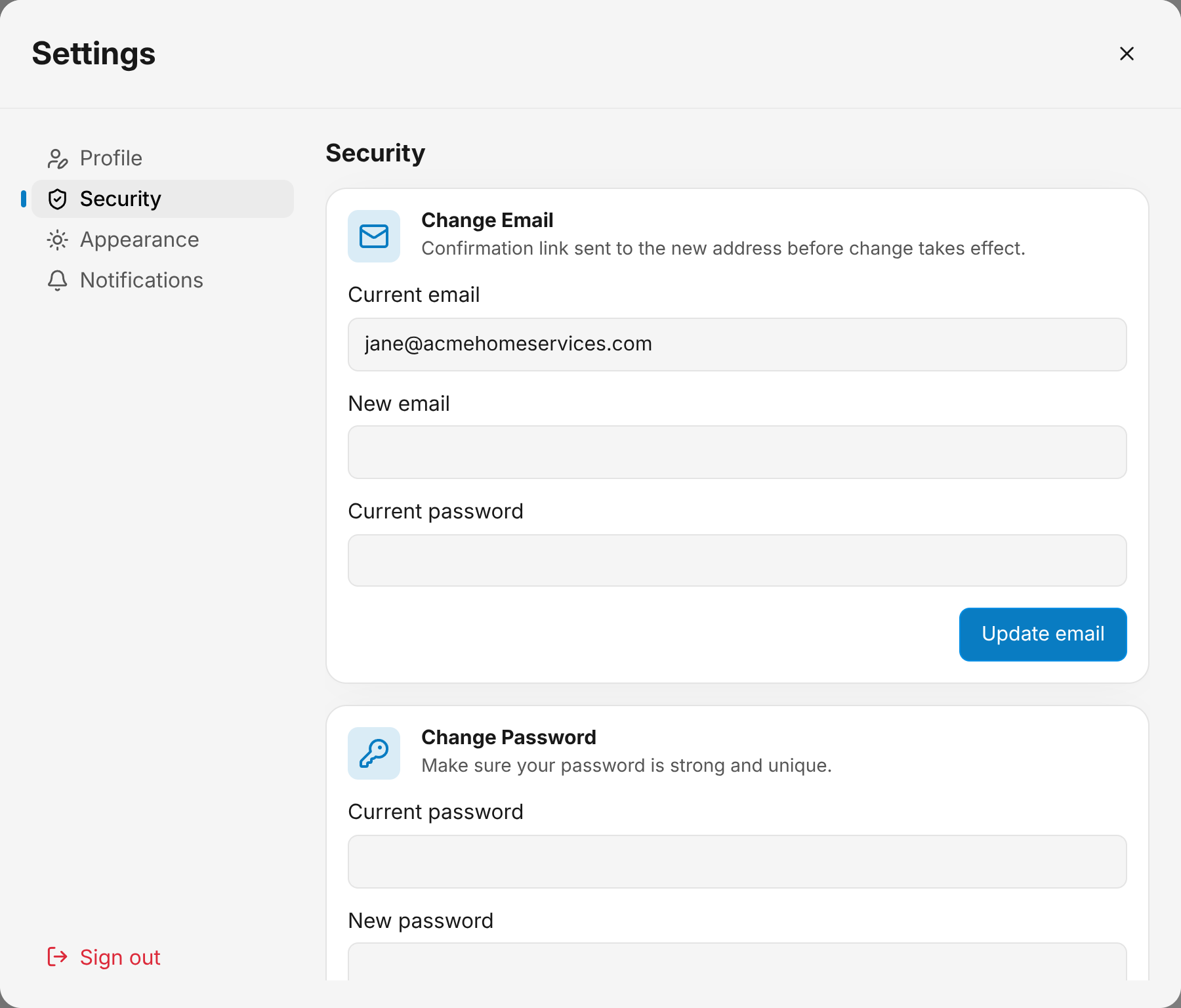
The dialog shows the Change Email, Change Password and Two-Factor Authentication cards.
Tip
The same tab is where you set up two-factor authentication.
Change your email address
The new address takes over only after you confirm it from a link sent to it.
- Check that Current email shows the address you expect. It is fixed and cannot be edited.
- Type the address you want in New email.
- Type your password in Current password.
- Click Update email.
- Open the confirmation link in the email sent to the new address.
- Click Continue on the Confirm Your New Email screen.
- With two-factor authentication on, enter the six-digit code from your app next.
The address on your account stays as it is until you click Continue. Until then, the waiting address appears at the top of the Change Email card. Capital letters in an address do not matter.
Note
If you cannot sign in at all, use reset your password instead.
Change your password
Pick a password of at least 10 characters with at least one letter and at least one number.
- Type your existing password in Current password under Change Password.
- Type the new one in New password.
- Type the new one again in Confirm new password.
- Click Update password.
The card confirms the password is changed. Your next sign-in uses the new password.
What stops an email change
- A current password that does not match: the password typed in the card is not the one on your account.
- An address already in use: another account is registered with it.
- An address that is the same as your current one: there is nothing to change.
- Too many tries: too many current-password attempts in a short time stop further changes for a while. Sign-in attempts for the account count towards the same limit. Wait a few minutes.
- A locked account: five wrong current passwords or two-factor codes within 15 minutes, here or anywhere else your account asks for them, lock email and password changes, the two-factor step at sign-in, and other checks of your password or code for 15 minutes.
What stops a password change
- A current password that does not match: the password typed in the card is not the one on your account.
- A confirmation that differs: the two new-password boxes hold different text.
- Too many tries or a locked account: the same limits as an email change apply.
- A password that breaks the rules: it is under 10 characters, or it is missing a letter or a number.
Related Guides
- Set Up Two-Factor Authentication Add an authenticator app to your account, add a spare, and remove the ones you no longer use.
- Choose Your Notifications Pick which activity reaches you by email or push, and who gets each alert in your organization.
- Join an Organization Use your invitation email to set a password, then open the organization you were added to.
Still Need Help?
If an article did not cover it, send us a message and a real person will get back to you.