Create a JobWise Pro Account
Sign up, create the organization you work in, and land in the dashboard with it ready.
Signing up creates your login and, in the same submission, the organization you run your business from. Start on the Sign up page. For what an account holds once it exists, see your account.
Fill out the sign-up form
One form collects your own details and your business details, because sign-up produces both a login and an organization. Coming from a paid plan on the pricing page shortens it to your email and password; see start with a paid plan.
- Enter your first name in First name.
- Enter your family name in Last name.
- Enter your address in Email. You sign in with it.
- Enter a password in Password. Use at least 10 characters, with at least one letter and at least one number.
- Enter your trading name in Business name, such as Acme Home Services.
- Enter ten digits in Business phone.
- Check the box that agrees to the Terms of Service and Privacy Policy.
- Complete the human-verification check when the page shows one.
- Click Get started free.
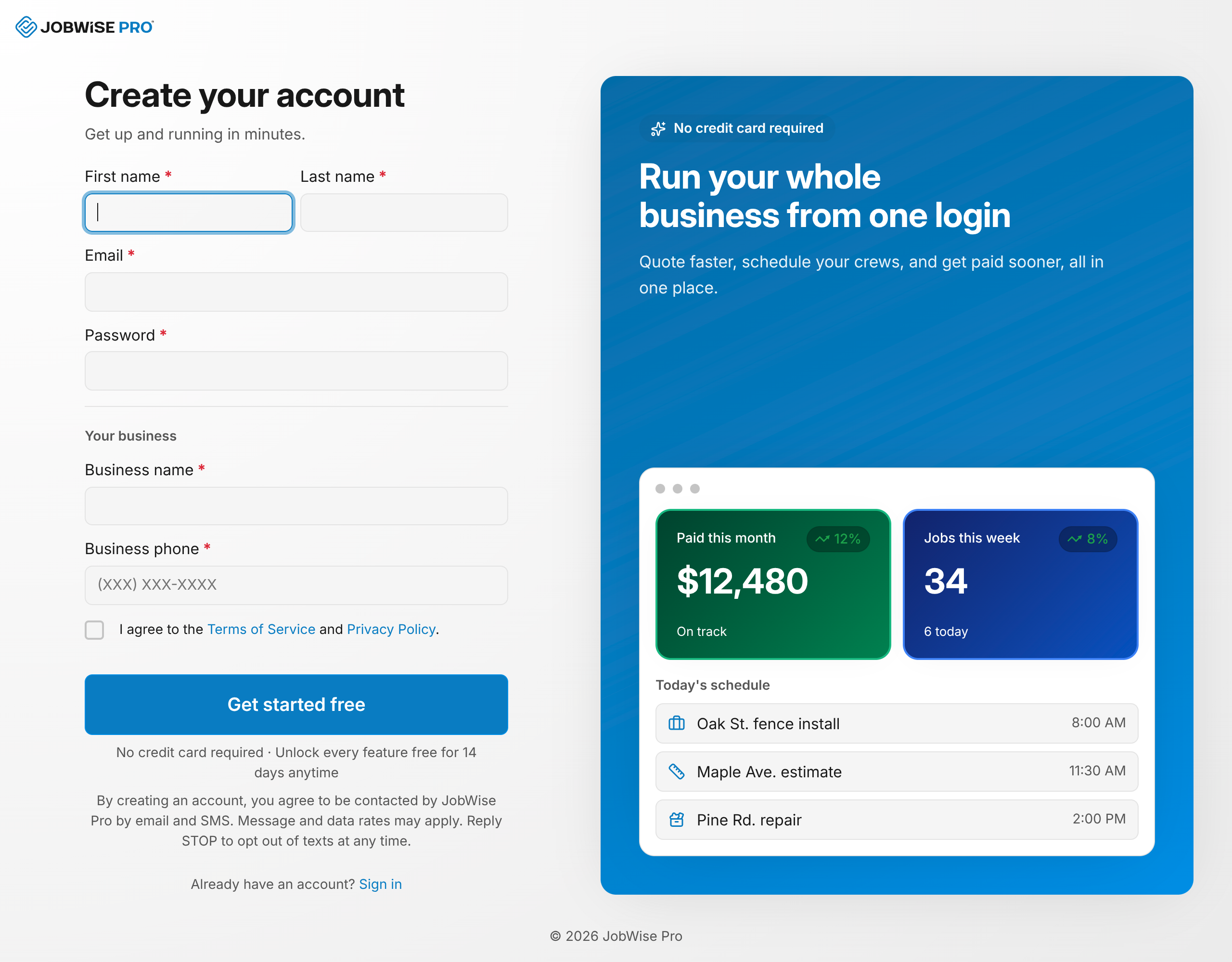
The form marks the fields that need fixing and holds the submission until they pass.
The form never says whether an address already has an account. If you signed up before, sign in or reset your password instead.
Tip
If someone invited you to their organization, use that invitation instead of this form. See join an organization.
After you sign up
Submitting a valid form finishes three things at once, without any further clicks from you.
- Your organization is created from the name you entered in Business name.
- The dashboard opens with that organization ready to work in. If you came from one of the instant quote tool pages, the Instant quotes page opens instead, so you can set up your free quote tool first.
- A verification email goes to the address you entered. Verifying it is what opens up quotes, invoices, and connecting your payment account, so do it before you bill anyone. See verify your email.
Opening the sign-up page again while you are already signed in takes you to the dashboard instead.
Note
Creating an account agrees to contact by email and SMS. Reply STOP to any text to stop the texts.
Start with a paid plan
Choosing a paid plan on the pricing page carries that plan and its billing interval (annual unless you switch to monthly) into a shorter sign-up form, and the trial starts only once a card is on file. Your card comes first; your name and business come after it.
- The form shows the plan you picked with the same price the pricing page quoted, and that nothing is due today. Change plan takes you back to the pricing page to pick another.
- Enter your Email and Password, check the box for the terms, and click Continue to payment.
- Stripe's secure checkout opens for the plan you picked. Enter your card and billing address. Nothing is charged today.
- The free trial starts, and a last page asks for your First name, Last name, Business name, and Business phone.
- Click Save and continue. The dashboard opens under your business name with every feature of the plan.
- When the trial ends, the card is billed for the plan automatically, unless you cancel first from billing settings.
The dashboard stays closed until that last page is filled in. Signing in again later brings you back to it, and Sign out on that page switches to a different account.
Leaving checkout without a card still keeps your account and organization on the Free plan, which includes the instant quote tool and never needs a card. You fill in the same last page, then land on billing settings with the trial of the plan you picked ready to start again, or you can close it and start later.
If you already have an account, click Sign in on the sign-up form instead. The plan you picked comes with you: once you sign in, billing settings opens with that plan's trial ready to start.
If new sign-ups are closed
Sign-up can be switched off for the whole product, in which case the form does not appear.
- The sign-up form is replaced by a link to sign in.
- Existing accounts still work. Use Sign in with your email and password.
What each field needs
Every field on the form is required. A paid-plan sign-up asks for the name and business fields on its last page instead, with the same rules.
- First name: up to 50 characters.
- Last name: up to 50 characters.
- Email: a working address. Capitals and spaces around the address do not matter.
- Password: 10 to 100 characters, with at least one letter and at least one number.
- Business name: up to 100 characters.
- Business phone: exactly ten digits. Everything that is not a digit is dropped, so
(555) 010-2233and5550102233count the same.
Related Guides
- Sign In to JobWise Pro Get into your account with an email and password, clear a two-factor prompt, and land in the right organization.
- Reset a Forgotten Password Request a password reset link by email and set a new password from the
- Verify Your Email Confirm your address so you can send quotes and invoices and connect your payment account.
Still Need Help?
If an article did not cover it, send us a message and a real person will get back to you.