Reset a Forgotten Password
Request a password reset link by email and set a new password from the
A forgotten password is reset from the sign-in page: ask for a link by email, open it, and choose a new password. A link is good for 15 minutes and works once, so open the newest email when you asked more than once.
Request a reset link
Do this when you cannot sign in because you do not remember the password.
- Open the sign-in page.
- Click Forgot password?.
- Enter the account's address in Email.
- Click Send reset link.
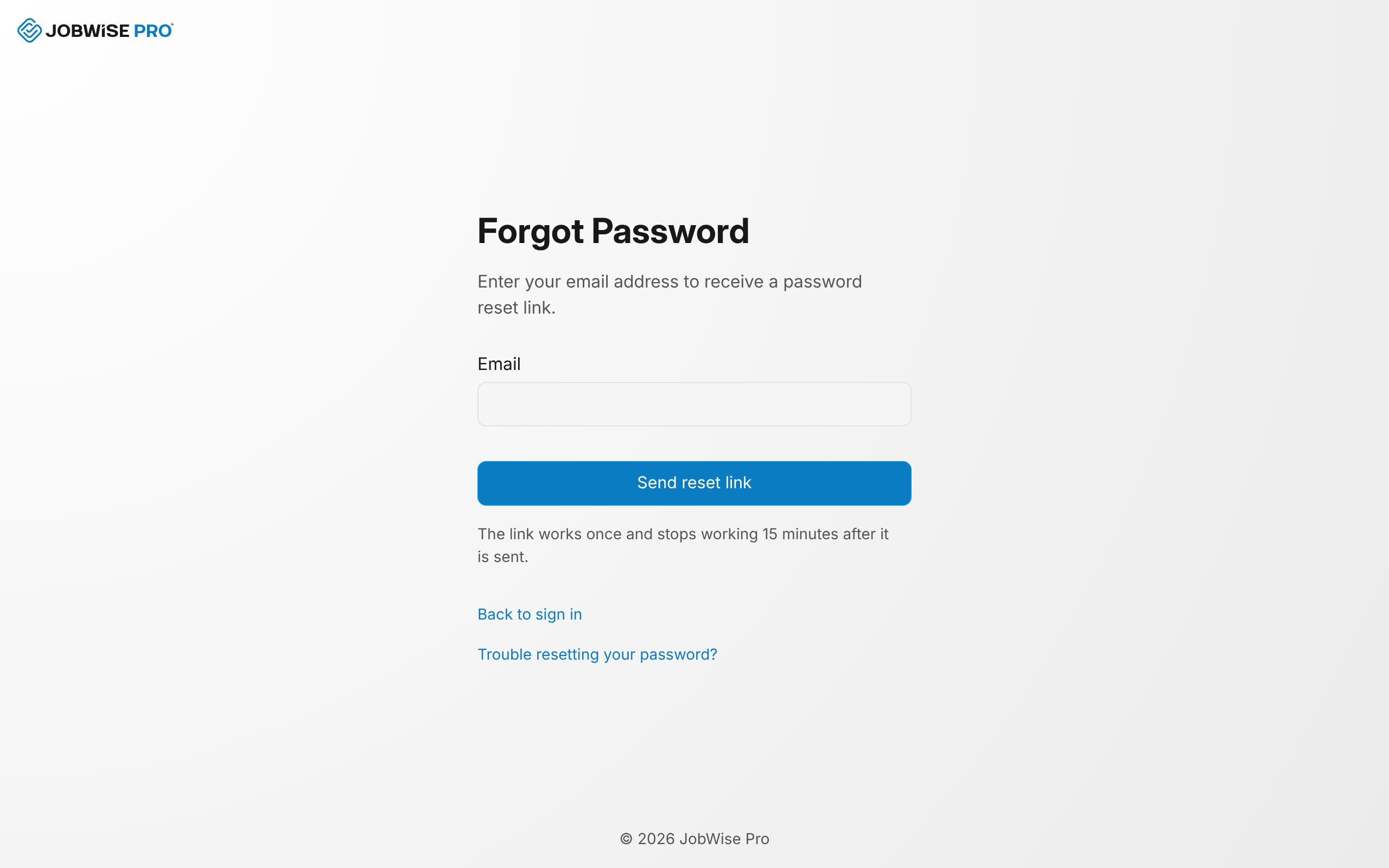
The page answers the same way whether or not an account exists at that address, so nobody can learn which addresses have accounts.
Note
Capitals and spaces around the address do not matter.
Set a new password
The email carries a link to a page that sets the password for that account.
- Open the link in the reset email.
- Type the new password in New Password.
- Type the same password in Confirm Password.
- Reset password stays disabled until both fields match.
- A password needs at least 10 characters, at least one letter, and at least one number.
- Click Reset password.
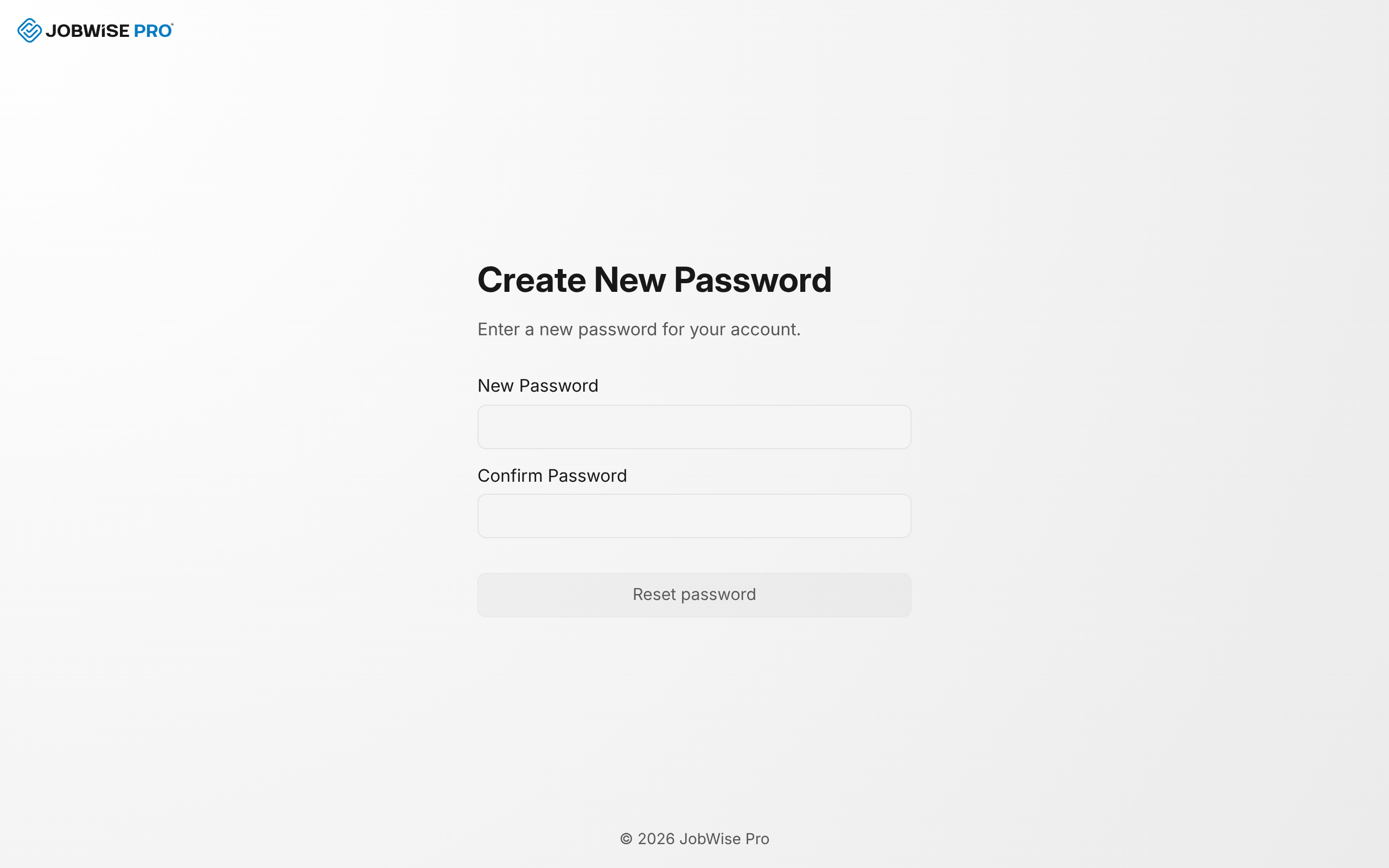
This browser stays signed in and the dashboard opens. An account that has not accepted the terms sees the terms screen first.
Warning
A reset signs the account out of every other session. Sign in again with the new password on a phone or a second computer, as in Sign in.
Finish a reset with two-factor authentication
An account with two-factor authentication proves the code before the new password is accepted.
- Fill in both password fields and click Reset password.
- Enter the six-digit code from your authenticator app on the challenge page.
- Enter the new password again on the reset page you return to.
- Click Reset password a second time.
The password changes on that second submission.
Note
Finish within 15 minutes of the first Reset password click. After that the reset page asks for a new link.
When a reset link no longer works
A link that no longer works leaves you on a page with Request a new link, which takes you to the forgot-password page. Three things retire a link:
- A newer request: asking for another reset stops the earlier link working, so open the newest email.
- A completed reset: a link that already set a password cannot be submitted again.
- Time: a link stops working 15 minutes after it is sent.
A link opened while signed in as someone else still resets the account it was sent to. The browser switches to that account when you click Reset password.
Change a password you still remember
With the current password in hand, no link is needed. Change it in the Security tab of account settings, opened from the account menu at the bottom of the dashboard sidebar. See Change your email or password for the steps, and Introduction to your account for what else those tabs hold.
Opened without a link while you are signed in, the reset page offers Open account settings to make the change there.
Related Guides
- Verify Your Email Confirm your address so you can send quotes and invoices and connect your payment account.
- Change Your Email or Password Update your sign-in email or your password from the Security tab in account settings.
- Set Up Two-Factor Authentication Add an authenticator app to your account, add a spare, and remove the ones you no longer use.
Still Need Help?
If an article did not cover it, send us a message and a real person will get back to you.