Delete Your Account
Erase your sign-in and personal details for good, and hand over or delete the organizations you own first.
Deleting your account erases your sign-in and personal details and removes you from every organization you belong to. It runs from the Profile tab in account settings, and each organization you own is handed over or deleted on the way.
Delete your account
Use this when you no longer want to sign in to JobWise Pro at all. To leave one organization and keep your account, use Leave organization in its team settings instead.
Click your name and avatar at the bottom of the sidebar.
Click Account.
Click Delete account at the bottom of the Profile tab.
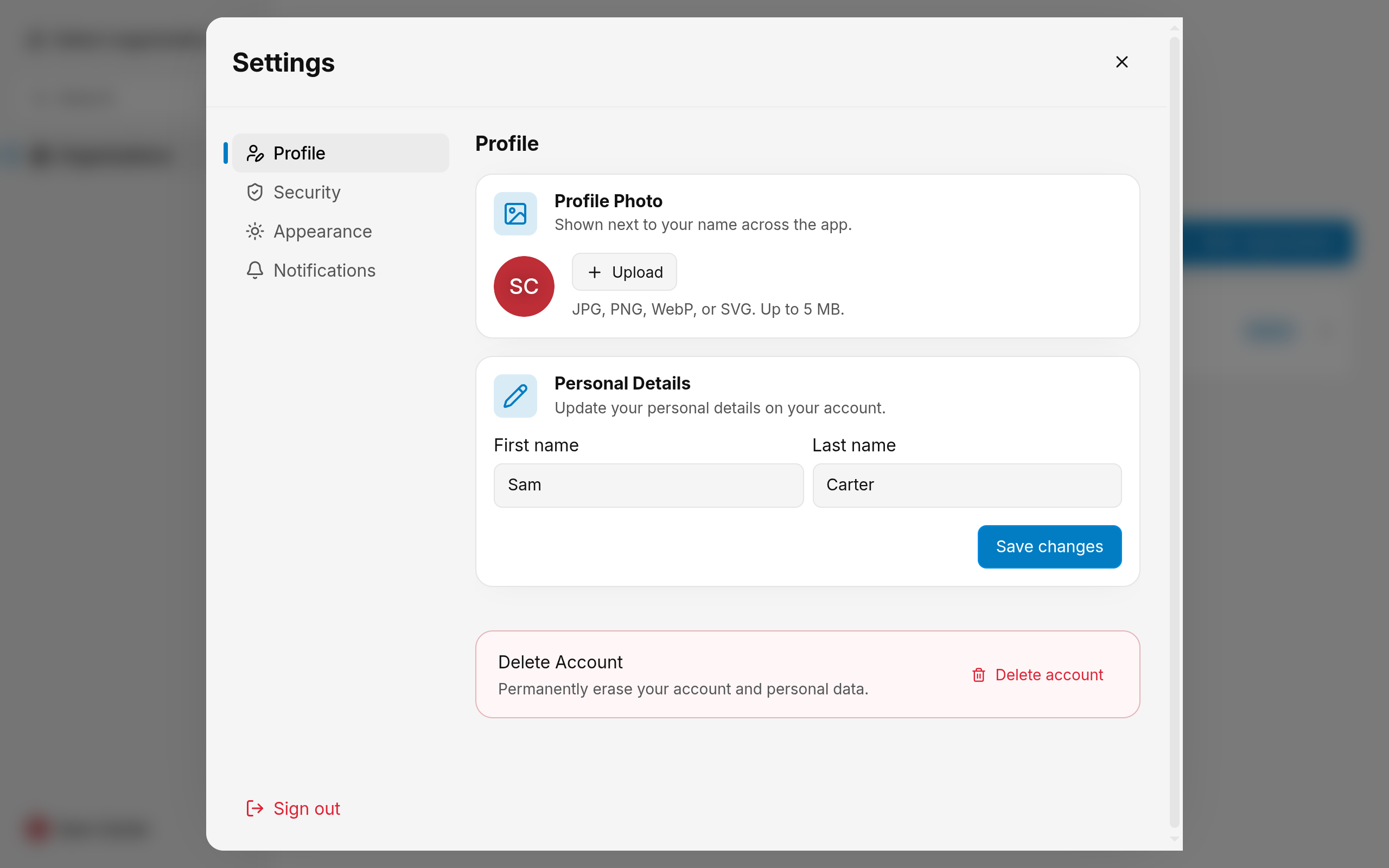
Choose what happens to each organization you own, as described below.
Type your password in Current password.
Click Delete account.
You are signed out, and the sign-in page confirms the account was deleted.
Warning
Deleting an account can't be undone. Signing up again with the same email creates a new, empty account.
Hand over or delete the organizations you own
Every organization needs an owner, so the dialog lists each one you own before anything is deleted. One where you are the only member is deleted with all its data, with no choice to make.
- Find an organization that has other members in the list.
- Click Hand over to keep it running, or Delete it to remove it.
- After Hand over, choose the new owner from the member list.
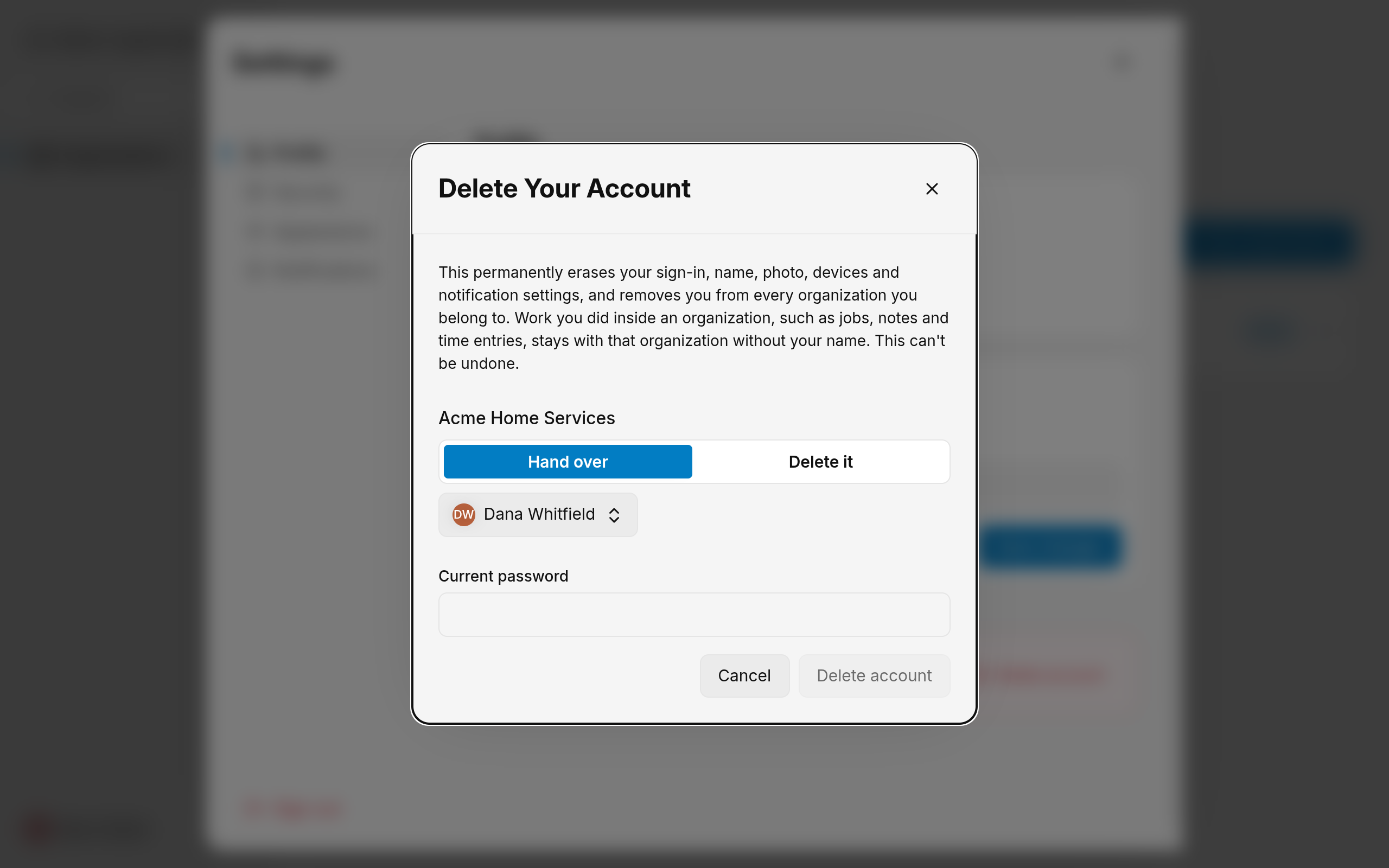
Delete account stays unavailable until every organization with members has a choice. A new owner becomes an admin and takes over the organization, its data and its team.
Warning
Deleting an organization cancels its subscription straight away, with no credit for the unused part of the billing period.
What stays and what goes
The work belongs to the organizations, so it stays with them. What belongs to you personally goes.
- Stays with the organization: jobs, notes, time entries and the rest of your work. Your name on it shows as Deleted user.
- Erased: your email, password, name, photo, two-factor authenticators, signed-in sessions, phones and browsers registered for notifications, and your notification settings.
- Scheduling: you stop being offered for online bookings, and your working hours are removed.
- Billing email: when an organization you hand over sends its billing email to your address, it switches to the new owner.
What stops a deletion
- A password that does not match: the password typed is not the one on your account.
- Too many tries: password attempts count towards the same limit as sign-in. Wait a few minutes.
- A new owner who left: the member you chose is no longer in the organization. Choose again.
- A subscription that can't be canceled: the organization is not deleted. Try again.
An organization handed over or deleted before a failure stays that way. The dialog then lists only the organizations you still own, and your account is still there to try again.
Related Guides
- Introduction to Your Account Create an account, sign in, verify your email, and find your security settings.
- Create a JobWise Pro Account Sign up, create the organization you work in, and land in the dashboard with it ready.
- Sign In to JobWise Pro Get into your account with an email and password, clear a two-factor prompt, and land in the right organization.
Still Need Help?
If an article did not cover it, send us a message and a real person will get back to you.