Sign In to JobWise Pro
Get into your account with an email and password, clear a two-factor prompt, and land in the right organization.
Signing in takes your email address and password on the sign-in page. A two-factor code or an outstanding terms agreement is handled on the way through, and where you land depends on how many organizations you belong to. For what an account holds, read introduction to your account.
Sign in with your email and password
Do this after signing out, or whenever a session has ended and the sign-in page appears.
- Open the sign-in page.
- Enter your address in Email.
- Enter your password in Password.
- Forgotten it: click Forgot password? and follow reset your password.
- Click Sign in.
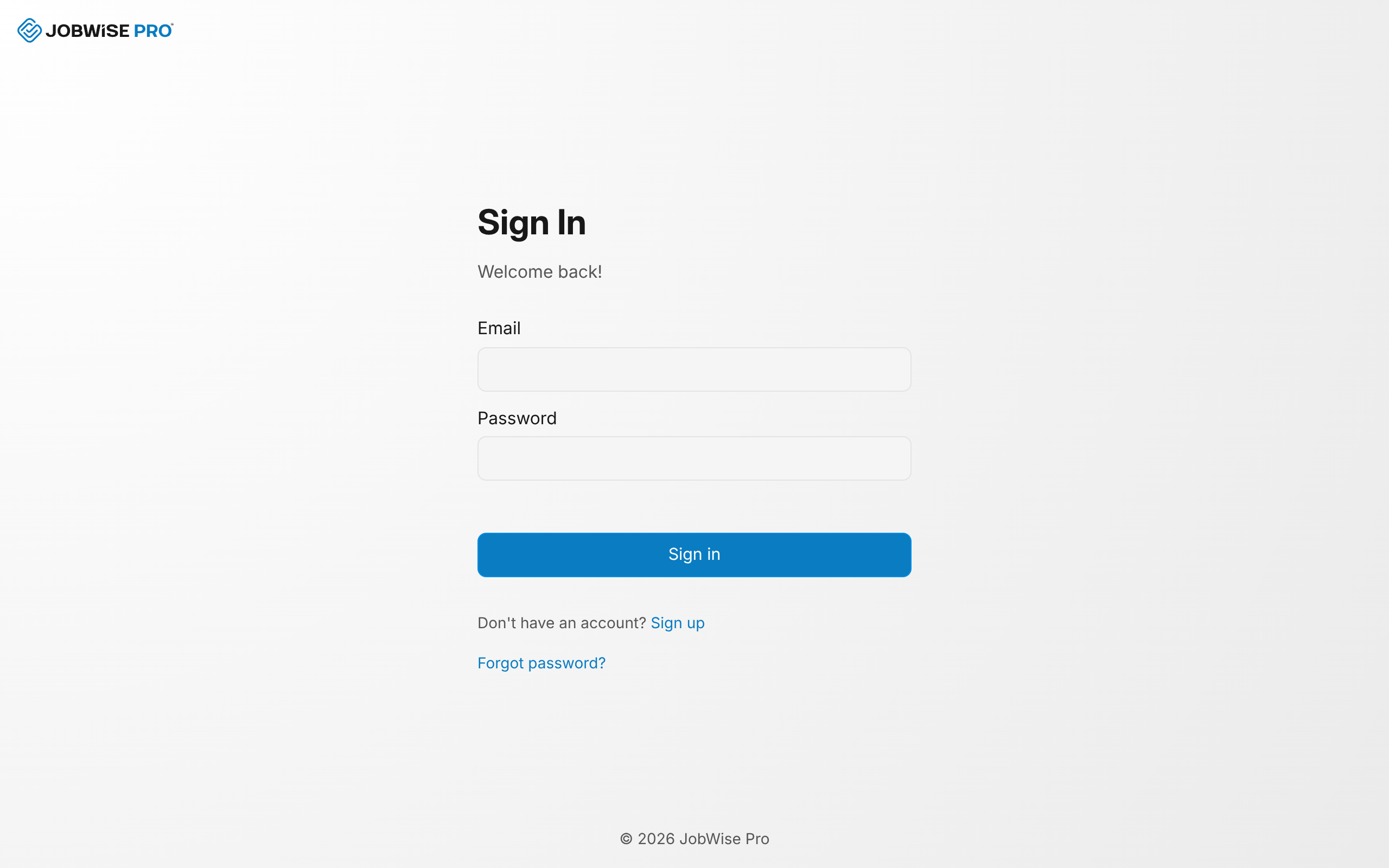
Capitals and spaces around the address make no difference. You land in the dashboard unless a code or the terms are still outstanding. A new account can sign in before its address is confirmed, though quotes and invoices stay unavailable until you verify your email.
Tip
Without an account yet, click Sign up and follow create an account.
Enter your two-factor code
With an authenticator app on the account, sign-in stops at the Two-Factor Authentication screen. Until the code is in, the dashboard stays closed: any dashboard link opens this screen first. Setting one up is covered in two-factor authentication.
- Open your authenticator app.
- Read the current six-digit code.
- Type the code into the six boxes.
- Without the app to hand, click Back to sign in and start again later.
The code submits on the sixth digit, and a code that does not match clears the boxes for another try.
Note
Too many wrong codes in a short time stop further attempts for a while.
Accept the terms
Each person accepts the terms once, not once per organization. Until that happens, sign-in lands on the Accept Our Terms screen, and the dashboard stays closed: any dashboard link opens this screen first.
- Tick the checkbox agreeing to the Terms of Service and Privacy Policy.
- Click Agree and continue.
The button stays disabled until the checkbox is ticked. Sign-in then finishes and the dashboard opens, or the page you were heading to. Click Sign out on the same screen to leave without agreeing.
Where you land after signing in
Your destination comes from your name and your organizations.
- One organization: that organization opens.
- More than one organization: the dashboard opens and lists your organizations.
- Missing first or last name: the dashboard opens with profile settings showing, ready for the missing name.
A link to a page inside an organization sends you through sign-in first, then on to that page. When the link could open in more than one of your organizations, a chooser asks which one to use.
Sign out
Signing out ends the session on the device you are using. Your other devices stay signed in.
- Click your name and avatar at the bottom of the sidebar.
- Click Sign out.
The home page opens.
What stops a sign-in
- Wrong email or password: retype both and submit again.
- Too many tries: too many tries in a short time stop further attempts for a while, from one internet connection or on one account. Wait a few minutes.
- Failed browser check: the page's check for automated sign-ins did not pass. Submit again.
Related Guides
- Reset a Forgotten Password Request a password reset link by email and set a new password from the
- Verify Your Email Confirm your address so you can send quotes and invoices and connect your payment account.
- Change Your Email or Password Update your sign-in email or your password from the Security tab in account settings.
Still Need Help?
If an article did not cover it, send us a message and a real person will get back to you.