Take Job Photos with the Camera
File site photos to the right job from your phone in a few taps.
Take job site photos from your phone on the Camera page. The page picks the job you are standing at, or you choose one, and every photo you take files to that job.
Take a photo at the job you are at
The top of the page names the job when your location matches a job site or a visit for that job is scheduled for now (src/routes/dashboard/[id]/camera/+page.svelte:91-98). A scheduled visit counts from 30 minutes before its start until its end, or two hours after its start when it has no end time (src/lib/time-tracking/clock-suggest.ts:42-44, 76-83). A scheduled visit does not need a location fix.
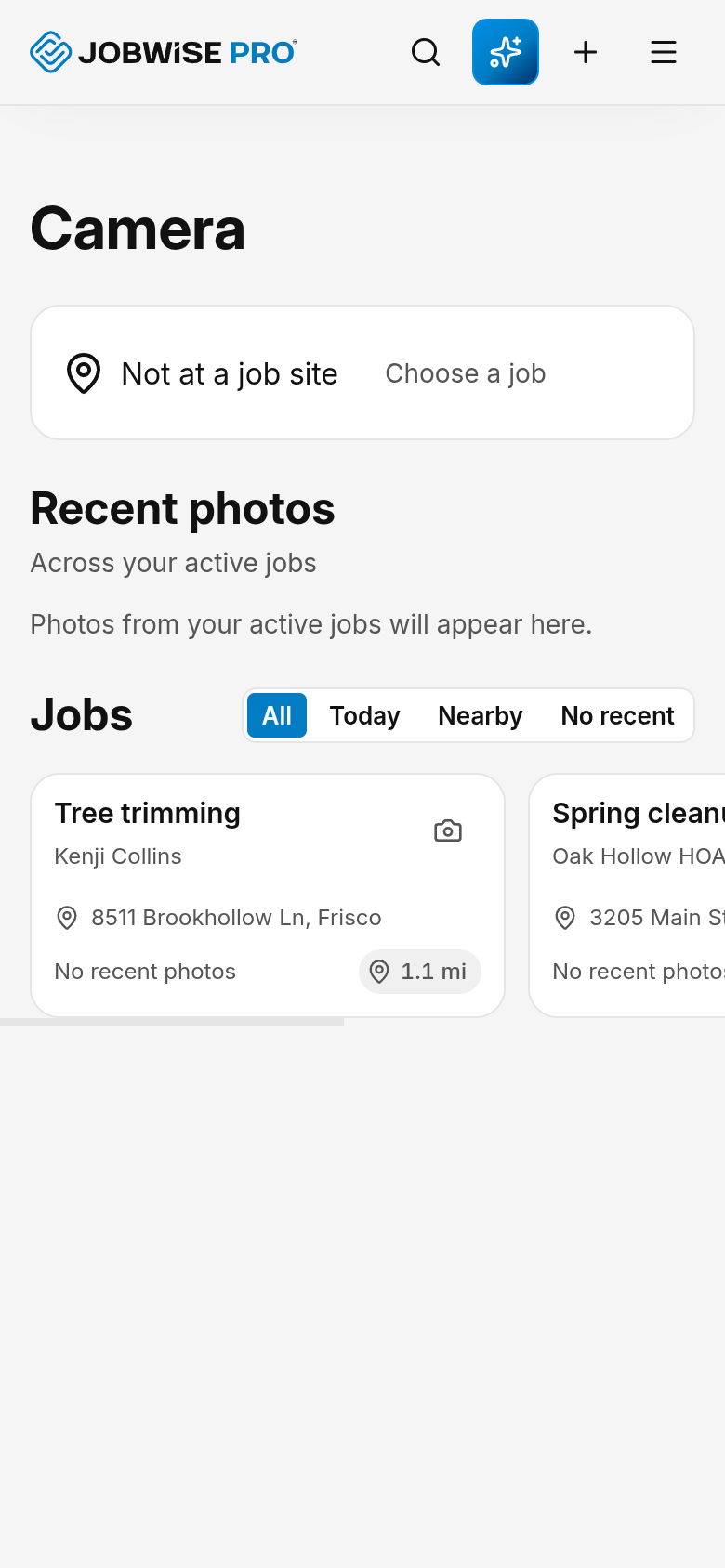
- Open Camera on your phone.
- Check that the top of the page names the job you are at.
- Tap Take photo.
- Take the photo in your phone's camera.
The photo appears in the tray under Take photo while it uploads.
Tip
Tap the image icon next to Take photo to file photos from your library to the same job (src/lib/components/camera/CameraCapture.svelte:41-51).
Choose a job when the page does not name one
Use this when the top of the page does not name a job. The Take photo button only appears once a job is named.
- Tap Choose a job at the top of the page.
- Type a job title, customer name or address in Search jobs.
- Tap the job.
- Tap the photo button in the job panel.
The job panel opens for that job. On a job with no photos yet, its photo button is labeled for the first photo (src/lib/components/camera/CameraJobPhotos.svelte:104).
Note
Choosing a job opens its panel and leaves the top of the page as it was (src/routes/dashboard/[id]/camera/+page.svelte:153-157).
Filter the jobs list
The Jobs section lists your active jobs. The filter narrows that list only, so the top of the page still names the job you are at.
- Scroll to Jobs.
- Tap All, Today, Nearby, or No recent in the Filter jobs control.
- All: every active job (src/lib/utils/camera-job-filter.ts:26-27).
- Today: jobs with a visit scheduled today (src/lib/utils/camera-job-filter.ts:28-29).
- Nearby: jobs with a mapped address within 10 miles straight-line of your location (src/lib/utils/camera-job-filter.ts:17, 30-33).
- No recent: jobs with none of their photos in the recent photo set (src/lib/utils/camera-job-filter.ts:34).
The list shows only the jobs that match. If no job matches, tap Show all jobs.
Take a photo from a job card
Use the camera icon on a job card to file a photo to a job other than the one the top of the page names.
- Find the job under Jobs.
- Tap the camera icon on the job's card.
- Take the photo in your phone's camera.
The job panel opens for that job, and the photo appears in its upload tray.
Tip
Tap the body of a job card to open its panel without taking a photo.
Check that uploads finish
Each photo you take shows its status in the upload tray for its job (src/lib/components/camera/CameraUploadTray.svelte:41-55).
- Wait until the tile reads Uploaded.
- On a tile that reads Failed, tap Retry.
The line above the tiles counts this visit's photos and any failures. When a batch finishes, Recent photos refreshes to include the new photos (src/routes/dashboard/[id]/camera/+page.svelte:114).
Review recent photos
Recent photos shows the newest photos across your active jobs, each labeled with its job title.
- Scroll Recent photos sideways.
- Tap a photo to open it.
- Swipe to move to the previous or next photo.
The viewer shows the photo's position, such as 3 of 12. Categories, folders, markups and sharing are covered in Share job photos and documents.
Review photos for one job
Tap a job card to see that job's photos in the job panel, grouped by category.
- Tap the job card's title and details, not the camera icon.
- Scroll the category rows in the panel.
- Tap a photo to open it.
Photos with no category appear under Uncategorized (src/lib/components/camera/CameraJobPhotos.svelte:145).
Who can open the Camera page
- Users who can edit jobs can open the page. Users with assigned-only access see only the jobs assigned to them (src/routes/dashboard/[id]/camera/+page.server.ts:18-22). Access levels are set in Roles and permissions.
- Camera appears in the sidebar only for users who can edit assigned jobs (src/lib/dashboard/nav.ts:217).
- The organization's plan must include job photos. Without it, the page shows a feature description in place of the camera (src/routes/dashboard/[id]/camera/+layout.svelte:7-13).
Location and limits
- When no job is named, a status line at the top of the page says whether your location is still being found, is off, is unavailable, or that no job site matches where you are (src/routes/dashboard/[id]/camera/+page.svelte:101-110).
- A location match at the top of the page and Nearby need a location fix accurate to within 500 meters (src/lib/time-tracking/clock-suggest.ts:40). A scheduled visit does not (src/lib/time-tracking/clock-suggest.ts:76-83). A job needs a mapped address to show a distance (src/lib/utils/field-camera.ts:35-40).
- Recent photos holds the 120 newest photos across your active jobs. Only images with a thumbnail count, and HEIC photos are left out (src/lib/server/jobs/camera-photos.ts:9, 37-39).
- Job card photo counts use the same set, so a job with only older or HEIC photos appears under No recent (src/routes/dashboard/[id]/camera/+page.svelte:69; src/lib/utils/camera-job-filter.ts:34).
- If no active jobs are listed for you, the Camera page shows no job list, photos or capture button (src/routes/dashboard/[id]/camera/+page.svelte:191). Ask your office to schedule or assign a job to you. Setting up a job is covered in Create a job.
Related Guides
- Set Up Recurring Jobs Set a job to repeat on a schedule, so each visit is scheduled for you automatically.
- Introduction to Jobs Find any job, read its page, follow its status, and find where each action lives.
- Create a Job Set up a job for a contact, assign your crew, book its visits, and move it to completion.
Still Need Help?
If an article did not cover it, send us a message and a real person will get back to you.