Send a Quote to a Customer
Email a quote, see when the customer opens it, and resend it after a change.
Sending a quote emails the customer a link to their own copy, changes the quote's status to Sent, and starts tracking whether they opened it. Put the customer and the priced lines on the quote first, in creating a quote.
Send from the quotes list
Use this for a quote that is already finished. Statuses, search and filters in the list are covered in managing quotes.
- Open Quotes.
- Find the quote. Its status reads Draft.
- Click Send on the quote.
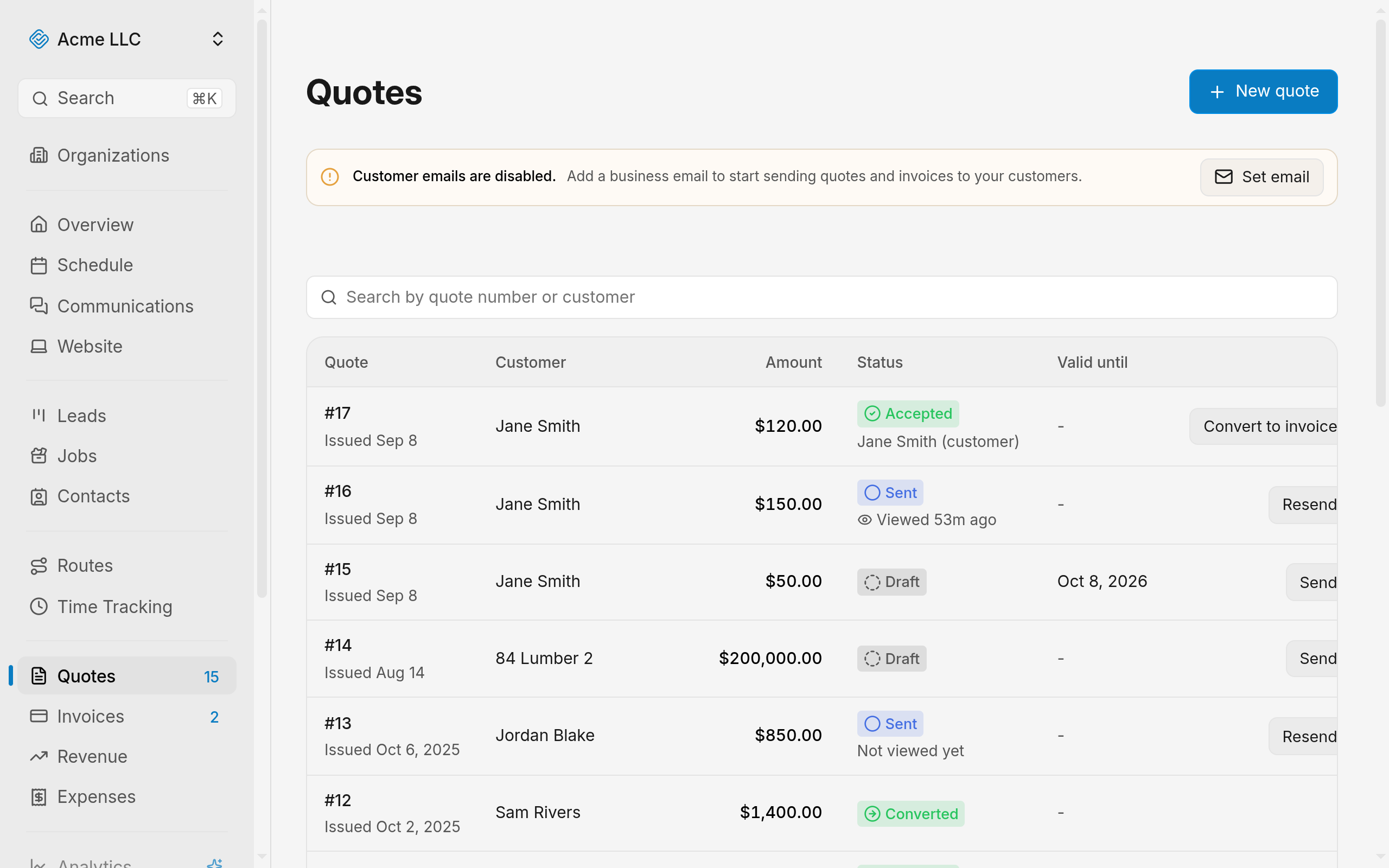
The status changes to Sent and the quote's button becomes Resend.
Note
The list reads Not viewed yet until the customer opens the quote, then shows how long ago they viewed it.
Send from the quote editor
Send a quote you are still writing, without going back to the list.
- Select the customer in the editor.
- Add at least one line item and give every line a price.
- Wait for the toolbar to read Saved.
- Click Send to customer in the toolbar.
- The button stays disabled while any line has no price, and a warning above the quote says so.
The quote saves and goes out in one action, and its status shows Sent.
Resend a quote or send a change
Resend when the customer says nothing arrived. Send a change when the figures moved after the first send.
- Click Resend on the quote in the list to email the same link again.
- To change the quote instead, open it and edit it. A sent quote no longer saves on its own.
- Click Save & send update.
The customer gets the updated quote at the same link, and Resend sits in the quote's Quote actions menu.
Warning
Every Save & send update emails the customer again. Finish your edits, then save once.
Mark a quote as sent without emailing
Use this for a quote you handed over on paper or in person, so the list matches reality.
- Open the quote's Quote actions menu in the list.
- Choose Mark as sent.
The status changes to Sent and no email or text goes out. This applies to drafts only.
What blocks a send
Fix the condition, then send again.
- No business email: add one in Business settings, or select Set email on the quotes page. Sending needs that address, because customer replies go to it.
- A line with no price: every line needs a price before the quote can leave the building.
- An unverified sign-in email: verify the address you sign in with.
- A converted quote: a quote that became an invoice cannot be sent. See converting a quote to an invoice.
- View-only access to quotes: Send appears only for people who can edit quotes.
What the customer receives
- Email: the subject names your business, and the body carries the quote number, the total, the validity date when the quote has one, and a View quote button.
- Replies: they go to your business email.
- Text message: the same link also goes out by text when your SMS notifications setting is on, the customer has not opted out, and your account has an active, SMS-enabled number with an approved registration.
- The quote page: the customer opens their copy from the link and accepts or declines it there, covered in customer approval.
The quote is recorded as Sent even when the email fails, including when the contact has no email address on file. Add the address to the contact, then click Resend.
Related Guides
- How a Customer Approves a Quote Set the signature requirement and see what each customer response records.
- Convert an Accepted Quote Into an Invoice Turn an accepted quote into an invoice that reaches the customer with its lines intact.
- Find and Manage Quotes Search the quotes list, read where each quote stands, and act on it from its row.
Still Need Help?
If an article did not cover it, send us a message and a real person will get back to you.