Convert an Accepted Quote Into an Invoice
Turn an accepted quote into an invoice that reaches the customer with its lines intact.
An accepted quote becomes an invoice in one click, carrying its lines, notes, and terms across. Convert from the Quotes list, which holds every quote and its status, or from the quote's own page.
Convert from the quotes list
Use the list when the quote already came back accepted and you do not need to read it again.
- Open the Quotes page.
- Search by quote number or customer name to find the quote.
- Status is not Accepted yet: the customer's approval sets it, or choose Mark accepted from the quote's Quote actions menu.
- Click Convert to invoice on the quote in the list.
- Draft, sent, or declined quote: open the quote's Quote actions menu and choose Convert to invoice. The invoice goes out instead of the quote.
The status changes to Converted.
Warning
Conversion runs on the click and emails the customer. Nothing asks you to confirm.
Convert from the quote's page
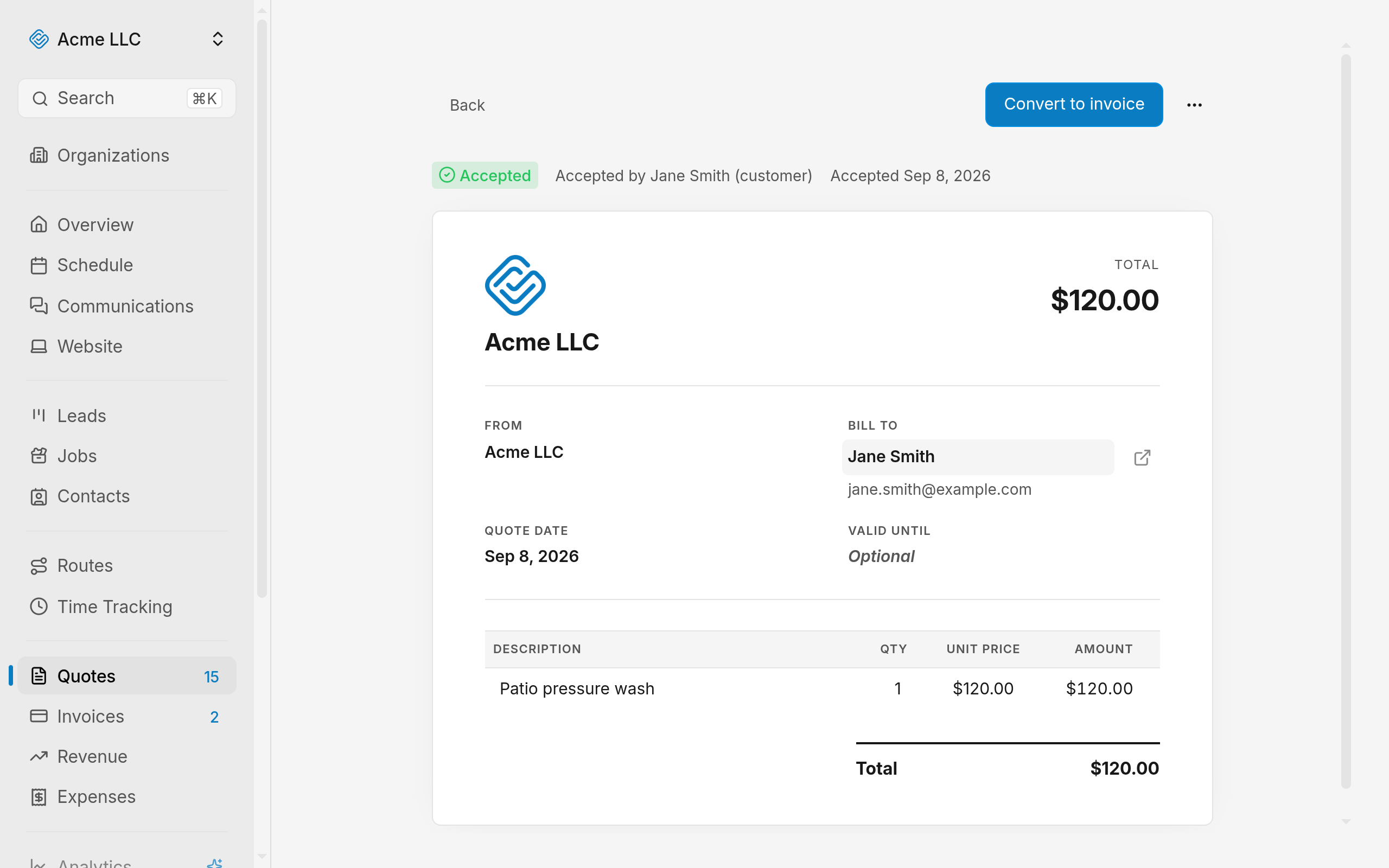
Open the quote first to check its lines and its total before the invoice goes out.
- Open the quote from the list.
- Click Convert to invoice at the top of the quote.
- Quote is not accepted: choose Convert to invoice from the quote's actions menu.
The quote turns read-only and a link such as Invoice #12 appears in its header.
Open the new invoice
The converted quote keeps a link to the invoice it produced.
- Open the converted quote.
- Click the Invoice #12 link in the header.
- Find the quote's customer and number on the Invoices page.
The invoice carries the status Issued.
What carries over
- Customer and lines: the quote's customer, and every line with its description, quantity, and price.
- Notes and terms: copied as written.
- Issue date: the quote's issue date, or today when the quote has none.
- Due date: the quote's Valid until date. Without one, it is today plus your invoice due-days setting, 30 days until you change it.
- Currency and tax: your default currency, tax behavior, and tax code. The tax total starts at $0.00.
- Number: the next invoice number for your organization, shown with your prefix and padding.
- Delivery: the customer gets the invoice by email when the customer has an email address and your organization has a billing email. A text message follows when your text message settings allow it and the customer has not opted out.
Note
The invoice already counts as sent, so sending an invoice is only for a later edit.
What blocks the conversion
Each of these stops the conversion until you clear it.
- No Stripe connection: the Convert to invoice controls stay hidden. Members who can edit quotes get a Connect Stripe link to Online Payments above the quotes list.
- A line without a price: price every line in the quote editor, covered in create a quote.
- Already converted: one quote makes one invoice. Reach it through the Invoice #12 link instead.
- An unverified email address: verify yours first.
- Missing access: converting needs edit access to quotes and to invoices.
- The month's invoice allowance: conversion stops once you reach it. Invoices created since the first of the calendar month count toward it.
- A failed save: when the lines do not save, the invoice is discarded and the quote stays unconverted. Convert again.
Related Guides
- Find and Manage Quotes Search the quotes list, read where each quote stands, and act on it from its row.
- Create a Quote Build a quote on a blank document page, price the work, and send it to the customer.
- Send a Quote to a Customer Email a quote, see when the customer opens it, and resend it after a change.
Still Need Help?
If an article did not cover it, send us a message and a real person will get back to you.