Create a Quote
Build a quote on a blank document page, price the work, and send it to the customer.
A quote is a price estimate you give a customer before work is booked. You build it on a blank document page that saves itself while you type, and every new quote starts as a draft.
Open a new quote
Both entrances open the same editor and need quotes edit permission.
- Open Quotes.
- Click New quote.
- The Create Quote card on the home dashboard opens the same editor.
- New quote on a contact's page opens it with that customer already filled in and locked.
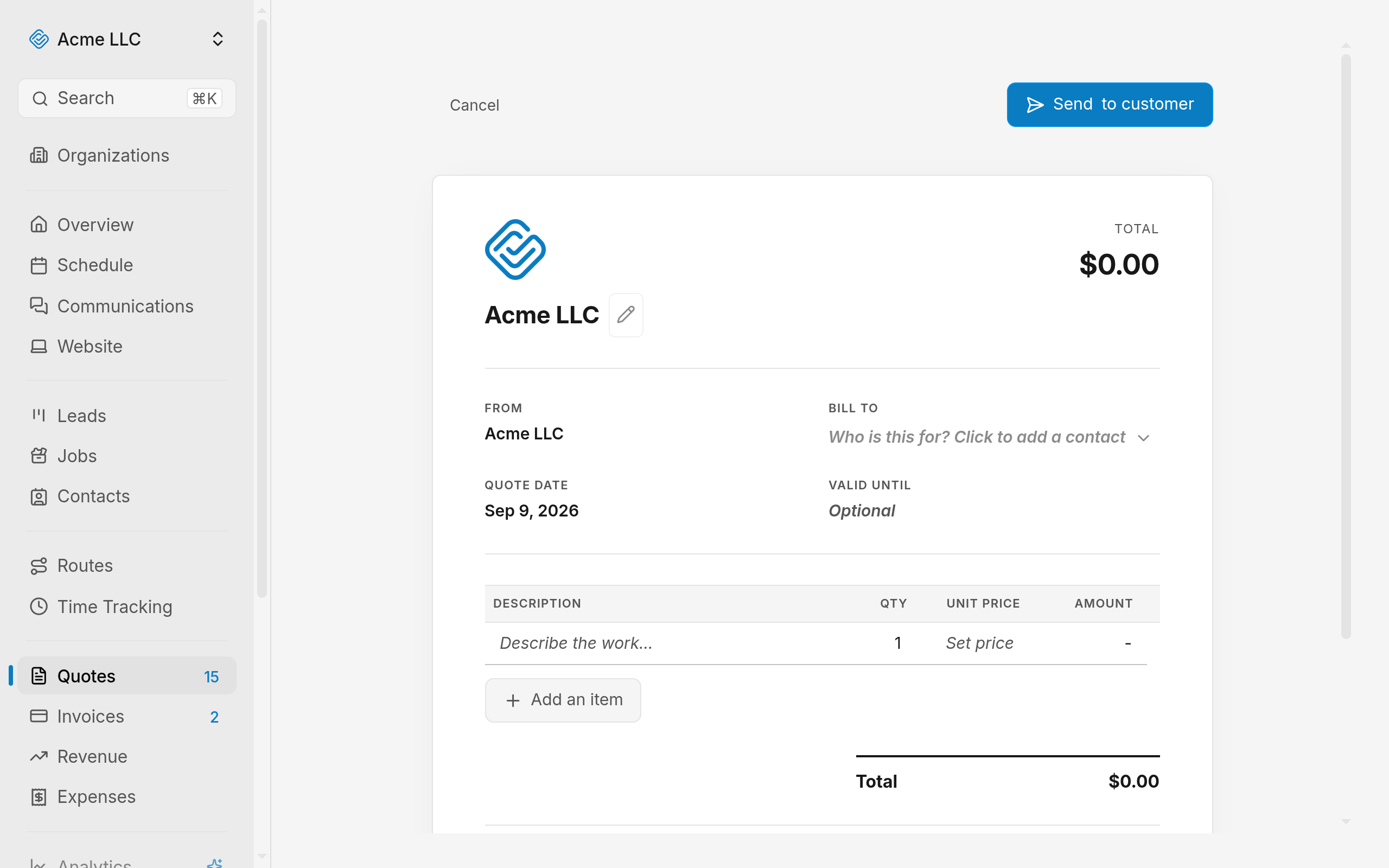
The editor opens as a blank document with one empty line. The quote number is assigned the first time it saves.
Note
Creating a quote needs a verified login email.
Pick the customer
A quote cannot save without a customer.
- Click Bill to.
- Type a name, email, or company in the search box.
- Click the customer in the list.
- No match? Click Create new customer and fill in the form.
Their email shows under the name. A quote you opened from a job attaches to that job once it saves.
Add the work
Each line is one thing you are charging for.
- Click Add an item.
- Add from Home Depot catalog adds a stocked product instead. It appears once lookup is on in Home Depot Catalog.
- Type in Description. Matching saved items appear as you type, and picking one fills its price.
- Set Qty to a whole number of 1 or more. New lines start at 1.
- Set Unit price. Amount stays a dash until you do.
Total in the document header updates as you type.
Tip
Prices you quote often belong in Saved Line Items, so a few keystrokes fill the whole line.
Set the dates and the message
- Quote date starts as today.
- Valid until is optional. Leave it empty when the quote does not expire.
- Notes holds a message the customer reads on their copy.
- Terms holds payment terms or fine print.
Send the quote
The editor saves on its own a second after you stop typing, once the quote has a customer and one described line. The toolbar reads Saved, Saving..., or Unsaved changes.
- Give every line a price. Send to customer stays disabled while one has none.
- Click Send to customer.
The quote opens on its own page with a sent status, and the customer receives a link to their copy. Sending a quote covers what the customer gets and how to resend it.
Leave without sending
Click Cancel to return to Quotes. With unsaved changes the editor asks you to confirm the discard first, and closing the tab prompts as well. A saved draft waits in the list until you come back to it.
Related Guides
- Send a Quote to a Customer Email a quote, see when the customer opens it, and resend it after a change.
- How a Customer Approves a Quote Set the signature requirement and see what each customer response records.
- Convert an Accepted Quote Into an Invoice Turn an accepted quote into an invoice that reaches the customer with its lines intact.
Still Need Help?
If an article did not cover it, send us a message and a real person will get back to you.