Find and Manage Quotes
Search the quotes list, read where each quote stands, and act on it from its row.
The Quotes page lists every quote for your organization, highest quote number first, with its total and current status. Search it, read the status, and act on a quote without opening it. Select New quote at the top right to start a new one.
Find a quote
Search narrows the list to one quote number or one contact.
- Open Quotes.
- Arriving from a contact's page, the list shows only that contact's quotes and hides the search box. Select Clear filter for the full list.
- Type a quote number or a customer's name in the search box.
- Any search matches a contact's first name, last name, email, phone, or company name.
- A search of digits only also matches that quote number exactly.
- Select a quote to open its own page.
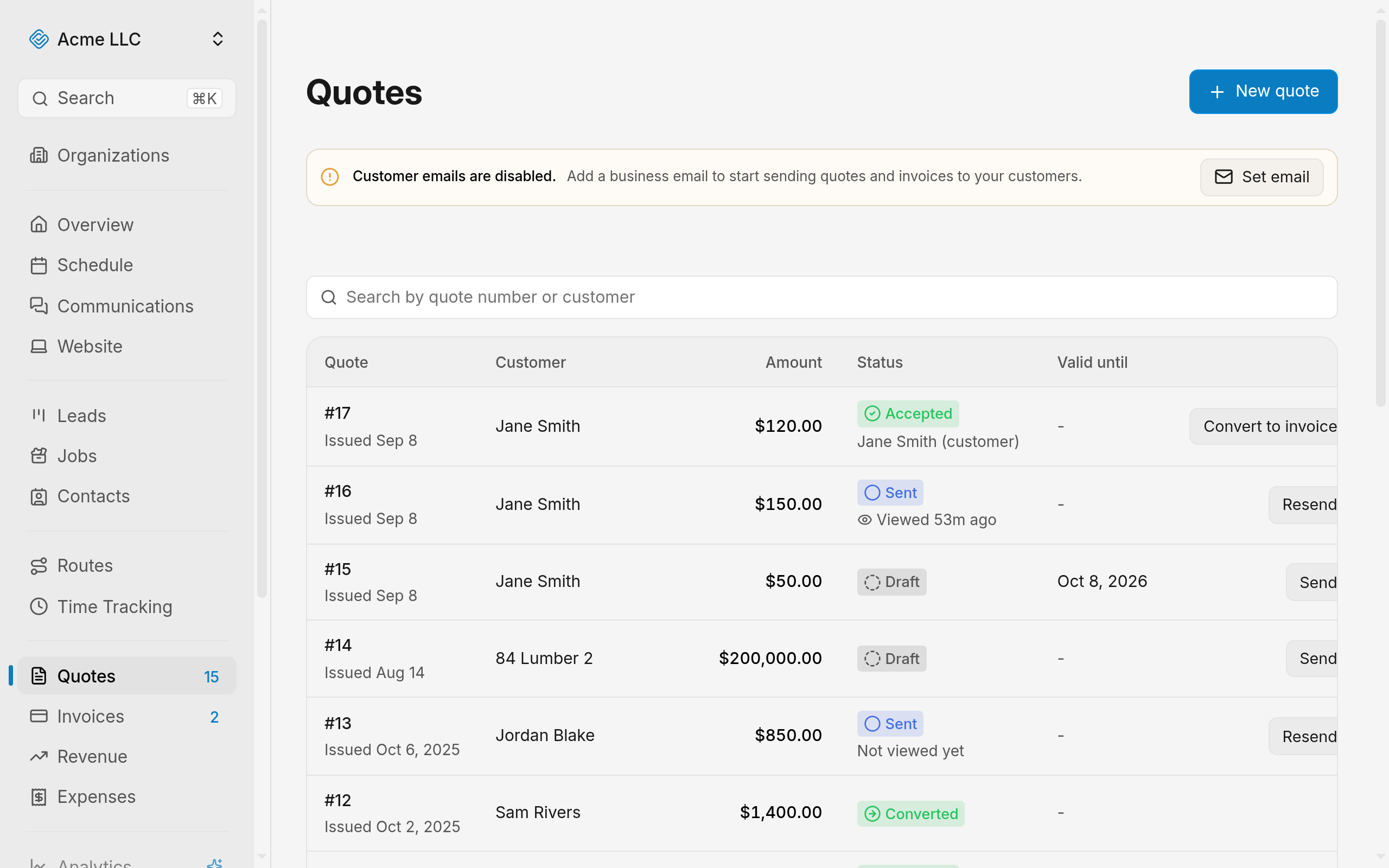
Only matching quotes stay in the list. Clear the search box to see every quote again, and page through the rest below the list.
Tip
Highlight a quote and press Enter to open it.
Act on a quote from the list
Each quote in the list carries one button for the action its status calls for, and the Quote actions menu holds the rest.
- Find the quote in the list.
- Select the button in the last column.
- Send on a draft quote emails it to the customer.
- Resend on a sent quote emails it again.
- Convert to invoice on an accepted quote, with Stripe connected.
- Open Quote actions for the rest.
- Edit or Mark as sent, on a draft quote.
- Mark accepted, on a draft or sent quote. Confirm that you are accepting for the customer.
- Convert to invoice, on a quote that is not yet accepted or converted, with Stripe connected.
- Resend, on an accepted or declined quote.
- Copy link or View public page, on any quote. A draft's link opens only for members who can view quotes, so send or mark the quote as sent before sharing it.
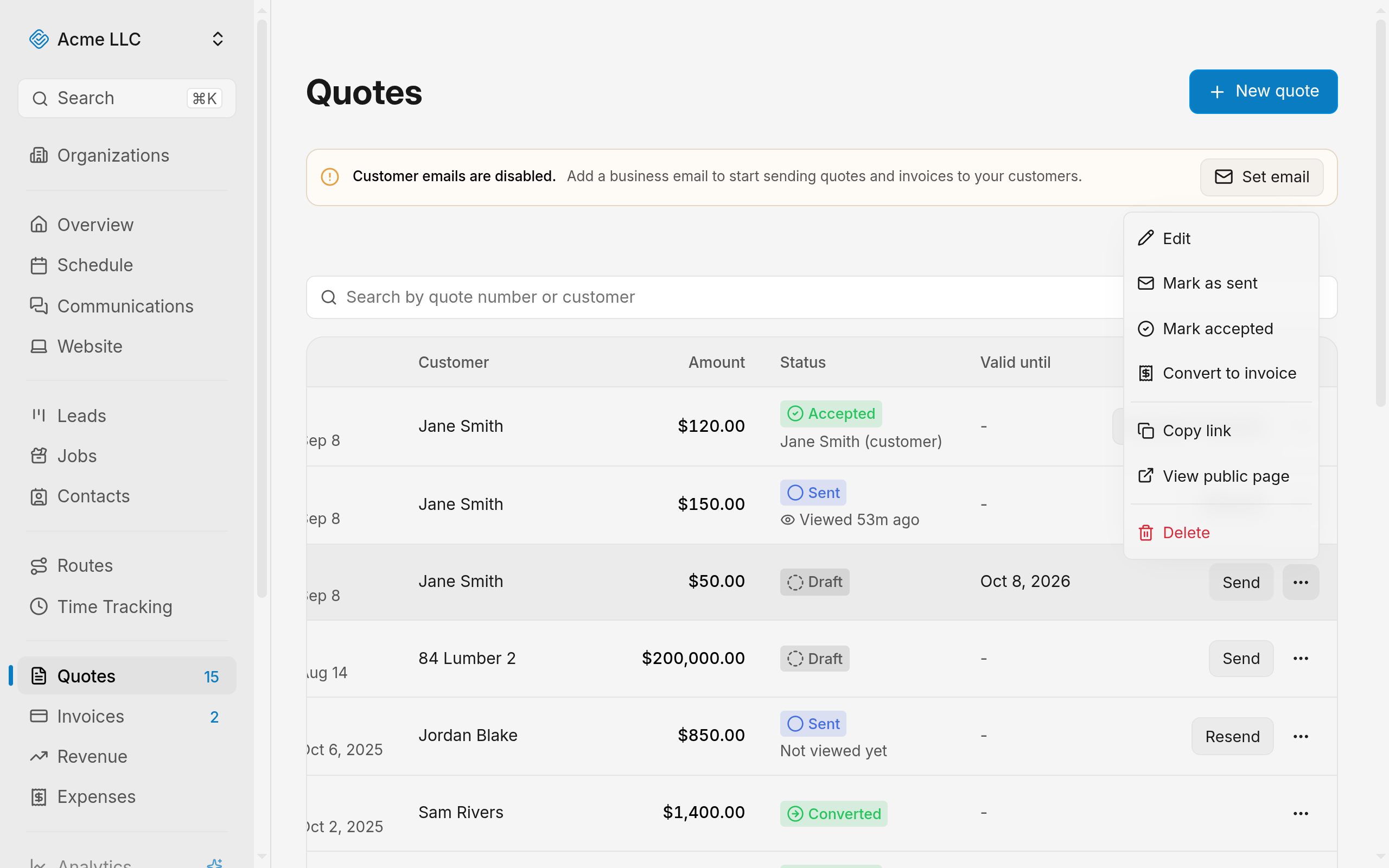
The status badge and the quote's button change as soon as the action finishes.
Note
Accepting for the customer records you as the acceptor, not the customer.
Delete a quote
Use this for a quote raised by mistake, at any status.
- Open Quote actions on the quote.
- Select Delete.
- This entry appears only for members with Full access to Quotes.
- Confirm the deletion.
The quote leaves the list.
Warning
Deleting a quote cannot be undone.
What each column shows
- Quote: the quote number and the date it was issued.
- Customer: the contact's name, linked to their page. It is hidden while the list is filtered to one contact.
- Amount: the quote total.
- Status: the status badge, plus who accepted the quote or when the customer last viewed it.
- Valid until: the date, or a dash when the quote has none. A past date on a draft or sent quote shows in the expired style.
What each status means
- Draft: not sent yet. Every new quote starts here, and only draft and sent quotes can be edited.
- Sent: the quote is with the customer. The list shows Not viewed yet until the customer opens the link, then how long ago it was viewed. Hovering shows the first and last view times.
- Accepted: the list names a team member, or the signer's name marked as the customer. See customer approval.
- Declined: the customer turned the quote down on the public quote page.
- Converted: the quote became an invoice and can no longer be sent or converted again.
What each action needs
- A business email: sending fails until one is set. Add it in Business settings, or select Set email on the quotes page.
- A connected Stripe account: converting needs one. Without it, every convert action is hidden. Members who can edit quotes get a Connect Stripe link above the list.
- A price on every line: sending, marking as sent, and converting all stop until each line has a price.
- Edit access to Quotes: the buttons in the list and the acting entries in the menu appear only with it. With view access the list still opens, and the menu keeps Copy link and View public page.
Related Guides
- Create a Quote Build a quote on a blank document page, price the work, and send it to the customer.
- Send a Quote to a Customer Email a quote, see when the customer opens it, and resend it after a change.
- How a Customer Approves a Quote Set the signature requirement and see what each customer response records.
Still Need Help?
If an article did not cover it, send us a message and a real person will get back to you.