Use the AI Assistant
Ask about your business, pick the record it means, confirm or undo the changes it makes, and reopen or restore past conversations.
The AI assistant is a side panel where you ask questions about your business and have it make changes for you. Open it from the sparkles icon button beside Search. This article covers asking a question, using the page you have open, picking a record, confirming or undoing a change, managing past conversations, and spotting what the assistant created or changed.
Open the assistant and ask a question
The button appears on organization pages, and the panel keeps your conversation as you move between pages (src/routes/dashboard/+layout.svelte:98-99; src/lib/components/ai/AiAssistantPanel.svelte:46-51).
- Click the sparkles icon button beside Search (src/routes/dashboard/+layout.svelte:334-344).
- Or press ⌘K, then choose Ask AI (src/routes/dashboard/+layout.svelte:110-122).
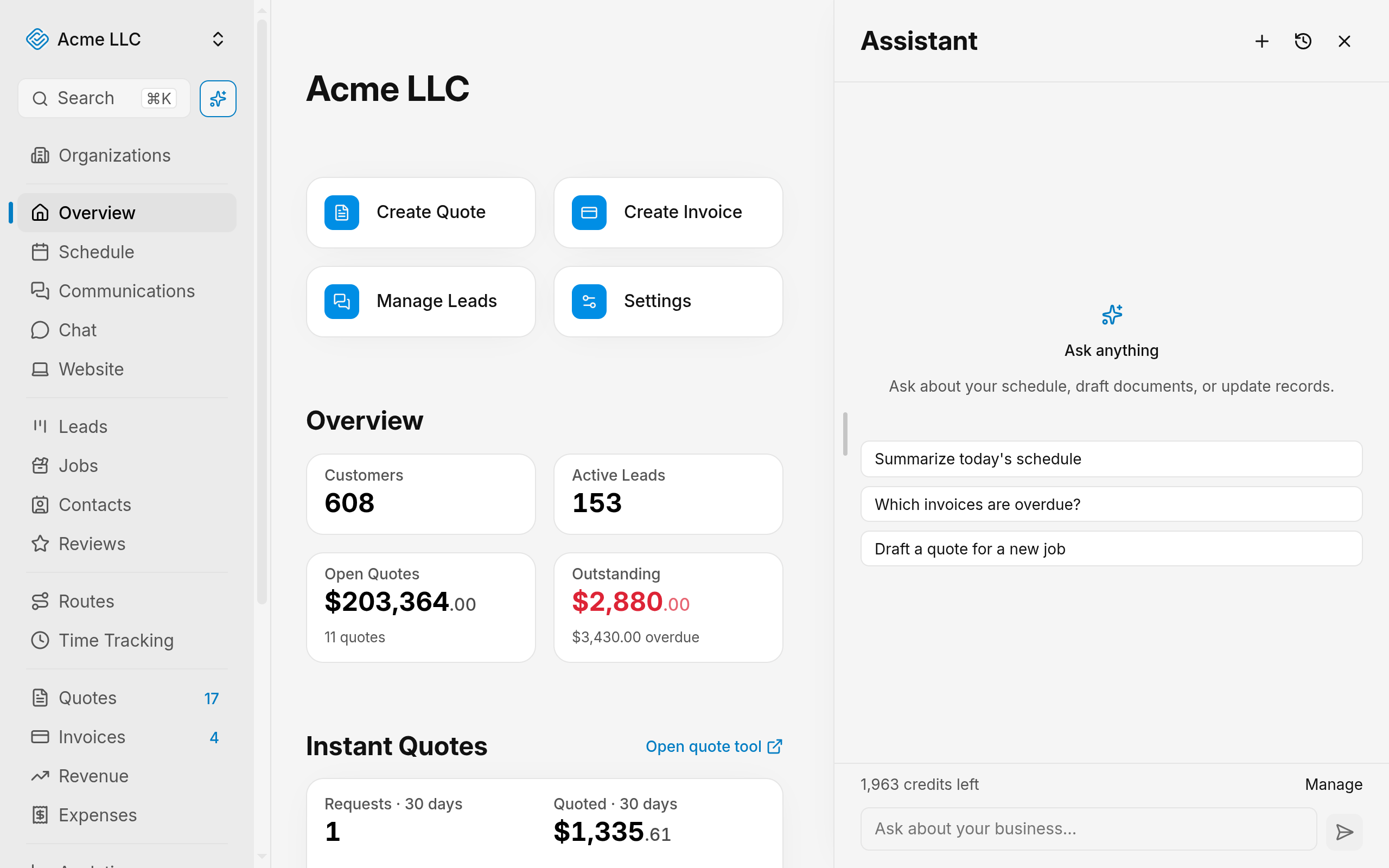
- Type your question in the box at the bottom of the panel.
- Press Enter to send (src/lib/components/ai/AiComposer.svelte:35-37).
- If the reply stops with an error and offers Retry, click it (src/lib/components/ai/AiMessageList.svelte:163-170, 288-297).
Your message appears as a bubble, and the reply appears below it (src/lib/components/ai/AiMessageList.svelte:251-252, 258-274). Press Shift + Enter to start a new line in the box.
The assistant looks up contacts, jobs, leads, quotes, invoices, open schedule times, tasks and late work before it answers (src/lib/server/ai/core/tools/specs/read/index.ts:25-42). A new chat offers four starter prompts under Try asking. Click one to send it. The starters are Today's schedule, What's running behind, Overdue invoices and Draft a quote (src/lib/components/ai/AiMessageList.svelte:79-107, 204-216). For What's running behind, the assistant lists jobs whose scheduled visits are all past but that aren't completed, open tasks past their day or end time, and overdue invoices, with the most overdue first. It leaves out jobs, tasks or invoices you don't have permission to view, and something due today doesn't count as late yet (src/lib/server/ai/core/tools/specs/read/overdue.ts:5-25; src/lib/server/ai/core/tools/specs/read/index.ts:8, 39).
Ask for counts and totals, such as "How many new leads did we get in the last 30 days?", "How many jobs did each person finish last month?", "What are this year's approved quotes worth?" or "How much did we collect in payments last month?", and the assistant adds them up across every matching record, not only the ones a list shows. It can count leads, jobs, quotes, invoices, payments, contacts and tasks for a named period or your own date range, split them by status, team member, lead source or day, week or month, and compare with the period before (src/lib/server/ai/core/tools/specs/read/stats.ts:43-62; src/lib/server/ai/tools/read/stats/engine.ts:162-292). Quotes count by when they were created, their quote date or when the customer approved them. Invoice totals leave out drafts and voided invoices unless you ask for them, and paid invoices count what was paid minus refunds. Payments count money received minus refunds, by the day it was received (src/lib/server/ai/tools/read/stats/quotes.ts:6-16; src/lib/server/ai/tools/read/stats/invoices.ts:20-23, 74; src/lib/server/ai/tools/read/stats/payments.ts:6-11, 21-23). Each count follows your access: records you can't view aren't counted and the reply says so, and if you can see only your own jobs, leads or tasks, only yours are counted (src/lib/server/ai/tools/read/stats/engine.ts:185-194, 288-292).
Ask how to do something in JobWise Pro, such as sending a payment reminder, and the assistant answers from the help center. The reply links the article it used (src/lib/server/ai/core/prompt.ts:125-126; src/lib/server/ai/core/tools/specs/read/help.ts:8-50). A reply that compares several records can show them as a table (src/lib/server/ai/core/prompt.ts:135; src/lib/components/ai/AiMessageList.svelte:261-268).
A record the reply links to, such as an invoice, job or task, shows as a small tag with its icon and name. Once the reply finishes, a preview card for each linked record appears under it with the record's status, customer, date and amount or checklist progress. Three show at first; click +N more for the rest. Click a tag or a card to open the record. A record you don't have access to shows only its type and no details (src/lib/components/team-chat/ChatMarkdown.svelte:183-195; src/lib/components/team-chat/ItemChip.svelte:8-14, 42-56; src/lib/components/ai/AiMessageList.svelte:276-278; src/lib/components/team-chat/ItemCards.svelte:34, 44, 60-74; src/lib/components/team-chat/ItemPreview.svelte:13-18, 82-93).
A link in a reply that leads outside JobWise Pro asks before it opens. The prompt shows the full address. Click Open link to open it in a new tab, or Cancel to stay (src/lib/components/ai/AiMessageList.svelte:121-132, 306; src/lib/components/ExternalLinkModal.svelte:24-31).
Settings managers see an AI assistant settings gear icon in the panel header, beside the history and new chat icons. Click it to open the AI assistant settings page; on a computer the panel stays open beside it. The icon is not shown in the native app (src/lib/components/ai/AiAssistantPanel.svelte:58, 121-127, 569-578).
Note
If the panel shows an upgrade prompt instead of the chat, the assistant is not available to this organization (src/lib/components/ai/AiAssistantPanel.svelte:582-591).
On a phone, the panel opens as a sheet over the page and closes when a link in a reply opens another page (src/lib/components/ai/AiAssistantPanel.svelte:46-47, 59-60, 121-127).
Use the page you have open
When the page you are on shows one record, such as a job, a quote or a lead, the panel uses that record as context. Above the message box, a badge reads Using this page with the record's name (src/lib/components/ai/AiAssistantPanel.svelte:117-122, 657-659; src/lib/components/ai/AiPageContext.svelte:8-13, 42).
- A vague request acts on that record. For example, Draft a quote on a job's page quotes that job, and Send it sends the quote you are looking at (src/lib/components/ai/AiAssistantPanel.svelte:117-119; src/lib/server/ai/core/prompt.ts:94-95).
- To stop using the page for your next messages, click the X control on the badge, labelled Don't use this page (src/lib/components/ai/AiPageContext.svelte:49-53).
- The panel offers the page again when you move to another page (src/lib/components/ai/AiAssistantPanel.svelte:117-119, 125-126).
Each message you send shows which page it went out from. Under the message bubble, the badge reads Sent from with the record (src/lib/components/ai/AiMessageList.svelte:249-255; src/lib/components/ai/AiPageContext.svelte:42).
Pick a record the assistant asks for
When the assistant needs a specific record and can't tell which one you mean, it asks with a picker under its reply instead of guessing (src/lib/components/ai/AiChoiceCard.svelte:14-23; src/lib/server/ai/core/prompt.ts:120).
- Read the question above the list.
- Pick one record from Suggested, the records most likely to match. Under them, Recent lists the latest records of that kind, or Search results when you type (src/lib/components/ai/AiChoiceCard.svelte:16-18, 144-156).
- To find a record that is not listed, type in the Search box. The search covers every record of that kind you can see, not only the ones shown. Search names, numbers and addresses (src/lib/components/ai/AiChoiceCard.svelte:16-18, 133-140, 172-175).
- Click Select to answer with your pick. The reply carries on below the picker (src/lib/components/ai/AiChoiceCard.svelte:199-207).
- If the picker offers None of these, click it when no record fits. The reply carries on without a record (src/lib/components/ai/AiChoiceCard.svelte:189-198).
- Select and None of these wait until the current reply finishes (src/lib/components/ai/AiChoiceCard.svelte:186-188).
Once you answer, the picker collapses to You chose with the record, or You chose none of the records shown (src/lib/components/ai/AiChoiceCard.svelte:210-220). Your answer can't be taken back.
Ask about your access
The assistant can only do what your role and your organization's plan allow (src/lib/server/ai/tools/index.ts:63-87). When you ask for something you can't do, it says what is missing: the area and level your role would need, such as Quotes with Full access, or the plan that includes it. It also names the people who can change your role: the owner and members with Full access to Team (src/lib/server/ai/tools/read/access.ts:39-65, 71-102). You can also ask it directly, for example "What am I allowed to do?" (src/lib/server/ai/core/prompt.ts:125-126).
To change a role's access, see Roles and permissions.
Set up your business profile
The assistant can help fill in your organization's business profile. Ask "Help me set up my business profile", and it reads the profile, finds the contact details that are still empty, and asks you for them one or two at a time. It saves only the values you give it (src/lib/server/ai/core/prompt.ts:124; src/lib/server/ai/tools/read/business.ts:13-34).
- What it can change: the business email, phone number, website and business address, the same details as the Contact card in Business Profile settings. It changes only the details you name, for example "Change our business phone to (214) 555-0199" (src/lib/server/ai/core/tools/specs/write/business.ts:25-62).
- What it can't change: the organization's name and time zone. Change those on the settings page (src/lib/server/ai/core/tools/specs/write/business.ts:30).
- Confirm needed: these details appear on the quotes, invoices and emails your customers receive, so every change waits for Confirm. The card lists each detail it will change, with the new value and the one it replaces, and links to the settings page (src/lib/server/ai/core/tools/specs/write/business.ts:27; src/lib/server/ai/tools/write/business.ts:77-90).
- Who can change it: members who can save the page, with Edit access to Settings (src/lib/server/ai/tools/write/business.ts:76, 92).
Confirm or reject a proposed action
The assistant waits for your decision before it sends a quote, changes a quote, moves a lead, changes a job's status, removes job checklist items, changes the business profile or sends payment reminders (src/lib/server/ai/core/tools/specs/write/index.ts:12-28; src/lib/server/ai/core/tools/specs/write/quotes.ts:71, 85; src/lib/server/ai/core/tools/specs/write/leads.ts:7; src/lib/server/ai/core/tools/specs/write/jobs.ts:8; src/lib/server/ai/core/tools/specs/write/checklists.ts:60; src/lib/server/ai/core/tools/specs/write/business.ts:27; src/lib/server/ai/core/tools/specs/write/invoices.ts:9-27).
Ask it to remind customers about unpaid invoices, for example "Send reminders for the overdue invoices", and its card lists each invoice with the customer, their email and the amount due. A reminder emails the invoice again with the same amount, due date and payment link, the same as Send reminder on the invoices page, and only invoices that are still owed can get one. It needs Edit access to Invoices (src/lib/server/ai/tools/write/invoices.ts:24-60, 62-128; src/lib/server/invoices/send.ts:9-16). A sent reminder can't be undone.
- Ask for the change in the message box, for example to send Jane Smith's quote.
- Read the card. It lists the details of the change (src/lib/components/ai/AiActionCard.svelte:56-67).
- Click Confirm to make the change, or Reject to drop it (src/lib/components/ai/AiActionCard.svelte:73-88).
- Confirm shows a spinner until the change is saved (src/lib/components/ai/AiActionCard.svelte:7-8).
- If your roles and permissions do not cover the change, Confirm does not run it (src/lib/server/ai/access.ts:53-71).
- If Confirm fails, the card shows the reason and a Try again button (src/lib/components/ai/AiActionCard.svelte:69-71, 86).
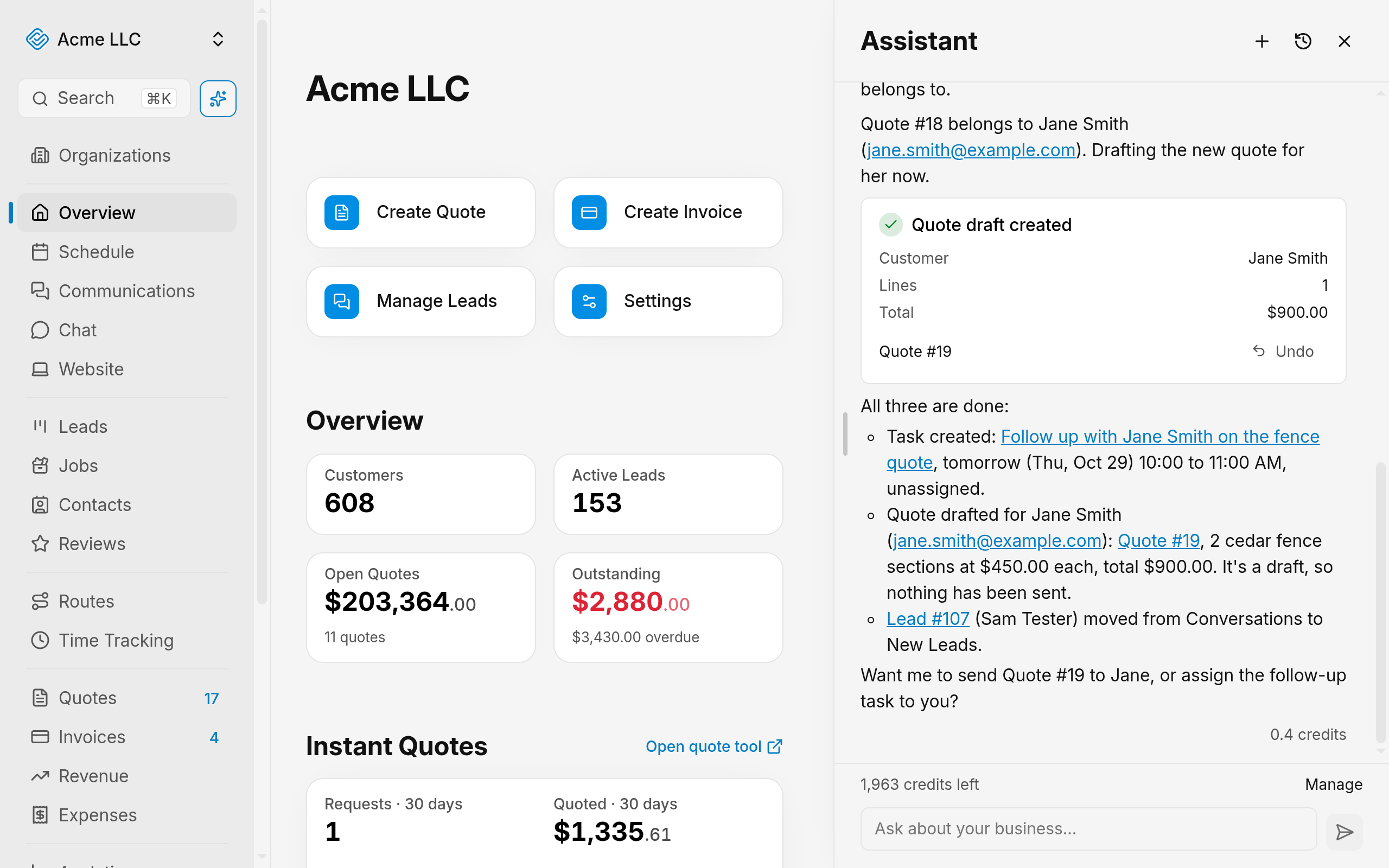
The card title changes to its finished wording, such as Quote sent, and a link opens the item when there is one (src/lib/ai/assistant.ts:258-263, 289; src/lib/components/ai/AiActionCard.svelte:23, 89-92).
Warning
Confirming a quote send, or a change to a sent quote, emails the customer (src/lib/server/ai/core/tools/specs/write/quotes.ts:72-73, 87-88).
Undo an action
A change the assistant ran at once can be reversed from its card (src/lib/server/ai/conversations.ts:671; src/lib/server/ai/actions.ts:36).
- Find the card in the reply it belongs to.
- Click Undo on the card (src/lib/components/ai/AiActionCard.svelte:96-106).
The card shows Undone, and the change goes back to its earlier state (src/lib/components/ai/AiActionCard.svelte:49-50). Undo stops if the item has changed since the assistant made the change, and the item stays as it is (src/lib/server/ai/tools/types.ts:81-84).
The assistant runs creating a task, a contact, a calendar event or a quote draft, adding a contact note, and adding, editing or ticking job checklist items, at once. Removing checklist items waits for Confirm, and the card lists the items it will remove (src/lib/server/ai/core/tools/specs/write/tasks.ts:7; src/lib/server/ai/core/tools/specs/write/contacts.ts:33, 69; src/lib/server/ai/core/tools/specs/write/calendar.ts:7; src/lib/server/ai/core/tools/specs/write/quotes.ts:51; src/lib/server/ai/core/tools/specs/write/checklists.ts:25, 43, 60; src/lib/server/ai/tools/write/checklists.ts:255-262).
Note
Sending or changing a quote, moving a lead and changing a job's status have no Undo button after you confirm them. Checklist items you confirmed removing can still be brought back with Undo, and so can a business profile change, as long as nobody changed those details since (src/lib/server/ai/conversations.ts:671; src/lib/server/ai/actions.ts:36; src/lib/server/ai/tools/write/quotes.ts:235, 332; src/lib/server/ai/tools/write/leads.ts:109; src/lib/server/ai/tools/write/jobs.ts:75; src/lib/server/ai/tools/write/checklists.ts:288-290; src/lib/server/ai/tools/write/business.ts:119-126).
Reopen a past conversation
Past conversations are listed newest first, and only the member who started one can open it (src/lib/components/ai/AiConversationList.svelte:22-25; src/lib/server/ai/access.ts:28-35).
- Click the history icon in the panel header (src/lib/components/ai/AiAssistantPanel.svelte:546-554).
- Click the conversation's title (src/lib/components/ai/AiConversationList.svelte:179-186).
The earlier messages load in the chat view, and your next message continues that conversation (src/lib/components/ai/AiAssistantPanel.svelte:187-196). A conversation with no title shows Untitled conversation in the list.
Click the plus icon in the panel header to start a new chat. The icon is unavailable while a reply streams (src/lib/components/ai/AiAssistantPanel.svelte:541-543).
Delete and restore a conversation
Deleting a conversation moves it to the trash. It is not removed at once, and you can restore it for 30 days (src/lib/components/ai/AiConversationList.svelte:21-25; src/lib/server/ai/conversations.ts:232-244; src/lib/ai/assistant.ts:125-126).
- Click the history icon in the panel header.
- Open the Conversation actions menu beside the conversation.
- Click Move to trash (src/lib/components/ai/AiConversationList.svelte:187-199).
The conversation leaves the history list. There is no undo notice; to get it back, use the trash.
- Trash: click the Trash tab at the top of the history to see deleted conversations. The tab sits beside Conversations (src/lib/components/ai/AiConversationList.svelte:92-103).
- Restore: click Restore beside the conversation. It returns to Conversations and shows the Conversation restored notice (src/lib/components/ai/AiConversationList.svelte:131-150, 76).
- Deleted forever: after 30 days in the trash, the conversation is deleted for good and can't be restored. Each row shows the date it will be deleted forever. The trash lists only conversations inside that window (src/lib/server/ai/conversations.ts:246-275; src/lib/components/ai/AiConversationList.svelte:107-109, 136-140).
Note
Moving the open conversation to the trash returns the panel to the history list (src/lib/components/ai/AiAssistantPanel.svelte:218-223).
Spot what the assistant created or changed
Items the assistant created or changed show an AI badge, a sparkles icon with the AI label (src/lib/components/AiBadge.svelte:25-29).
- Who asked: the full badge shows the avatar of the member who asked, before the AI label. The name belongs to that member, not the assistant (src/lib/components/AiBadge.svelte:26-29; src/lib/ai-attribution.ts:10-11).
- Details: hover over the badge, or focus it with the keyboard, to read its line. The line gives Created or Changed, the member who asked, and the date (src/lib/components/AiBadge.svelte:23-25; src/lib/ai-attribution.ts:40-44).
- Where: contacts, quotes, schedule items, job checklist items, lead history and client timeline (src/routes/dashboard/[id]/contacts/+page.svelte:254; src/lib/components/Quotes.svelte:329; src/lib/components/schedule/QuickViewPanel.svelte:385; src/routes/dashboard/[id]/jobs/[jobId]/+page.svelte:1300-1302; src/lib/components/LeadDetailPanel.svelte:812; src/lib/components/ClientTimelineTab.svelte:318).
Card statuses and limits
- Pending: the change waits for Confirm or Reject (src/lib/components/ai/AiActionCard.svelte:73-79).
- Rejected: nothing changed (src/lib/components/ai/AiActionCard.svelte:47-48).
- Undone: the change was reversed with Undo.
- Expired: a confirm card stayed open for more than 24 hours. Confirm and Try again stop working (src/lib/server/ai/access.ts:73-93).
- Decisions: Confirm and Undo run the change as you, so they need your permissions for that action. You can reject a proposal you asked for, whatever your permissions are (src/lib/server/ai/access.ts:53-71).
- Credits: each reply uses AI credits. When fewer than 200 credits are left, the bottom of the panel shows the balance and a Manage link (src/lib/components/ai/AiAssistantPanel.svelte:100-105, 648-655; src/lib/config/ai-credits.ts:12-13).
- Out of credits: sending stops, and the panel shows a notice until the balance goes up (src/lib/components/ai/AiAssistantPanel.svelte:94-99, 619-638). Click Manage AI credits in the notice to open the assistant settings (src/lib/components/ai/AiAssistantPanel.svelte:631-634).
- Monthly limit: an owner or administrator can set a monthly credit limit for each member. When you reach yours, sending stops for you alone. Your organization's other members can keep using the assistant. The panel shows You've reached your monthly AI credit limit with the date you can use it again. Settings managers see Change limits; other members see a prompt to contact an administrator. The limit resets on the first day of the next month. See Manage AI credits for how limits are set (src/lib/components/ai/AiAssistantPanel.svelte:82-86, 343-347, 606-618; src/lib/server/ai/credits.ts:32-45, 151-152; src/lib/server/ai/member-limits.ts:7-12).
- Message length: up to 4,000 characters (src/lib/ai/assistant.ts:10-11).
Related Guides
Still Need Help?
If an article did not cover it, send us a message and a real person will get back to you.