Manage AI Credits
Buy AI credit packs, set up auto top-up, set monthly member limits, and fix a paused auto top-up.
AI credits pay for each message the AI assistant sends. The AI Assistant page in settings shows your balance and each member's monthly usage, sells credit packs, sets member limits, and holds the auto top-up settings.
Buy a credit pack
- In Credit Packs, choose a pack from the picker. Each option shows its credits and its price,
such as 2,500 credits for $25 (src/lib/config/ai-credits.ts:23-28;
src/routes/dashboard/[id]/settings/ai-assistant/+page.svelte:712-723). The pack tagged
Most popular is selected when the page opens (+page.svelte:55, 718-720).
- If no card is on file, the section shows Add card instead of Buy. It opens card setup on the billing page, and you return to this page once the card is saved (+page.svelte:738-747, 534-542).
- Select Buy with the pack you chose. The button names the pack and its credits (+page.svelte:749-755).
- In the Buy Credits dialog, check the amount and the card. The dialog says what will be
charged and to which card, and that purchased credits never expire and are not refundable
(+page.svelte:831-833). Select Charge to pay. The button shows the pack price
(+page.svelte:847).
- If your bank asks you to confirm the payment, the dialog shows a Confirm payment link. Finish on the bank's page. The credits are added once the payment goes through (+page.svelte:265-272, 839-840; src/lib/server/ai/credit-purchases.ts:282-293).
- If there is no card on file or the charge fails, the dialog shows the reason and no credits are added (+page.svelte:273-277; src/lib/server/ai/credit-purchases.ts:200-205, 388-397).
When the charge goes through, the dialog closes, and Purchased balance rises by the pack's credits (+page.svelte:265-267, 373-376).
Warning
Purchased credits never expire, and they are not refundable (+page.svelte:516, 832-833).
Turn on auto top-up
Auto top-up buys a pack when your balance drops below a threshold you set. It charges the card on file (+page.svelte:560-567, 627-629).
- In Auto Top-Up, turn on Auto top-up. The first time, the fields fill with a 2,500 credit pack, a threshold of 200 credits, and a limit of 3 top-ups a month. Turning it on saves these values (src/lib/config/ai-credits.ts:33-38; +page.svelte:293-297, 301-304).
- Finish the sentence. It reads When my balance drops below [threshold] credits, buy
[pack], up to [count] times a month.
- Threshold: a whole number from 10 to 10,000 credits (+page.svelte:573-584; src/lib/functions/ai-credits.remote.ts:61-66).
- Pack: the pack that auto top-up buys (+page.svelte:587-598).
- Count: the number of automatic top-ups allowed each month, from 1 to 20 (+page.svelte:599-614; src/lib/functions/ai-credits.remote.ts:54-59).
Each field saves when you change it. Under the sentence, a line gives the most you can spend a month: the count times the pack price, charged to the card on file. It also notes that auto top-up buys at most one pack an hour (+page.svelte:315-327, 617-626; src/lib/server/ai/credit-purchases.ts:632).
Note
A value outside its range does not save, and the field shows why (+page.svelte:317-320; src/lib/functions/ai-credits.remote.ts:54-66).
Fix a paused auto top-up
Auto top-up pauses after an automatic charge fails. The Auto Top-Up section then shows the failure reason in a banner, with an Update card link (+page.svelte:549-558; src/lib/server/ai/credit-purchases.ts:410-417).
- Select Update card, and save a card that the charge can use. The billing page opens for this (+page.svelte:556). Saving the card lifts the pause (src/lib/server/billing/setup-session.ts:59-60).
- To add credits right away as well, buy a pack from Credit Packs and select Charge in the Buy Credits dialog. A paid manual purchase lifts the pause (src/lib/server/ai/credit-purchases.ts:336-338).
The banner leaves the Auto Top-Up section once the pause lifts (+page.svelte:549).
Note
Saving the auto top-up settings does not lift the pause. A failing card is not retried by a settings change (src/lib/server/ai/credit-purchases.ts:695-698, 716-722).
Set member limits
Member Usage sets how many credits each member can use a month. Limits apply to the assistant only, for that member. Owners and members with settings access can change them (+page.svelte:398-399; src/lib/functions/ai-credits.remote.ts:77-78).
Set a default limit
- In Member Usage, turn on Limit each member's usage. Turning it on restores the last default you entered, or 200 credits the first time (+page.svelte:125-142).
- Set the number in Each member can use up to [number] credits per month. It takes whole credits from 1 to 1,000,000 and saves when you change it (+page.svelte:414-433, 144-159; src/lib/functions/ai-credits.remote.ts:15-21).
Turn the toggle off to remove the default. Members without their own limit then have no limit (+page.svelte:404-412; src/lib/server/ai/member-limits.ts:78-85).
Limits reset on the first day of the next month, shown as Limits reset under the default (+page.svelte:435-437).
Set a limit for one member
Each member starts on Use default. To give one member a different limit, change their row:
- Select Edit limit on the member's row. The row has this link only for current members (+page.svelte:491-501).
- In the Member Limit side panel, choose one option under Monthly limit
(+page.svelte:776-804):
- Use default follows the default limit and shows its amount, or No limit if the default is off (+page.svelte:780).
- No limit lets this member use the assistant without a monthly cap (+page.svelte:784).
- Custom limit sets your own amount. Enter whole credits from 1 to 1,000,000 in Credits per month (+page.svelte:788, 790-803).
- Select Save changes. The panel closes and the row shows the new limit with Custom or Default beneath it (+page.svelte:822-824, 485-490; src/lib/functions/ai-credits.remote.ts:93-116).
The panel shows how much the member has used this month. A member who is close to their limit shows a Near limit badge at 80% of it. A member at their limit shows At limit (+page.svelte:113-119, 475-479, 764).
When a member reaches their limit
The assistant stops for that member once their usage this month reaches their limit. The stop applies to that member only, and other members keep using the assistant (src/lib/server/ai/member-limits.ts:53-76; src/lib/server/ai/credits.ts:151-152).
- The member's assistant panel disables its message box and shows a notice with the date the limit lifts (src/lib/components/ai/AiAssistantPanel.svelte:83-99, 606-617).
- Owners and members with settings access also see a Change limits link in that notice. It opens this page (src/lib/components/ai/AiAssistantPanel.svelte:613-615).
- The limit lifts when the month resets. Until then the assistant stays off for that member (src/lib/server/ai/member-limits.ts:57-75).
Read your balance and usage
The Credits section at the top of the page shows what is left and when included credits reset (+page.svelte:350-355).
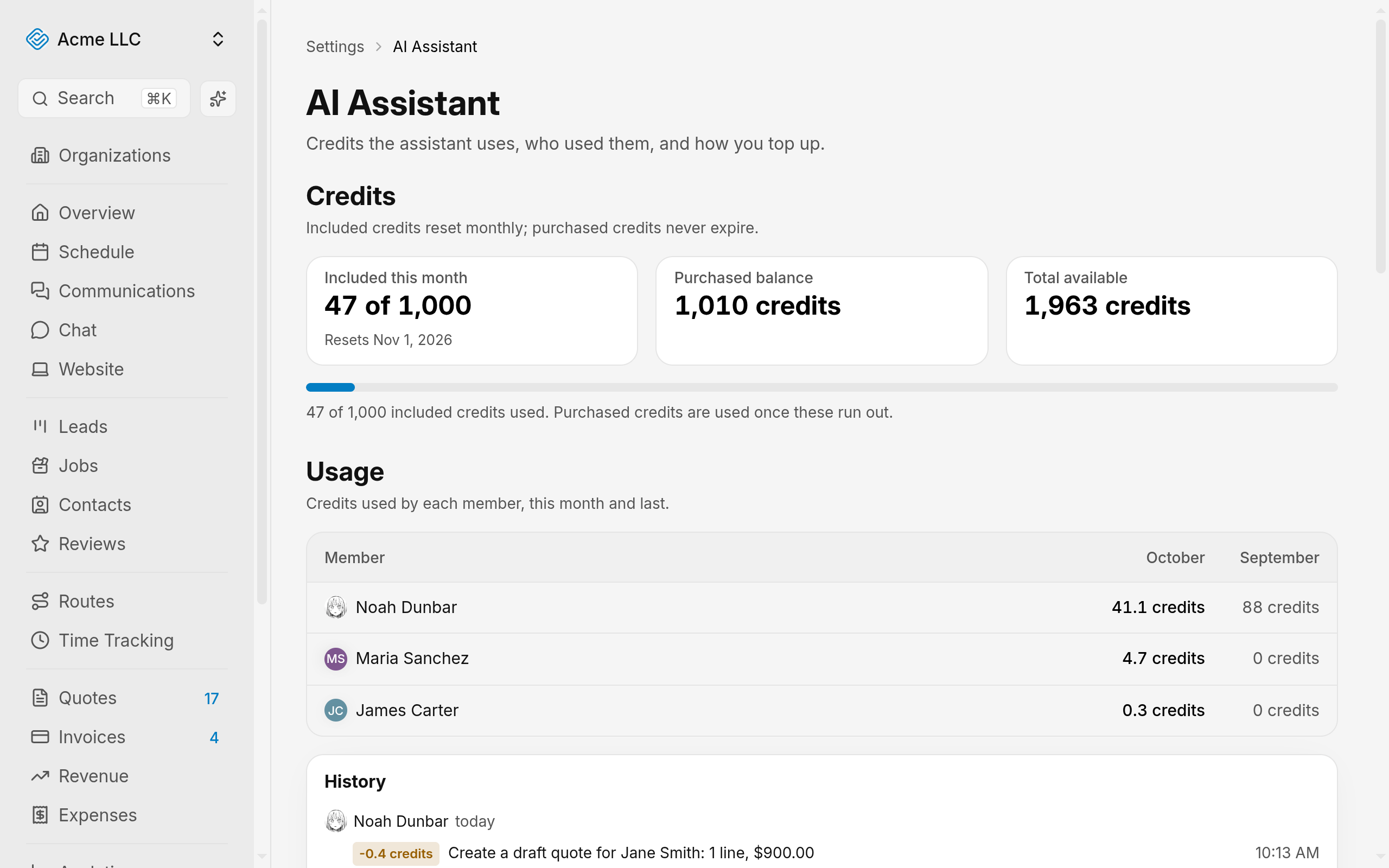
- Total available: included and purchased credits left, together (+page.svelte:358-362).
- Included this month: credits used from this month's allowance, and the date it resets (+page.svelte:363-370).
- Purchased balance: credits you bought (+page.svelte:371-376).
Included credits come from your plan. The Growth plan includes 1,000 credits a month (src/lib/config/subscription-plans.ts:466). To change plans, see Change your plan.
- Member Usage lists each member's credits this month and last month, and each member's monthly limit (+page.svelte:398-399, 448-453). Totals are per member only: the page does not list individual messages (src/routes/dashboard/[id]/settings/ai-assistant/+page.server.ts:111-167). A member who has left the organization still appears, as Former member, with their past usage (+page.server.ts:145-152).
- If usage fails to load, select Retry. The balance and purchases still show (+page.svelte:440-446, 79-89).
- Purchase History lists each purchase attempt with its date, pack, amount and status
(+page.svelte:635-660). The statuses are Paid, Pending, Failed and Needs confirmation
(+page.svelte:331-336).
- For a Paid purchase, select Download invoice to open the Stripe invoice PDF (+page.svelte:685-688; src/lib/server/ai/credit-purchases.ts:60-61).
- For a purchase in Needs confirmation, select Confirm payment to finish on the bank's page (+page.svelte:689-692; src/lib/server/ai/credit-purchases.ts:57-58).
- A Pending purchase shows the note Payment processing, and a Failed purchase shows Not charged, in place of an action (+page.svelte:332-334, 693-694).
- If purchase history fails to load, select Retry. The balance still shows (+page.svelte:637-643).
In the iOS app, Credit Packs and Auto Top-Up do not appear, and prices and purchase actions are hidden. The Amount and Actions columns of Purchase History are hidden too, but the section still lists each purchase's date, pack and status. A Failed or Pending note shows under the status there (+page.svelte:511-633, 648-650, 654-660, 674-682, 685-697). The balance and Member Usage still show, and owners can still set member limits there (src/lib/functions/ai-credits.remote.ts:77-78).
When credits run out
Included credits are used before purchased credits, and the balance never drops below zero (src/lib/server/ai/credits.ts:19-20).
- Before each model call, the assistant holds the most that call can cost. It charges the actual cost once the call is done (src/lib/server/ai/credits.ts:124-160).
- If the balance cannot cover the hold, the assistant stops that message. The panel shows the out-of-credits notice (src/lib/server/ai/credits.ts:24-28, 153-155).
- With auto top-up on, a pack is bought when the balance drops below the threshold. The check runs after each message, and an hourly sweep backs it up (src/lib/server/ai/credits.ts:196-247, 321-359).
- Automatic packs stop at the monthly limit (src/lib/server/ai/credits.ts:241-242). A paused auto top-up buys nothing until it is fixed (src/lib/server/ai/credits.ts:237-238). A second automatic pack within the hour waits for the next check (src/lib/server/ai/credits.ts:243-245; src/lib/server/ai/credit-purchases.ts:632).
- The owner gets a low-balance alert once per period, and an out-of-credits alert when the balance runs out (src/lib/server/ai/credits.ts:265-285; src/lib/server/billing/notifications.ts:246-262).
- Included credits reset on the first day of the next month, in Central time (src/lib/website-credits.ts:16; src/routes/dashboard/[id]/settings/ai-assistant/+page.server.ts:100).
- An automatic charge that fails pauses auto top-up and emails the owner once for that top-up (src/lib/server/ai/credit-purchases.ts:410-426).
Related Guides
Still Need Help?
If an article did not cover it, send us a message and a real person will get back to you.