Send an Email Campaign
Build an email to your contacts, check it, and send it now or on a schedule.
Create an email campaign in Campaigns for your contacts: pick a goal and a group of customers, edit the draft, then send or schedule it. You can write drafts before email sending is set up, but the sender must be ready before anything goes out. See Set Up Email Sending. New to campaigns? Read Introduction to Campaigns.
Create a campaign
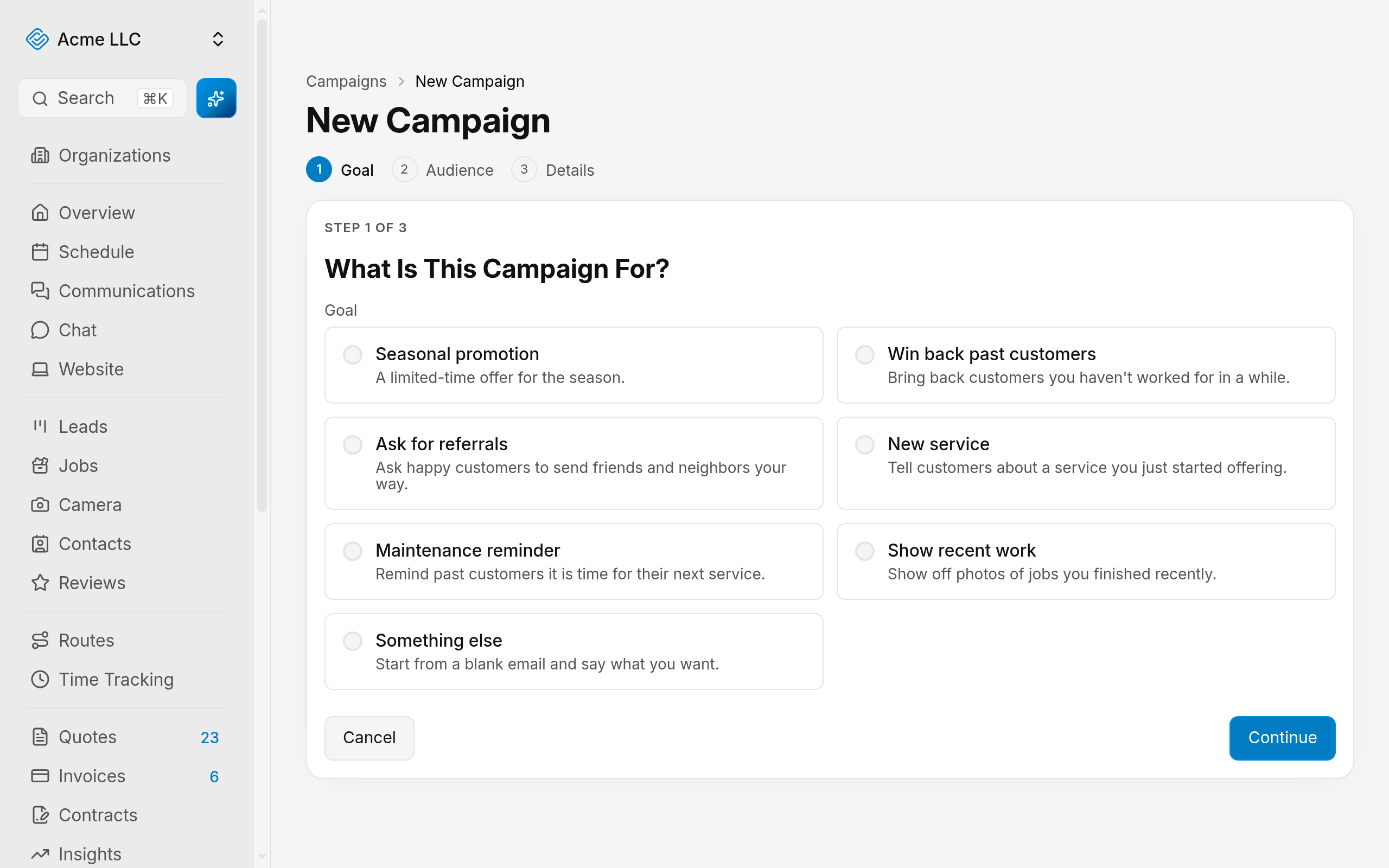
A campaign starts on the new campaign page, which has three steps: Goal, Customers, and Email details.
- Open New Campaign.
- Without edit access, the page shows a message instead of the steps.
- With no contacts that have an email address, the page asks you to import or add contacts first.
- Select a goal card. The goal names are in the screenshot below.
- Click Continue.
- Choose who should get the email, then click Continue.
- Enter a Campaign name. Optionally enter an Offer and notes on what the draft must mention or avoid. Choose a Tone, then click Create draft.
- Create draft is disabled while no customers match the group you chose.
Creating a draft does not send anything. You review the email and send it from the editor.
Tone offers Friendly, Professional and Casual. The page shows a drafting state for up to a minute, then opens the draft in the editor.
If the AI draft does not finish, the editor opens on your saved campaign with a notice. Click Try drafting again, or write the email yourself.
Edit the draft
The editor holds the subject line, preview text, and email blocks. The header shows Saving…, Unsaved changes, or All changes saved.
- Choose a Subject line option, or select Write my own and type one.
- Type the Preview text, which most inboxes show beside the subject.
- Edit the blocks in the email body.
- Click Preview in the header. The preview shows the email exactly as it arrives: who it's from, the subject and preview text, and the full email with your photos. It's filled in for one real contact from your audience, so their first name and other details appear where you used them. Switch between Desktop and Mobile, and open any link in the email to check where it goes.
Add a block with the plus icon between two blocks, or with Add block at the end. The menu offers Heading, Paragraph, Photo, Before and after, Button, Review, Offer and Divider.
- Review lists your 5-star reviews and is disabled until you have one.
- A new Button is labeled Get a free quote and links to a quote page.
The sparkles icon on a block opens Rewrite, Make it shorter and Make it more casual for headings, paragraphs, offers and buttons. The arrows move a block; the trash icon deletes it.
- Heading and Paragraph are text fields. Under a paragraph, the Bold button bolds the selected words, the Add a link button turns them into a link, and Insert detail adds a tag such as [First name], [City] or [Last service]. Each contact sees their own details in its place, and a friendly stand-in such as "there" or "your area" when a detail is missing. A blank line starts a new paragraph.
- Button text takes up to 60 characters. Goes to shows where the button leads and offers a quote page, a web address or a booking page. Web addresses start with
https://. - Offer has a headline, details and an Ends on date.
Your business name, address and an unsubscribe link go at the bottom of every email.
Add photos
Photos come from the Add Photos panel. A photo block takes one photo; a before and after block takes two.
- Choose Photo or Before and after from the add block menu, or click the image icon on a photo block.
- Select one photo, or two for a before and after block.
- Click Add photo, or Add 2 photos.
Note
A photo shows Preparing photo until its email copy is ready. The Prepare photos action in the Send card prepares all photos at once.
Choose who gets it
The Audience card shows how many contacts will get the campaign and how many of your monthly email credits are used.
- Click Edit audience. It appears only while the campaign is editable.
- Set the filters under Narrow this group: Has any of these tags, Leave out these tags, Cities, Past work includes, Last job on or after and Last job before.
- Check the count under Recipients in the preview panel. It also counts the contacts who will not receive the email, and why.
Contacts with no activity for three years are left out unless you tick Also email customers inactive for 3+ years.
Fix what blocks sending
The Send card on a draft lists only the checks that need you, each with a button that fixes it. When nothing does, the card says the email is ready. All checks at the bottom of the card opens the full list, grouped into the sending address and business footer, the subject and email content, the recipients and monthly email credits, and technical checks on links and email size.
- Find the failing or warning check in the Send card.
- Click the action under it:
- Open email sending for the sender check.
- Add your business address for the business address check.
- Edit audience for the audience check.
- Edit for the subject line and preview text checks. It moves the cursor to the subject field.
- Prepare photos for the image check.
- Open billing for the monthly email credits check, to turn on extra email usage. On a plan without campaigns it reads See plans.
- The check leaves the list once it passes.
The sender check passes once the sender is set up in Set up email sending.
The checks enforce these limits:
- A subject line of 8 to 80 characters.
- Up to 6 photos and up to 5 links.
- At least 500 characters of text, because mail with many photos and little text reads as spam.
- A rendered email under 100 KB.
These block sending: no subject line, no business address in the footer, too many photos, a photo that isn't ready or has no description, a button with nowhere to go, a shortened link, an email that is too large, and an unverified sending address. Warnings do not block. They cover a long or short subject, all caps, two ! in a row in the subject, spammy wording, missing preview text, too little text, review quotes and many links.
Send a test email
- Click Send test to me in the Send card. The test email arrives in your inbox.
The button is disabled while the sender is not active.
Send now or schedule
Both actions are in the Send card on a draft. Sending starts now; scheduling starts at a time you choose.
To send now:
- Click Send now.
- In the Send This Campaign? dialog, click Send now.
To schedule:
- Click Schedule for later.
- Enter a date and time in Send on, in your account's time zone. The time must be in the future.
- Click Schedule campaign.
- In the Schedule This Campaign? dialog, click Schedule campaign.
The status changes to Sending or Scheduled, and a banner shows the send time or the progress.
Warning
Sending emails every contact in the group you chose, and emails already sent cannot be recalled.
Large lists go out over several days to protect your sender reputation. Send now and Schedule campaign are disabled while something blocks sending, and the reason appears under them.
Change a scheduled campaign
A scheduled campaign can go back to a draft until its send time.
- Open the campaign from Campaigns.
- Click Edit campaign in the Scheduled banner.
- Make your changes, then schedule it again from the Send card.
Nothing goes out while it is a draft.
Pause or cancel a campaign
Pause, resume, and cancel are in the banner at the top of the campaign's editor.
- Open the campaign from Campaigns.
- Click Pause while the campaign is Sending. Click Resume while it is Paused.
- To stop it, click Cancel campaign, then click Cancel campaign in the Cancel This Campaign? dialog.
The Sending banner shows how many contacts have been emailed. The Paused banner shows the reason, if any, and how many contacts have not been emailed.
Note
Canceling stops emails to contacts who have not received one. Emails already sent stay sent.
Campaign statuses
- Draft: the Send card appears with anything left to fix.
- Scheduled: the banner shows the send time and the number of contacts. Edit campaign and Cancel campaign are available.
- Sending: the banner shows contacts sent out of the total. Pause and Cancel campaign are available.
- Paused: the banner shows the remaining contacts. Resume and Cancel campaign are available.
- Sent: the banner shows the send date and the number of contacts. View report is in the header, and Read a Campaign Report explains it. Make a copy in the banner starts a new draft from it.
- Canceled: it can't be sent anymore. Make a copy in the banner starts a new draft from it.
Who a campaign reaches
Each sender has a daily cap of twice the most it sent on any one day in the past week, so the cap grows as you send and shrinks back after a quiet week. An own-domain sender starts at 100 recipients a day. The first campaign from a sender is capped at 250 recipients until one campaign has gone out.
Related Guides
- Read a Campaign Report Check how a sent campaign performed, and follow up with contacts who clicked a link.
- Understand Unsubscribes See which campaigns lead people to opt out of marketing emails, and the reasons they give.
- Introduction to Campaigns See how a campaign moves from draft to sending to a report of the work it brings back.
Still Need Help?
If an article did not cover it, send us a message and a real person will get back to you.