Read a Campaign Report
Check how a sent campaign performed, and follow up with contacts who clicked a link.
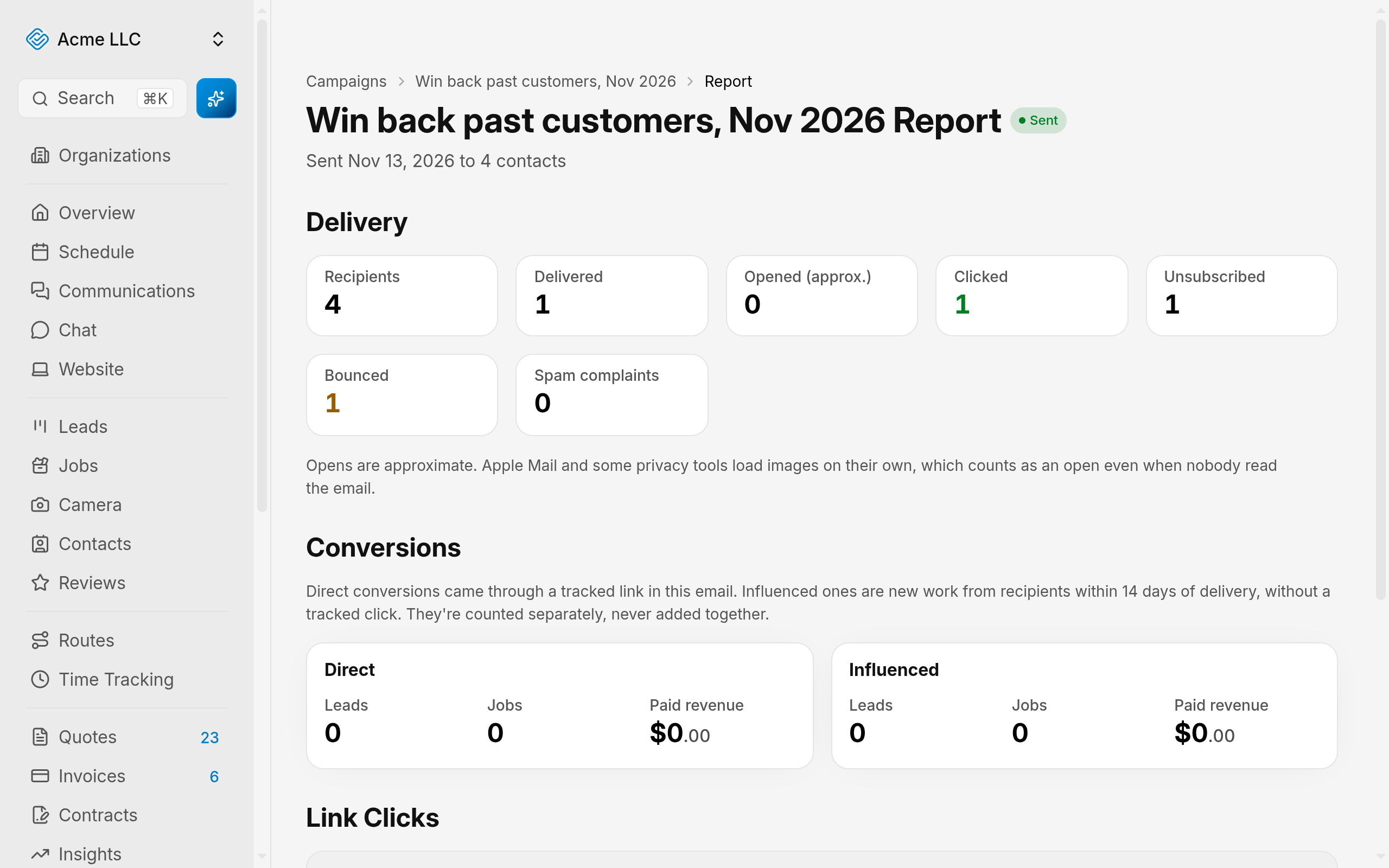
The report shows how a sent campaign performed, from deliveries and clicks to the work it brought back. It opens from any campaign that is no longer a draft, and it lists the contacts to follow up with. Campaigns are introduced in Introduction to Campaigns, the email is built in Send an Email Campaign, and it goes out from the address set up in Set Up Email Sending.
Read the report
Each sent campaign has its own report, opened from that campaign's editor.
- Click View report in the editor header, or in the banner of a sent campaign.
The View report button appears once the campaign is no longer a draft.
Follow up with a contact who clicked
People to Follow Up With lists contacts who clicked a link and have not asked for a quote or booked a job since. The section is at the bottom of the report.
- Find the contact in People to Follow Up With. Each row shows the last click time and links to the contact's phone and email.
- Click Add follow-up task.
- The button appears only with schedule edit access and the scheduling feature.
The task is titled "Follow up with" the contact's name, and it is dated today. Its notes hold the click time, the phone, and the email. The button then reads Task added.
Check each email
Email Activity lists every email in the campaign with its latest status. It sits under Delivery on the report.
- Pick a status in the status filter, such as Bounced, Clicked or Unsubscribed.
- Search by name or email address to find one contact.
- Select a row to open Email Details.
Email Details shows the campaign, the subject the contact received, and every delivery update, open and click in order. A bounce shows the reason the receiving server gave.
Note
Opens and clicks made by mail servers or security tools are marked Automatic.
See why people unsubscribed
Unsubscribed counts people who opted out of marketing campaign emails. Invoices, quotes, receipts and appointment emails still go to these contacts.
When a campaign has unsubscribes, Why People Unsubscribed summarizes the reasons people selected. Reasons are optional. Select View unsubscribed emails to open Email Activity with the Unsubscribed filter already applied.
See every sent email
Sent Emails lists the emails from every campaign in one place, with the same filters and Email Details.
- Open Campaigns.
- Click Sent emails.
- Pick a campaign in the campaign filter to see only its emails.
Email addresses appear only for members with access to contacts.
To compare unsubscribes across campaigns, click Unsubscribes in the Campaigns header instead. Understand Unsubscribes explains that page.
What the report counts
- Delivery shows Recipients, Delivered, Opened (approx.), Clicked, Unsubscribed, Bounced, and Spam complaints.
- Delivered counts emails the receiving server accepted. An email it accepted and then bounced counts as Bounced, not Delivered.
- Bounced counts emails that never reached the inbox: the address doesn't exist, or the receiving server blocked the email and never accepted it.
- Unsubscribed counts people who opted out of marketing campaign emails from this campaign. Invoices, quotes, receipts and appointment emails still go to them.
- Opened (approx.) is approximate. Mail apps that block images hide some real opens, and a privacy tool that loads images on its own can count as one. Opens that Apple Mail Privacy Protection or a security scanner make on their own are left out. A click always counts as an open.
- Work From This Email shows leads, jobs and revenue collected in two groups. One counts work from people who clicked a tracked link in the email. The other counts new work from recipients within the attribution window, without a tracked click. The two are counted separately and never added together.
- The default attribution window is 14 days. The report states the window used for each campaign.
- Link Clicks lists each tracked link with its clicks and the number of people who clicked it.
Related Guides
- Understand Unsubscribes See which campaigns lead people to opt out of marketing emails, and the reasons they give.
- Introduction to Campaigns See how a campaign moves from draft to sending to a report of the work it brings back.
- Set Up Email Sending Choose the address your campaigns send from, confirm it, connect your domain with a guided checklist, and add your business address to the footer.
Still Need Help?
If an article did not cover it, send us a message and a real person will get back to you.